PIPEDRIVE
18 min
INTRODUCTION :
This document describes how users can connect their Pipedrive account to MYFUNDBOX to automatically synchronize deals, customers, and products for seamless subscription billing and payment management.
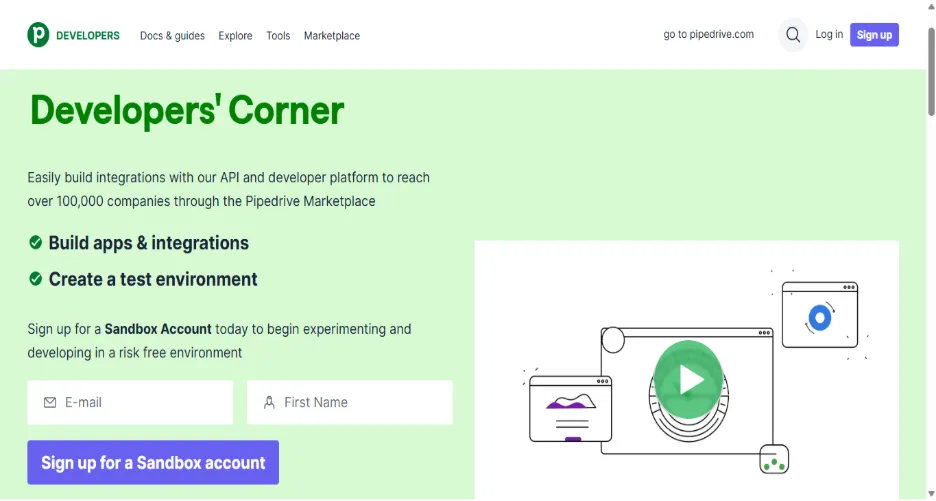
STEP 1: Access Pipedrive Developer Hub
- Navigate to Pipedrive Developer Hub
- Sign in using your Pipedrive administrator credentials
STEP 2: Create an Application
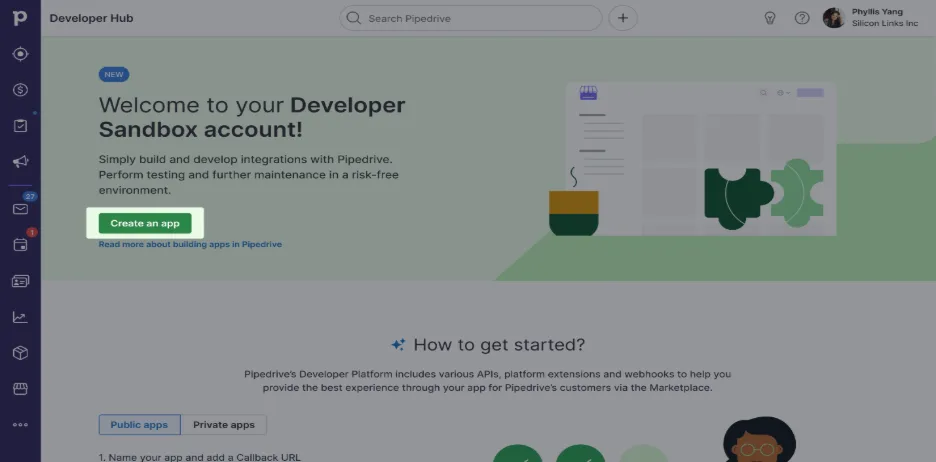
- In Developer Hub, click "Create an app"
- Select the appropriate app type:
- Public app
- Private app
App name : Enter your “APP NAME”
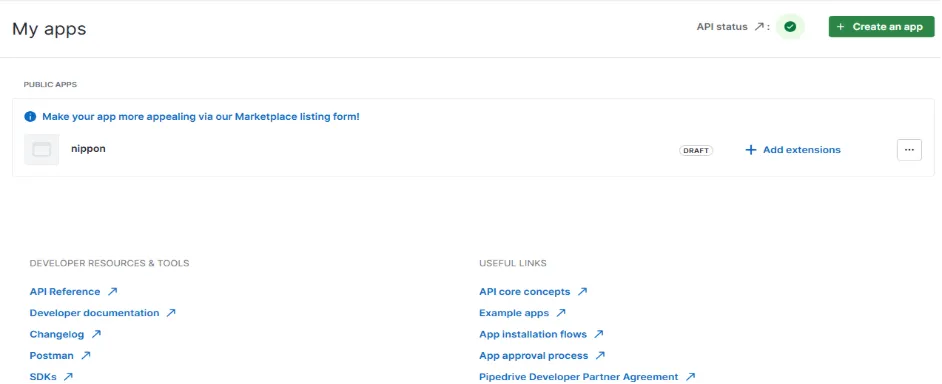
- OAuth Callback
URL: Enter https://app.myfundbox.com/PipedriveOAuthResponse.jsf
- Click the green "Save" button
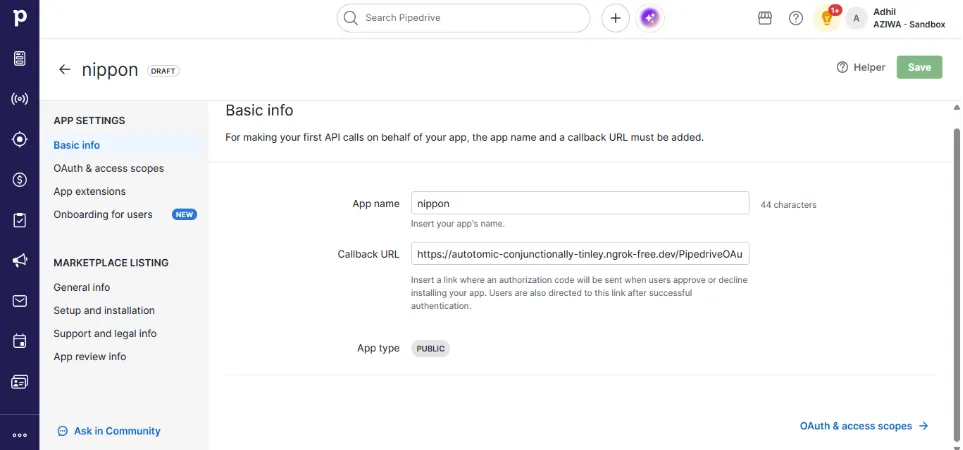
STEP 3: Configure OAuth & Access Scopes
- Navigate to the "OAuth & access scopes" tab
- Locate and securely save the following credentials:
- Client ID
- Client Secret
- ⚠️ IMPORTANT: Store these credentials securely. The Client Secret can be refreshed but the Client ID cannot be changed.
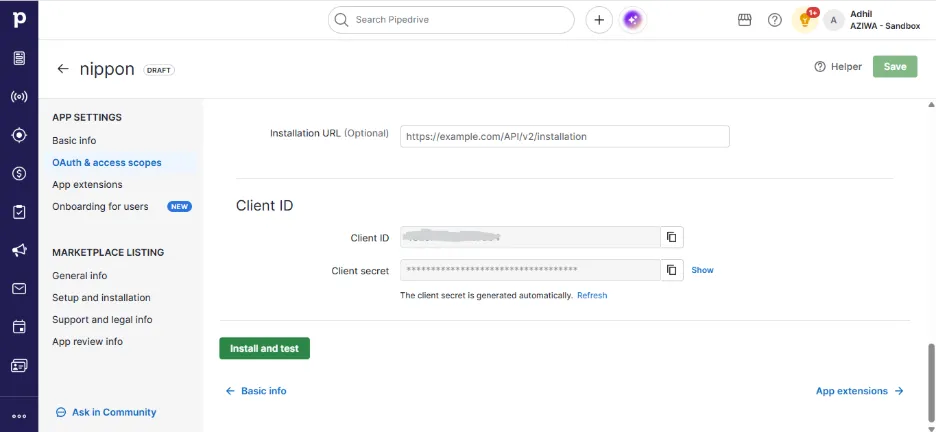
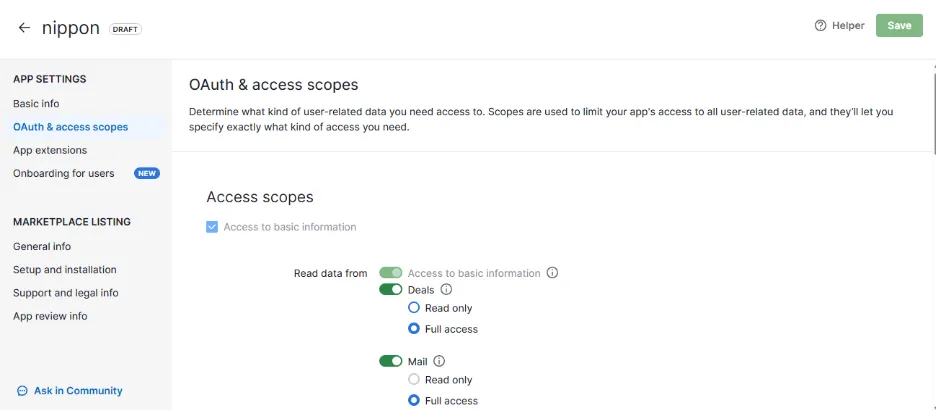
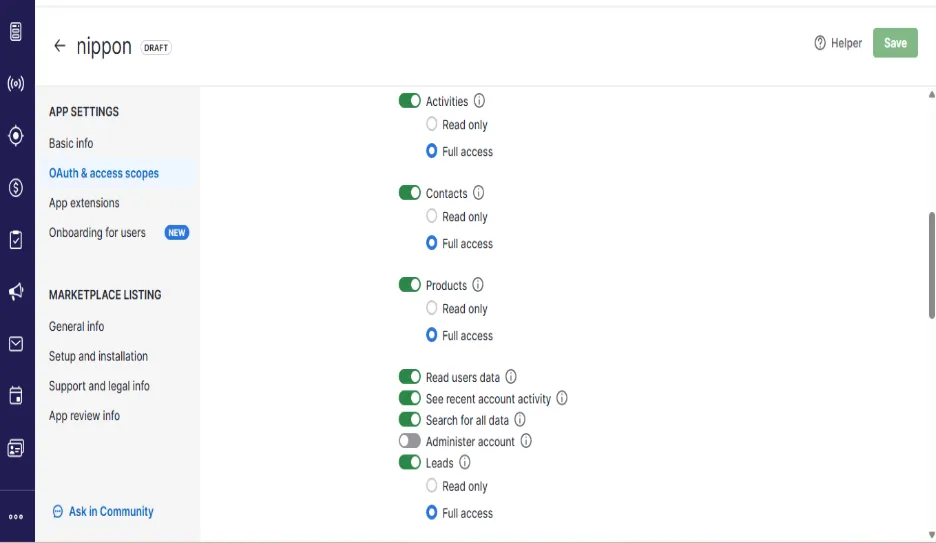
- In the Scopes section, select the following required permissions:
- deals:full - Full access to deals
- contacts:full - Full access to contacts
- products:full - Full access to products
- Note: These scopes allow MYFUNDBOX to read deal information, access contact details for customer creation, and sync product information for subscriptions.
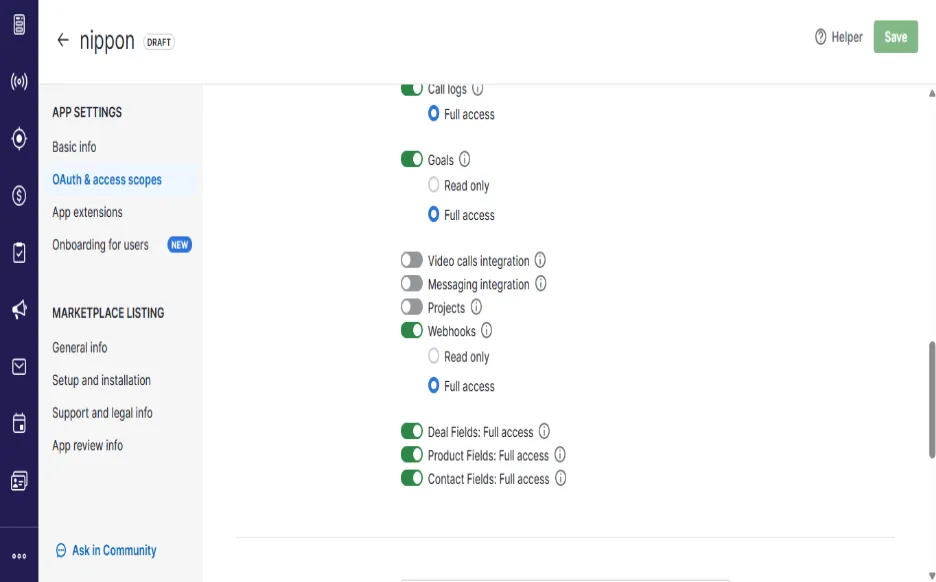
STEP 4: Configure API Token
- In your main Pipedrive account (not Developer Hub), navigate to: Click your profile → Personal preferences → API tab
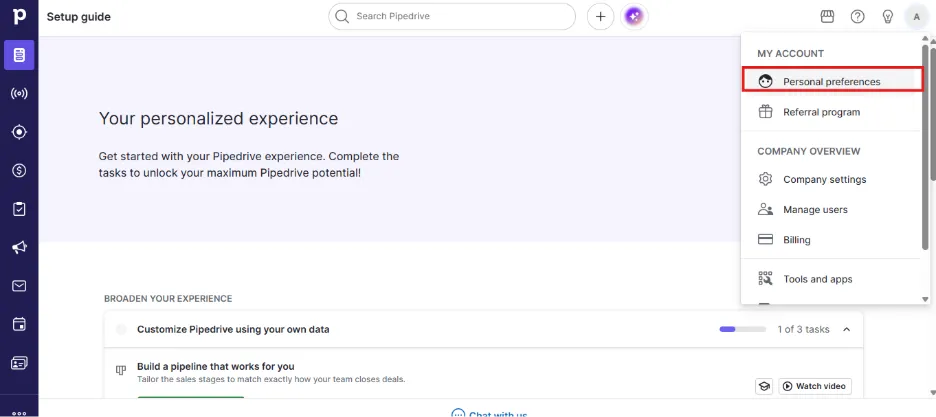
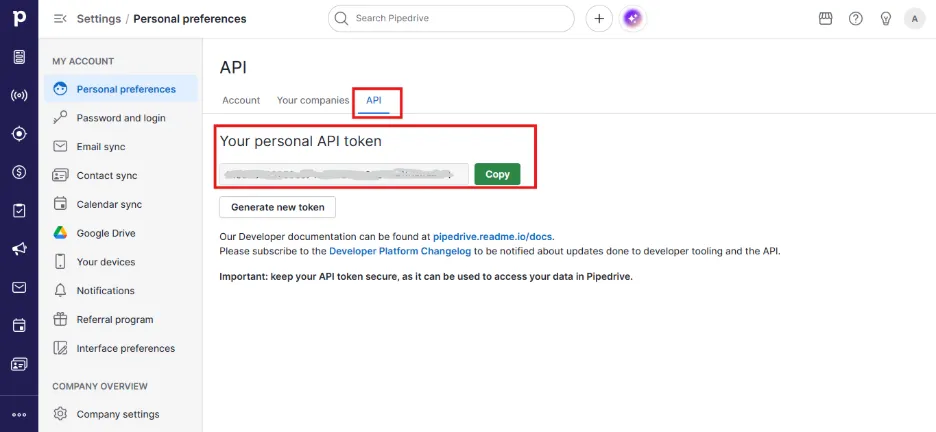
- Locate and securely save the API token.
STEP 5: Connect Pipedrive in MYFUNDBOX
- Sign in to your MYFUNDBOX account
- Navigate to Configuration → Integrations → Pipedrive
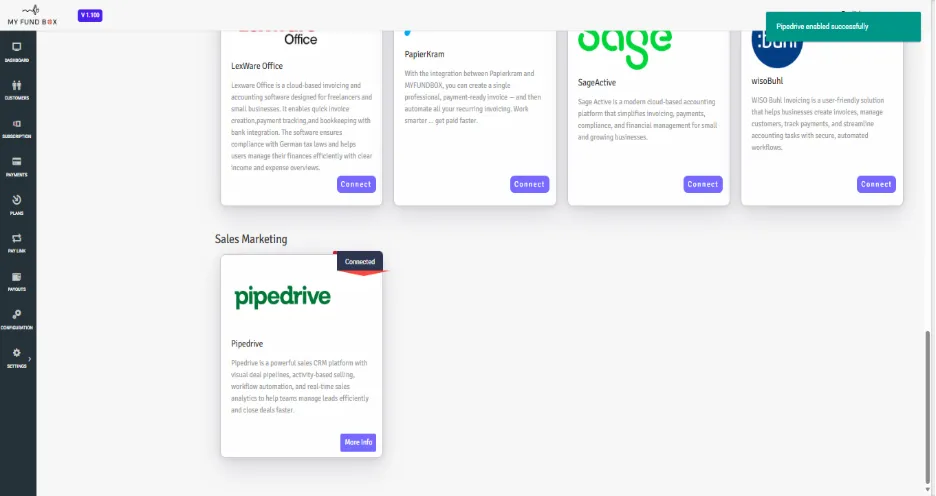
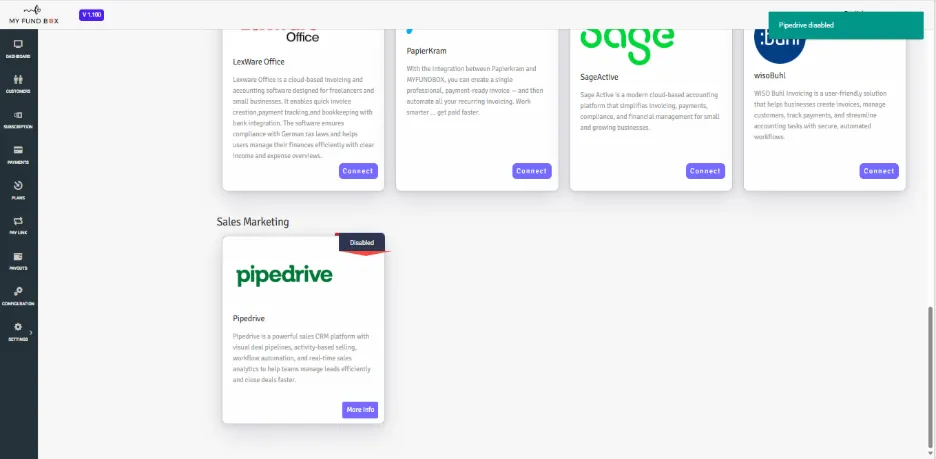
- The Pipedrive integration will be seen below the Accounting Software. It is visible under the heading of Sales Marketing.
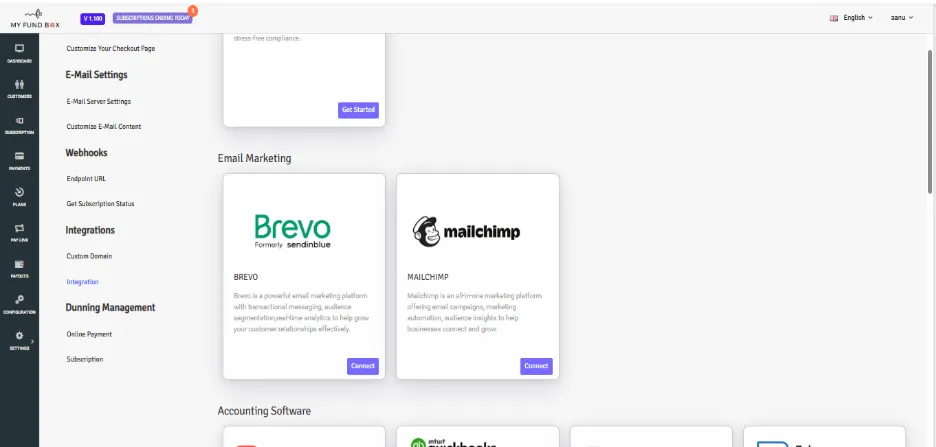
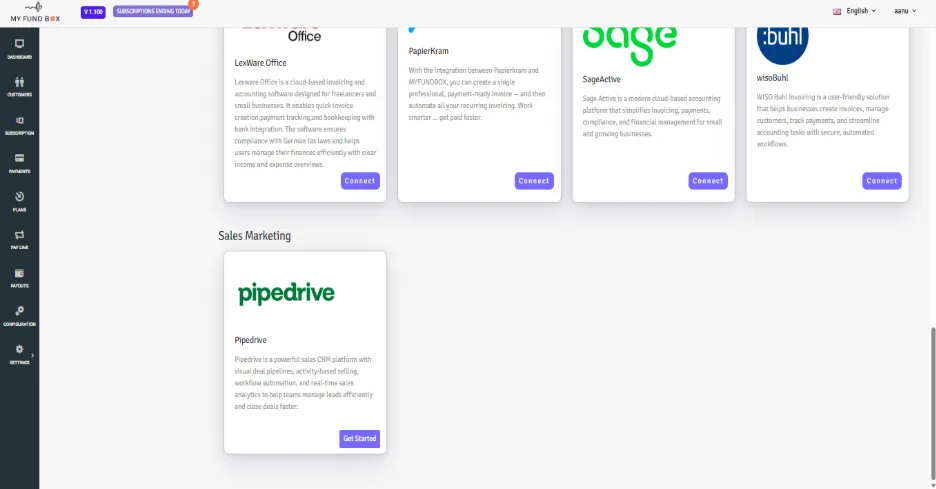
- Click the "Get Started" button
- In the connection dialog, enter:
- Client ID (from Step 3)
- Client Secret (from Step 3)
- API token (from Step 4)
- Click "Connect"
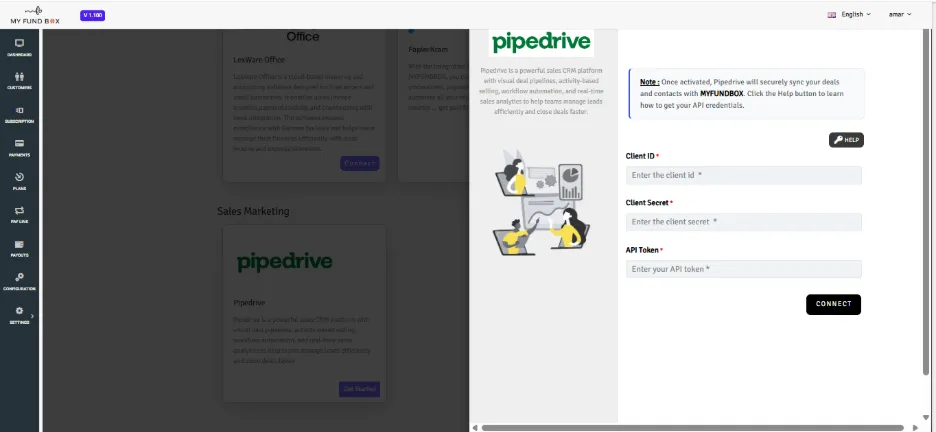
STEP 6: Authorize the Connection
- After saving credentials, you will be automatically redirected to Pipedrive's OAuth authorization page
- Review the requested permissions (deals, contacts, products)
- Click "Allow and Install or Continue to the app" to complete the authorization. You will be redirected back to MYFUNDBOX.
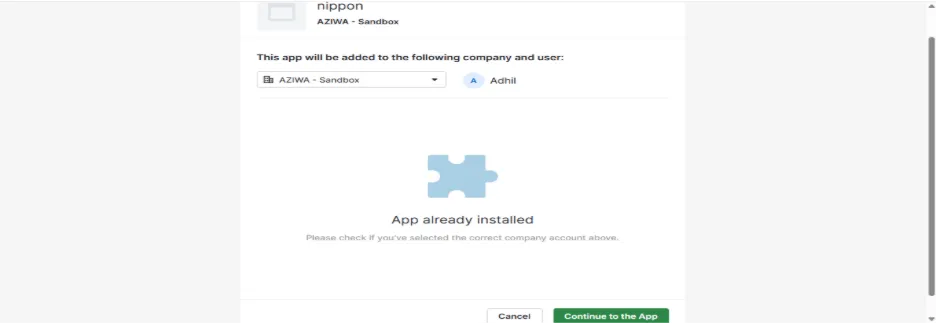
✅ SUCCESS : After authorization, the Pipedrive integration module will display "Connected" status.
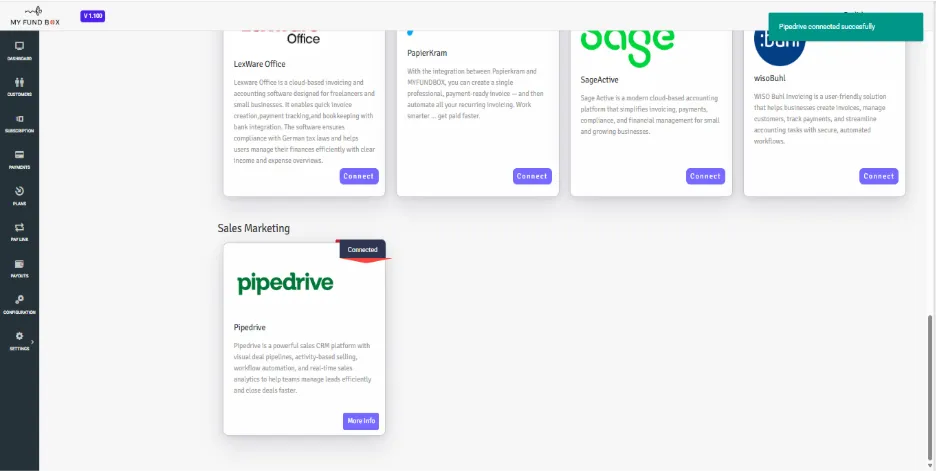
6.1 Stored Credentials
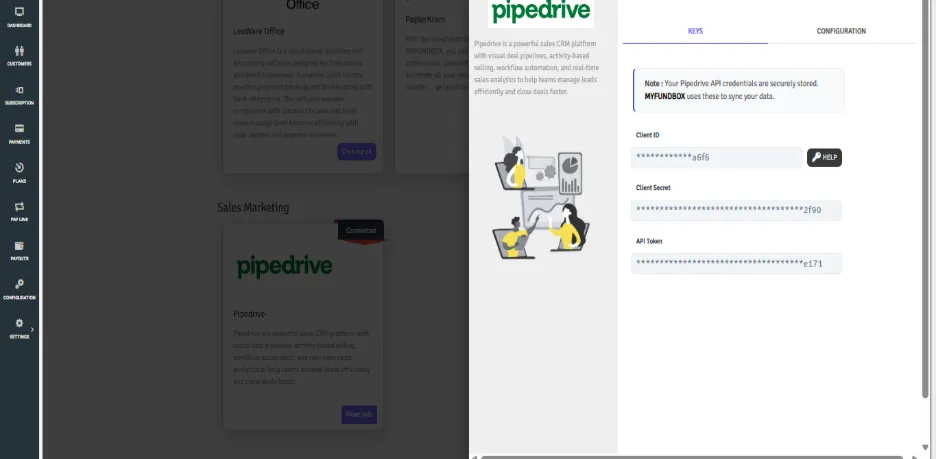
- Navigate to Configuration → Integrations → Pipedrive. Click the "More Info" button
- You can see the last 4 characters of your client id, client secret, API token which are in masked state. You can see it in Keys Tab.
6.2 Enable / Disable Integration
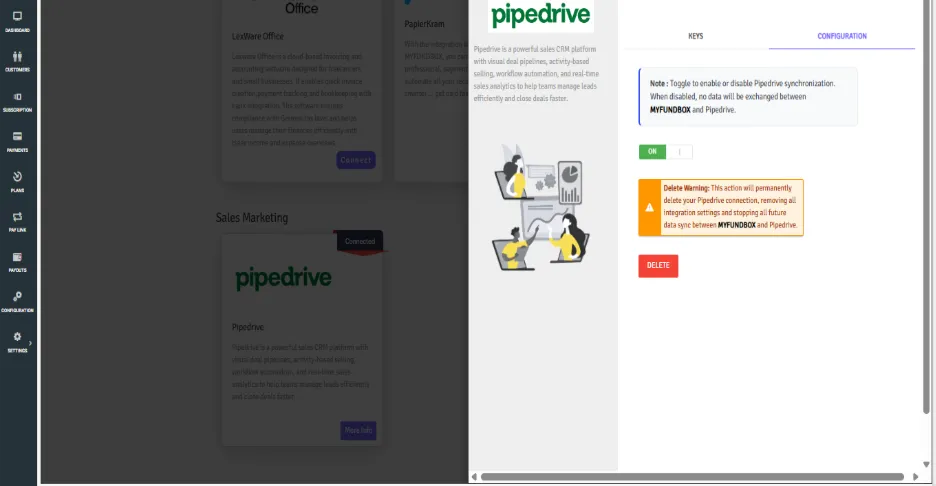
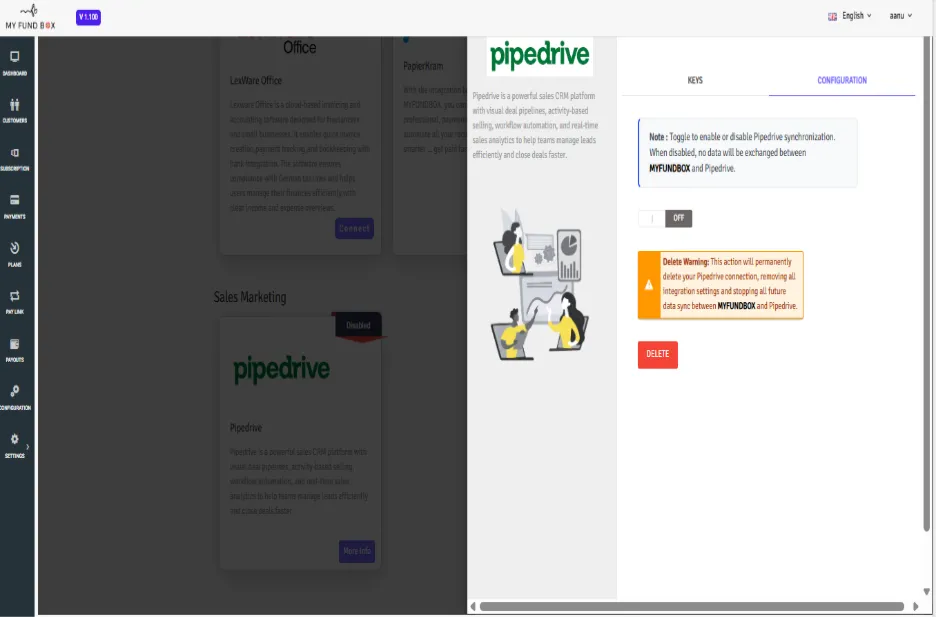
- Navigate to Configuration tab. Use9 the toggle to enable/disable Pipedrive.
- This temporarily pauses synchronization without removing stored credentials when you Disable Pipedrive.
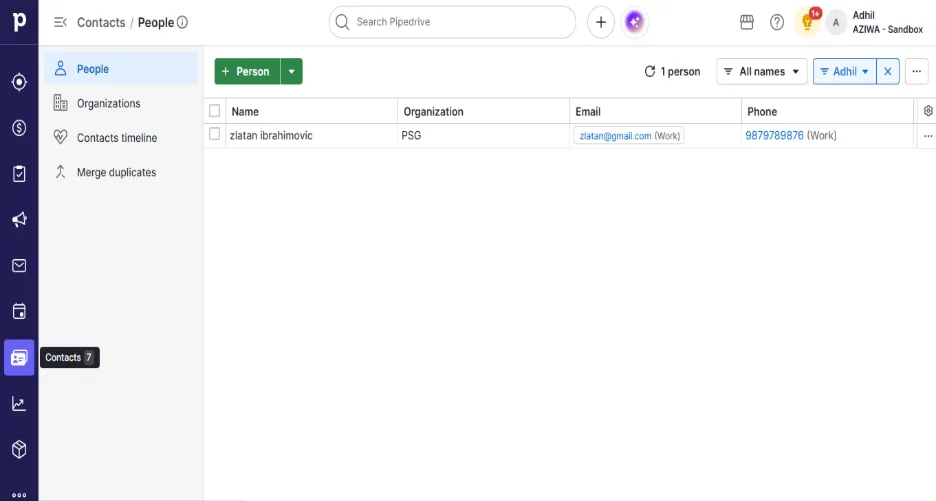
STEP 7: How to create Customers in Pipedrive account
- Login into your Pipedrive account.
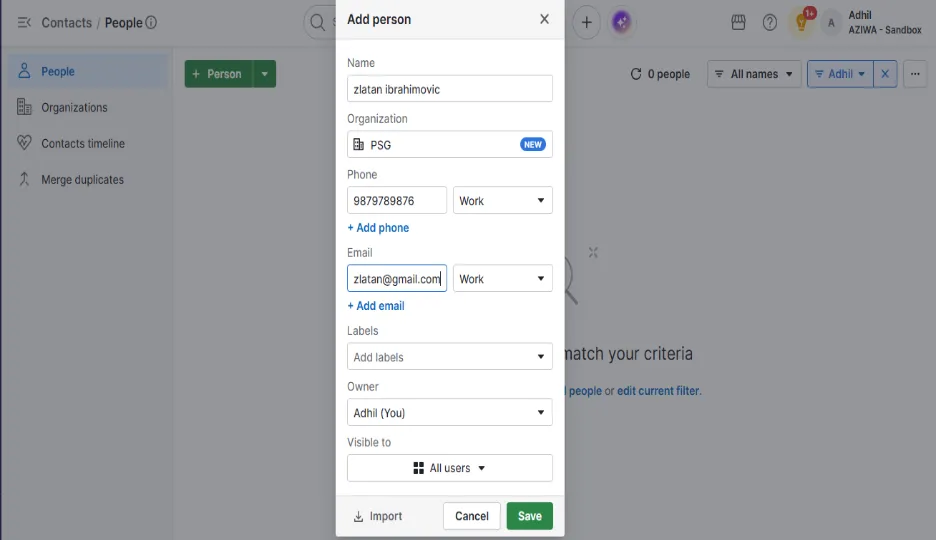
- In the left side corner you can see the Contacts module in seventh section. You can add contacts using add person.
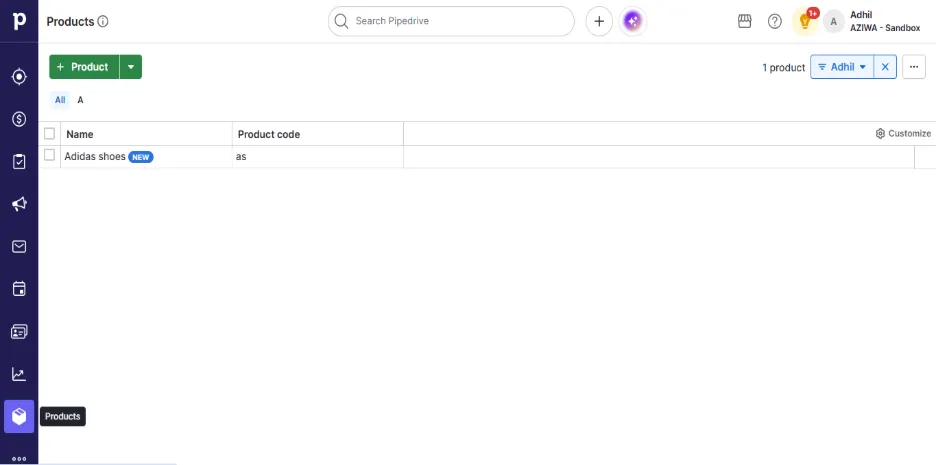
STEP 8: How to create products in Pipedrive account:
- Login into your Pipedrive account.
- In the left side corner you can see the Products section. You can add contacts using add products.
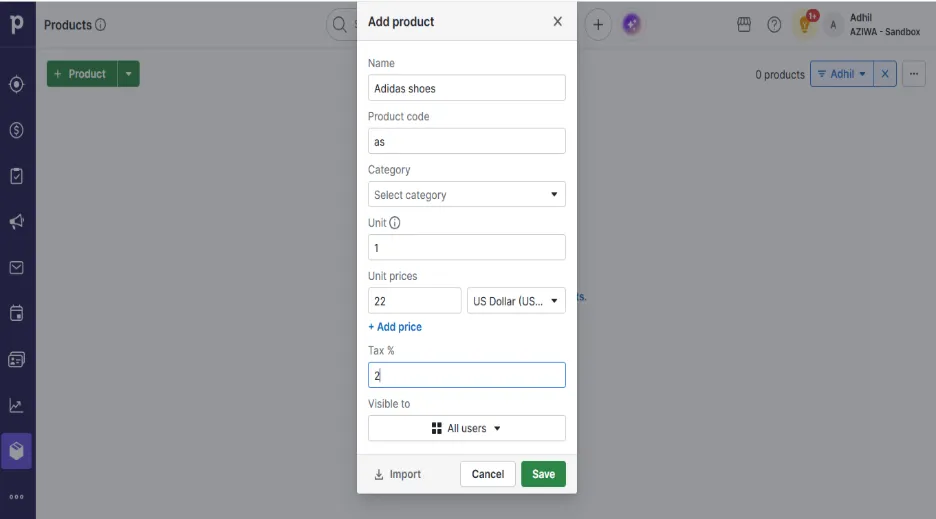
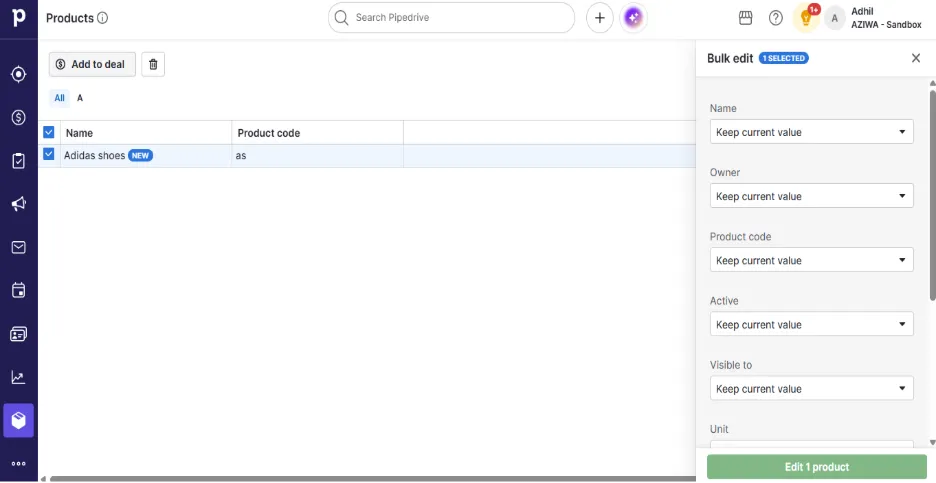
STEP 9: How to add Customer and products into a deal
- Click the Product and click Add to deal.
Enter the Contact name
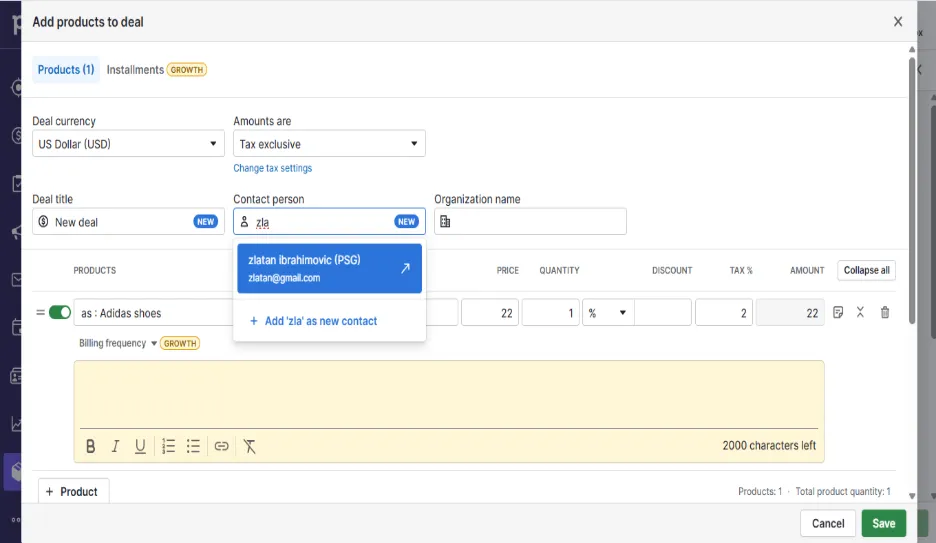
- You can see the Contact and the Products inside the deal.
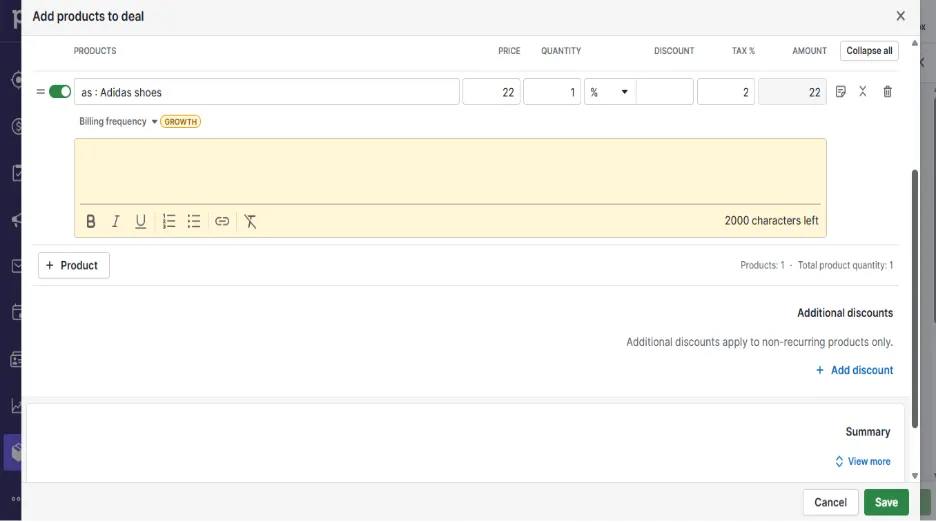
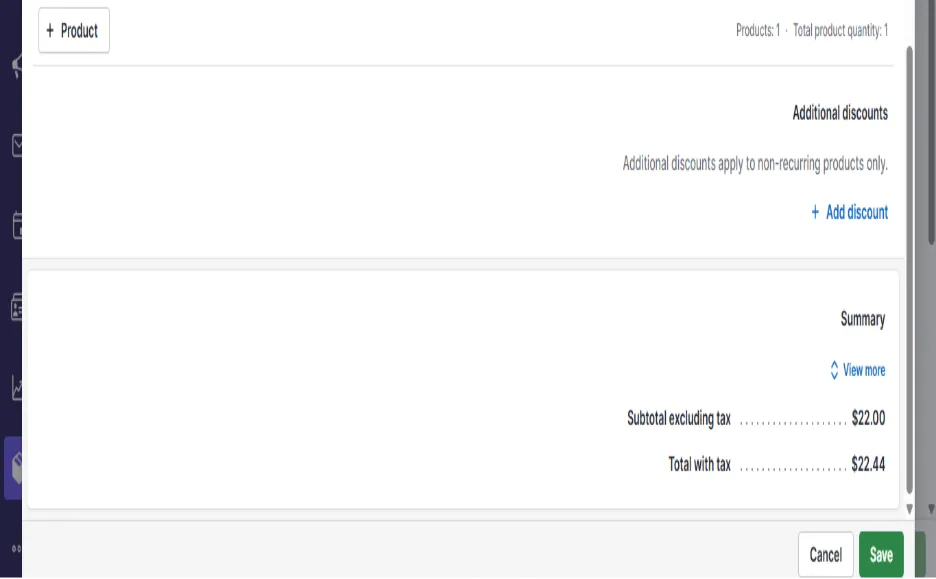
Click Save. You can see the deal named as “New deal” in Deals module
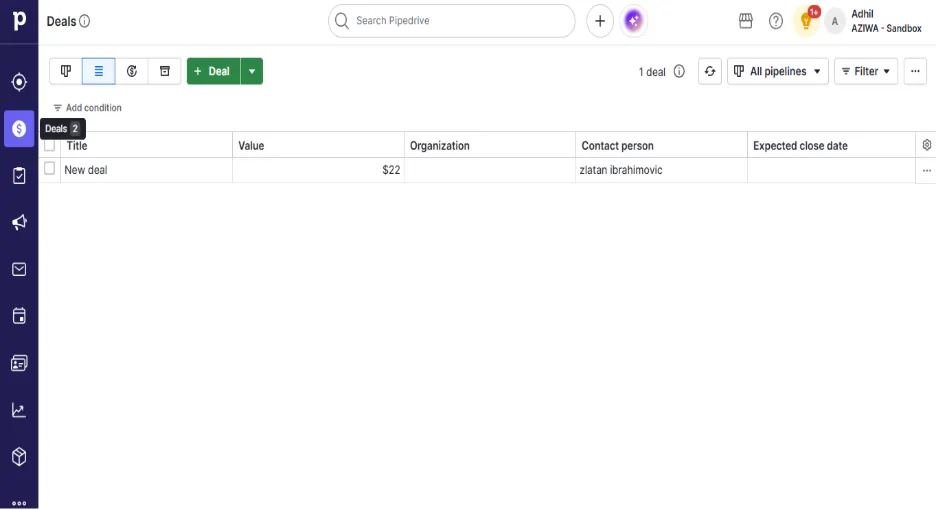
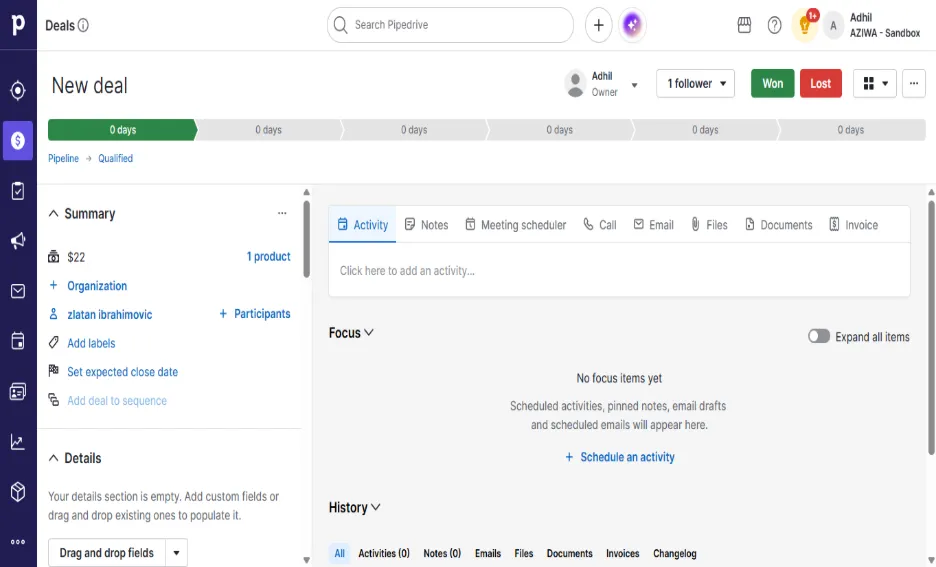
Step 10: How Sync Works
10.1 When a Deal is Marked as "Won" inside the deal
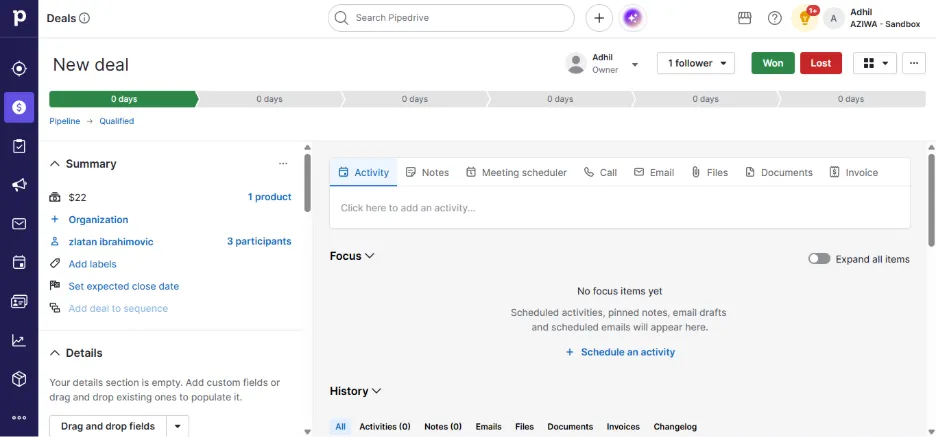
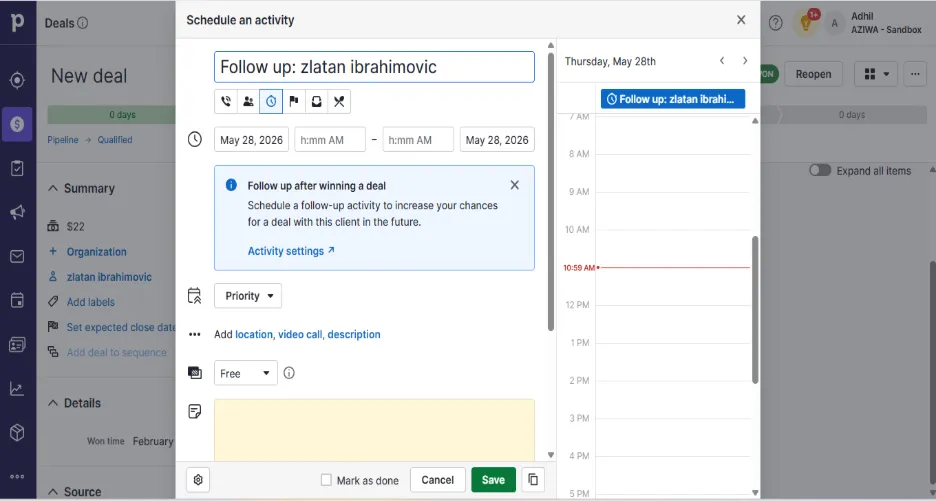
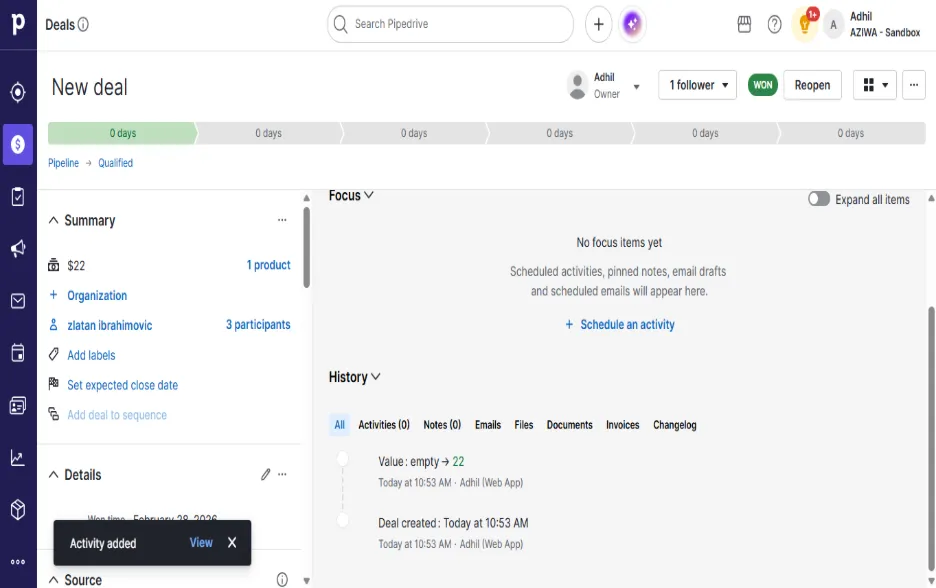
Customer along with the participants are created in MYFUNDBOX.
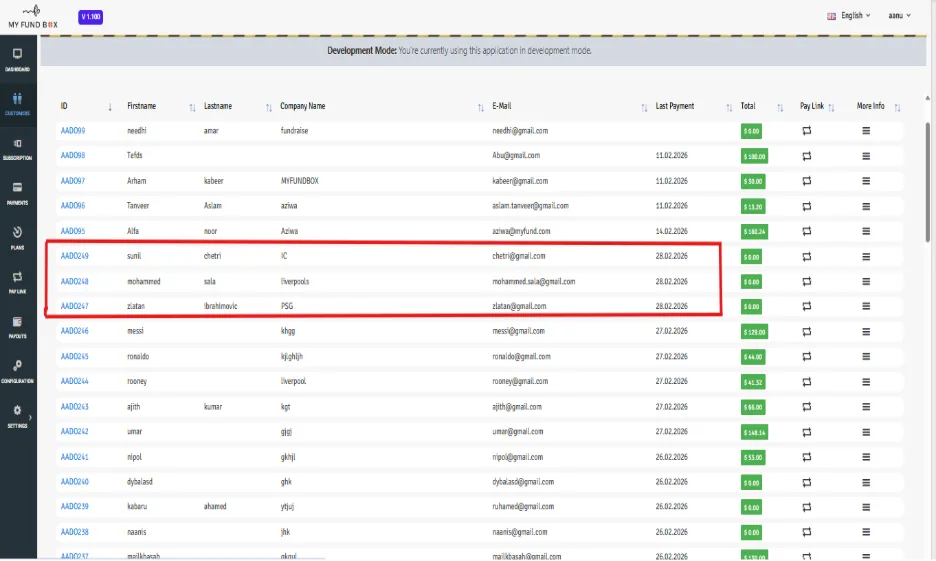
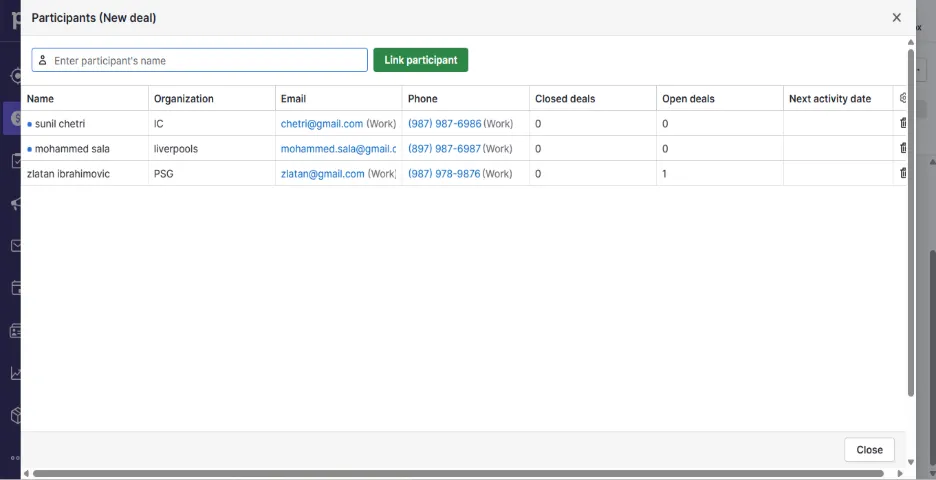
- You can add participants after creating a deal which is below the contacts inside the deal
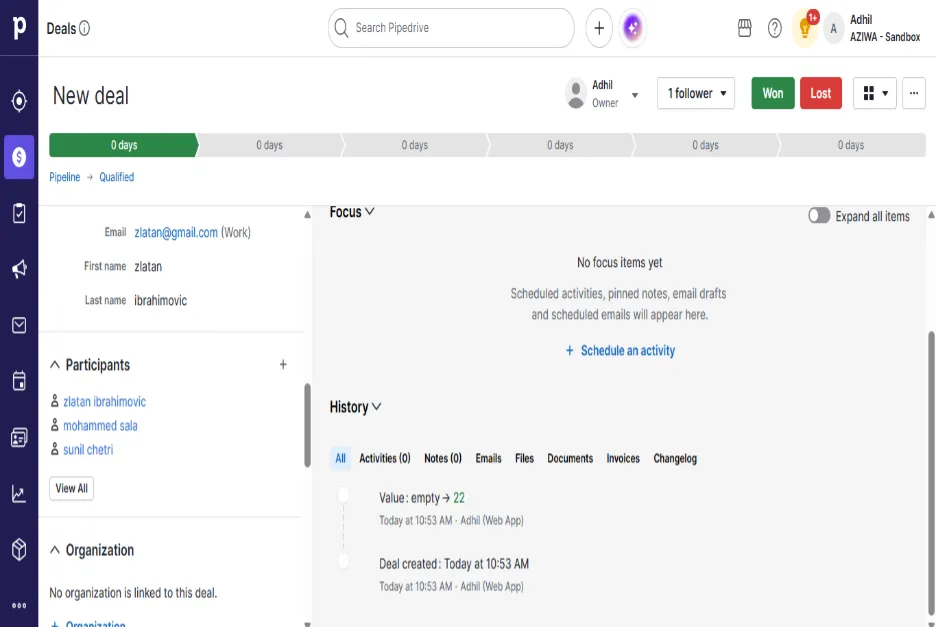
- Products are created in MYFUNDBOX.