RAZORPAY
7 min
RAZORPAY PAYMENT GATEWAY
INTRODUCTION:
This document describes how a user can create an Account in Razorpay and get Keys and credentials to connect to MYFUNDBOX product
CONFIGURATION / USER GUIDE:
Step 1: Create a Razorpay Account
- Visit https://razorpay.com/
- Click Sign Up
- Complete the business registration and KYC verification process (as shown in the figures Fig. 1.1 & Fig. 1.2).
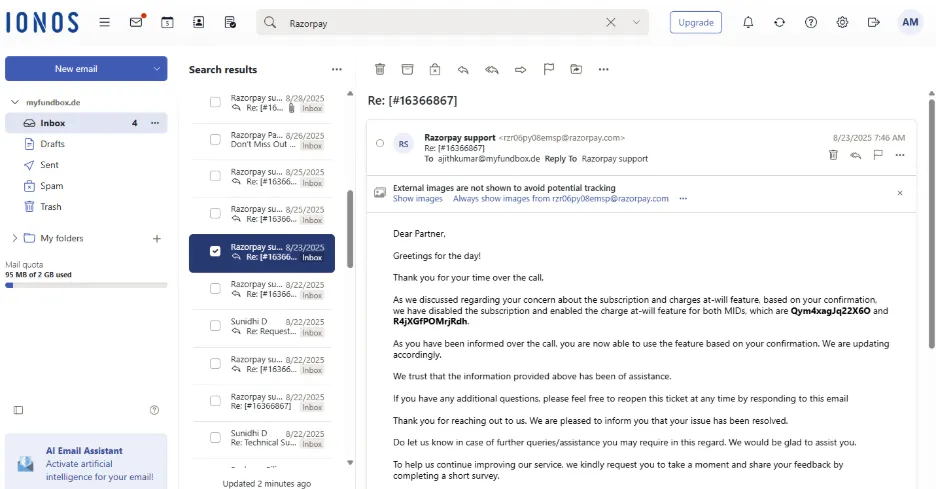
- Contact support to enable the charge-at-will method (mandate) for recurring processes. You can get confirmation through mail from Razorpay (as shown in the figure Fig. 1.5).
Step 2: Generate API Keys and Copy Keys
- Log into your Razorpay.com Dashboard
- Go to Account and Settings > API Keys (as shown in the figure Fig 1.3).
- Generate the live keys (as shown in the figure Fig. 1.4).
- Copy the following (as shown in the figure Fig 1.4):
- ✅ Key ID
- ✅ Key Secret
🔐 Keep these keys secure. Do not share it with anyone.
Fig 1.1
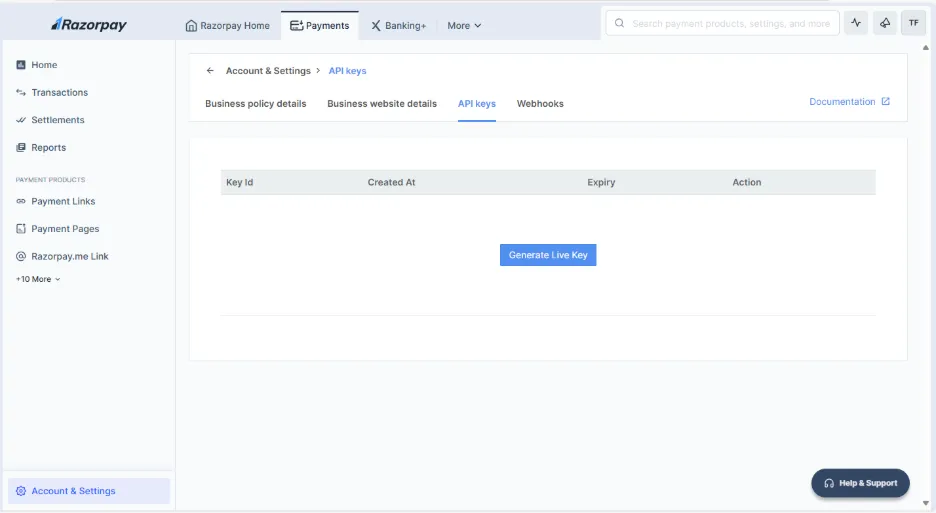
Fig 1.2
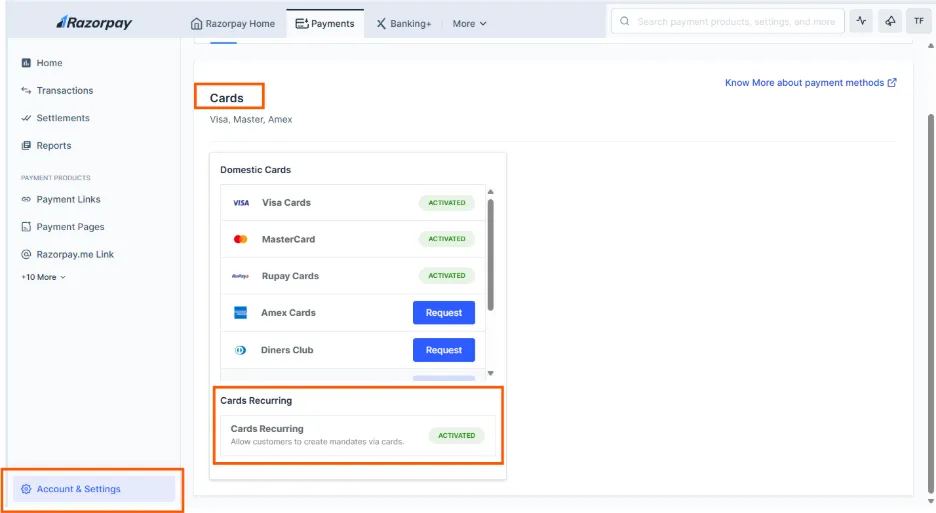
Fig 1.3
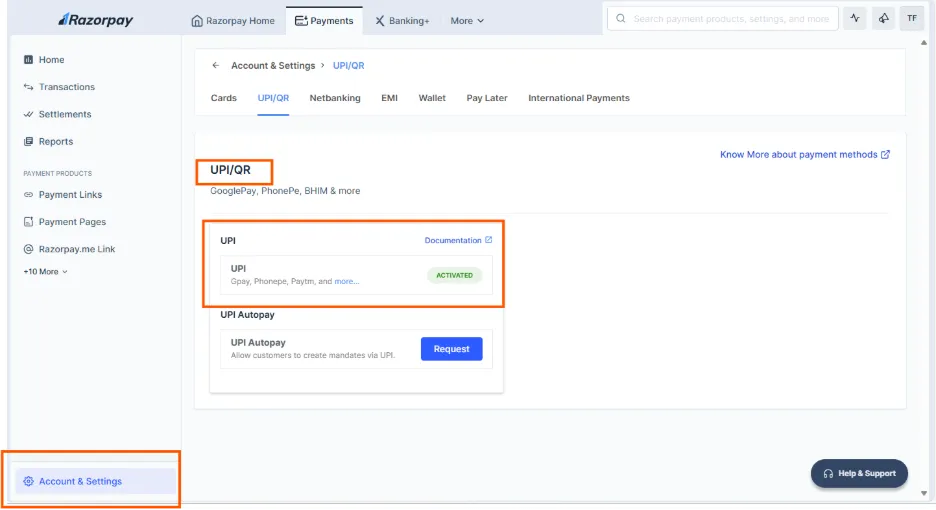
Fig 1.4
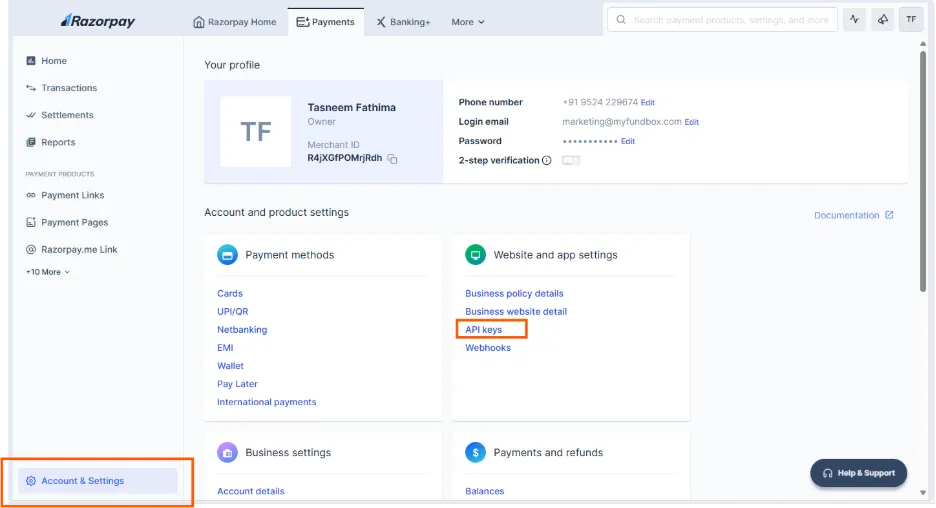
Fig 1.5
Step 3: Connect on MYFUNDBOX
- Log in to your MYFUNDBOX account
- Navigate to Settings > Payment Gateways
- Click Connect on Razorpay (as shown in the figure Fig. 1.6).
- Paste the following:
- Key ID
- Key Secret
- Click Save (as shown in the figure Fig 1.7).
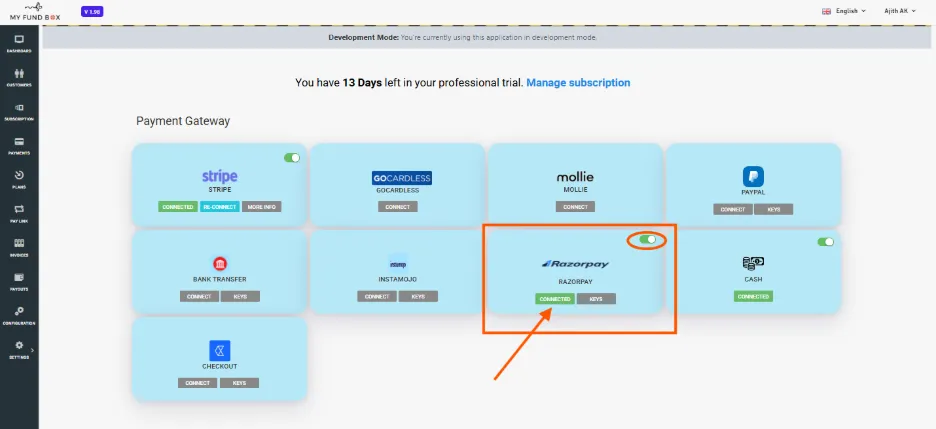
- Your account is now securely connected to Razorpay (as shown in the figure Fig 1.8).
- You can also enable and disable Razorpay (as shown in the figure Fig 1.8).
Fig 1.6
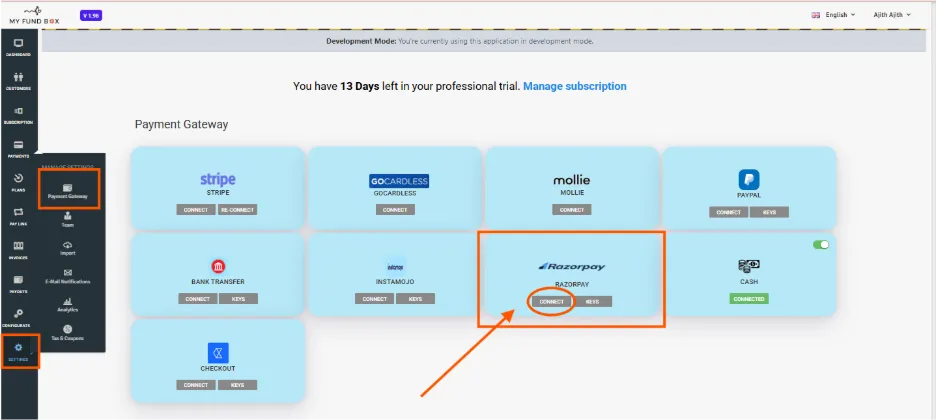
Fig 1.7
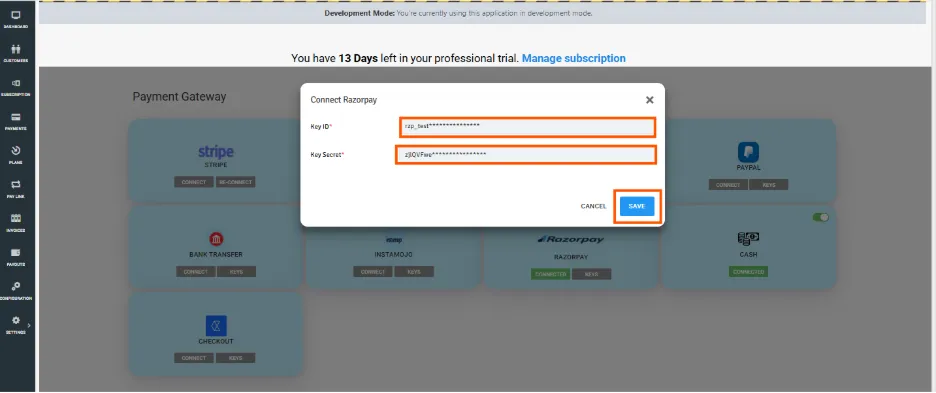
Fig 1.8
Payment Method Switch or update to a new card or new UPI ID.
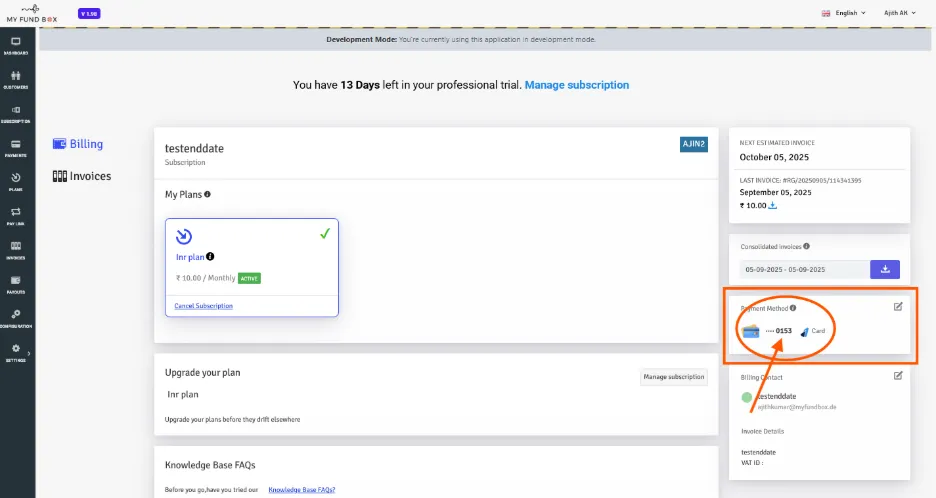
- Go to Customer Portal → select My Plans → click the Payment Method Pencil Icon (as shown in Fig 1.9).
- For Razorpay Card and UPI, there is no direct mechanism to update a new card or UPI ID for ongoing recurring payments.
- To update with new values, you need to make a small payment: ₹1 for Card or ₹3 for UPI (as shown in Fig 1.10).
- Click the update button to make payment for the payment method switch for Razorpay or update new values.
- After successful payment, the new value will update and charges will be done from the new updated value (as shown in Fig 1.11).
Fig 1.9
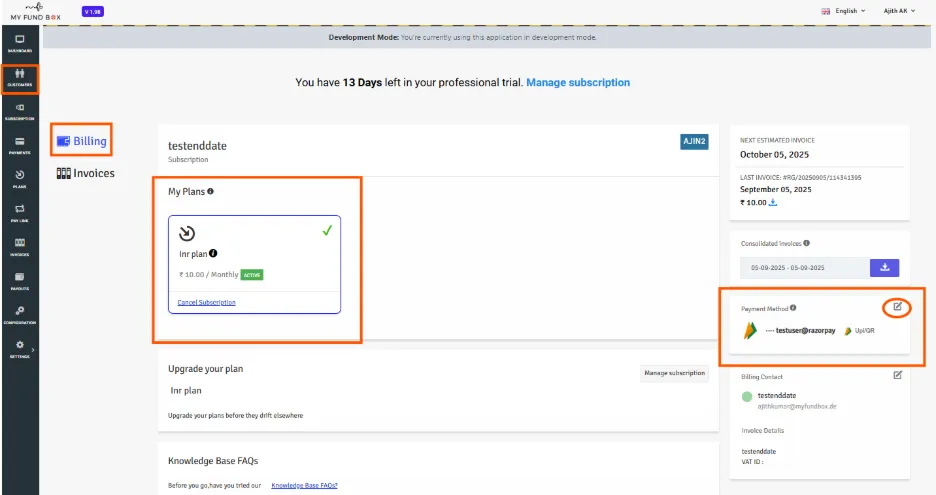
Fig 1.10
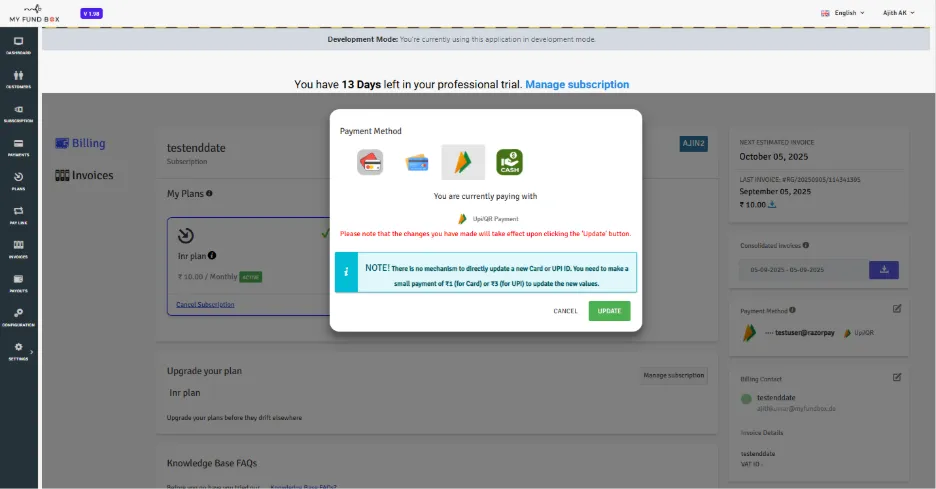
Fig 1.11