Mailchimp
10 min
MAILCHIMP NEWSLETTER
Step 1: Create Platform Account
- Go to Mailchimp Pricing Plans | Get Started Today | Mailchimp → Click "Sign In"
- Enter email, username, password
- Verify your email, complete the setup questions
- Your account is ready
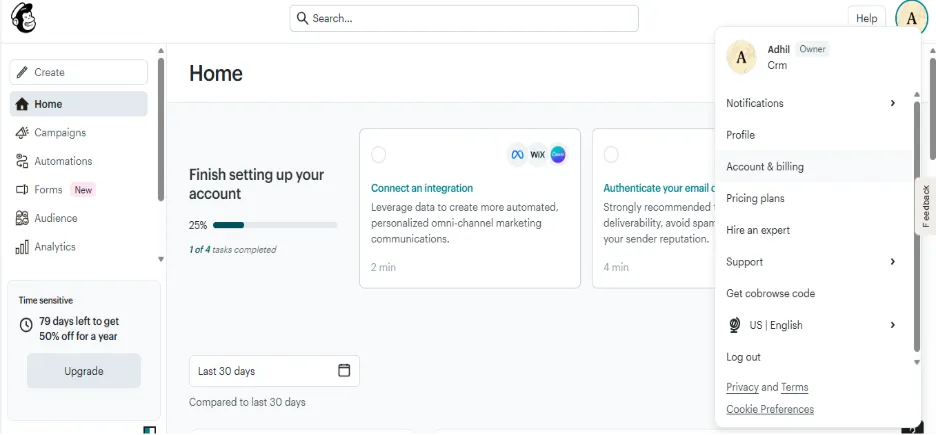
Step 2: Get Your API Key
In Mailchimp:
- Log into Mailchimp
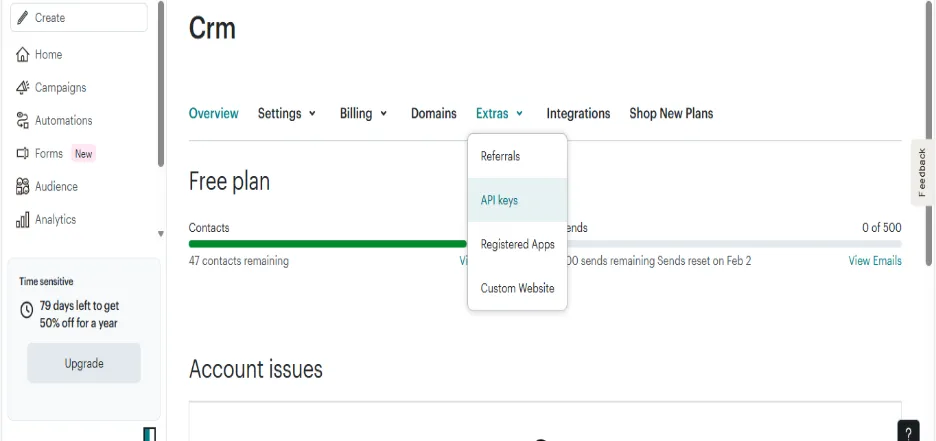
- Click profile icon → "Account & Billing"
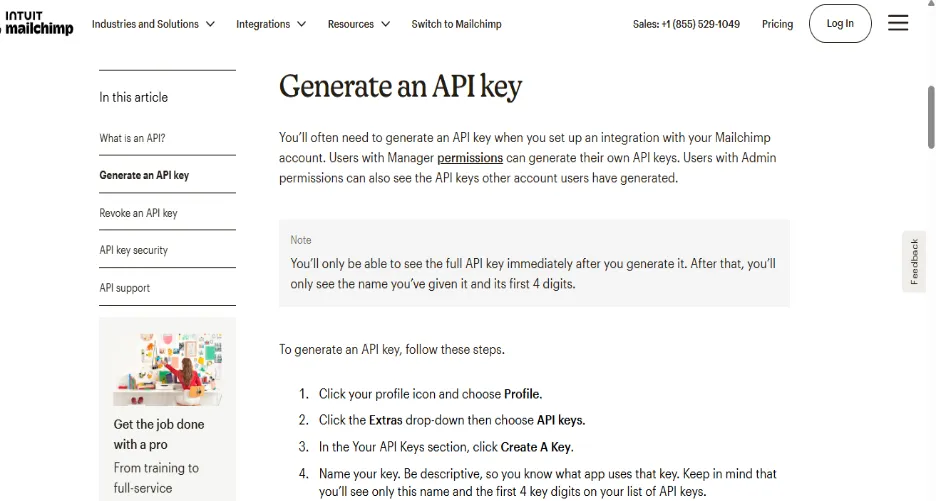
- Click "Extras" → "API Keys"
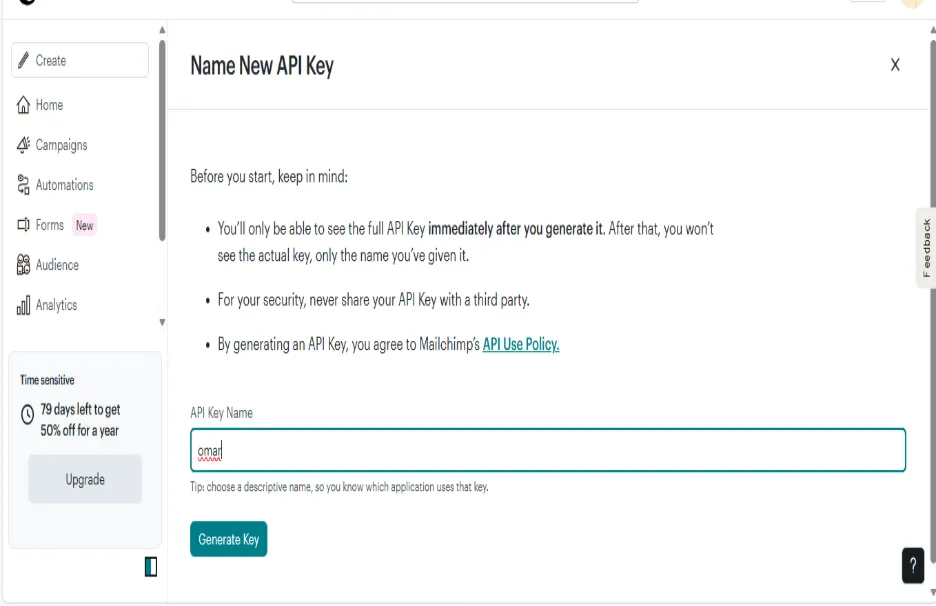
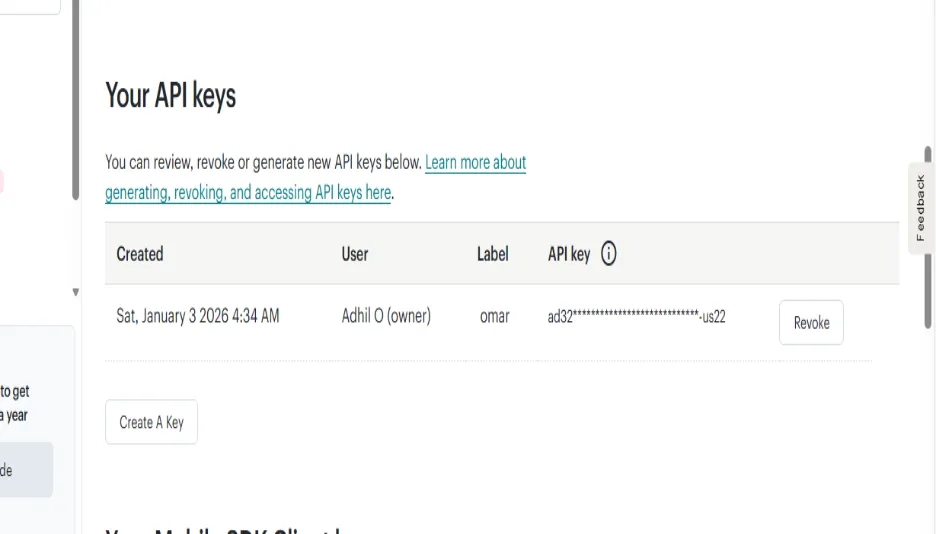
- Click "Create A Key"
- Name it:
- Click "Generate Key"
- COPY the key
Step 3: Connect to MyFundbox
- Log into your MyFundbox account
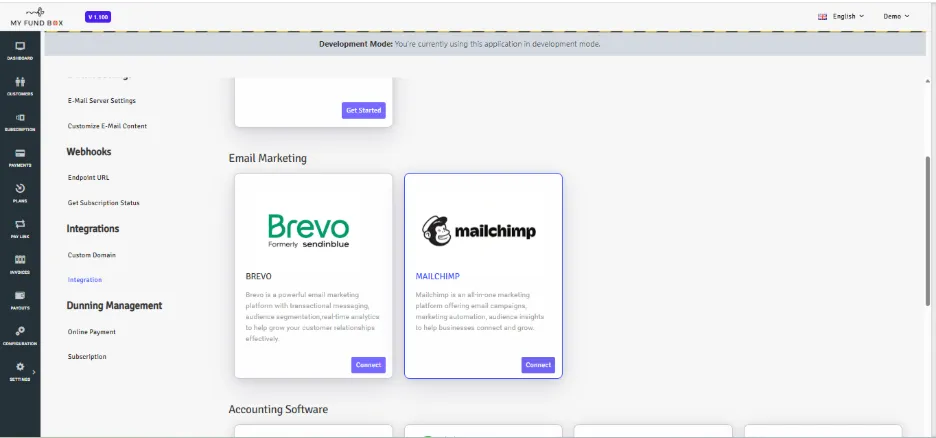
- Go to: Configuration → Integration
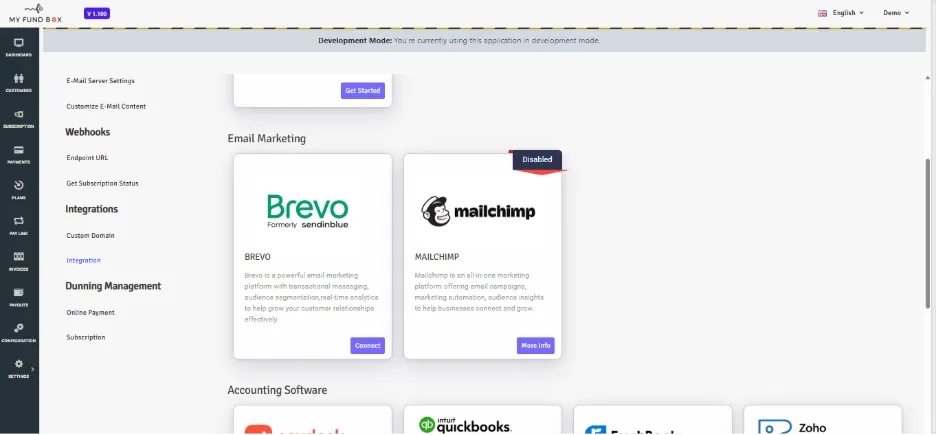
- You can see Mailchimp Newsletter in middle of the other integrations nearby Brevo Newsletter
- Click the Mailchimp connect button
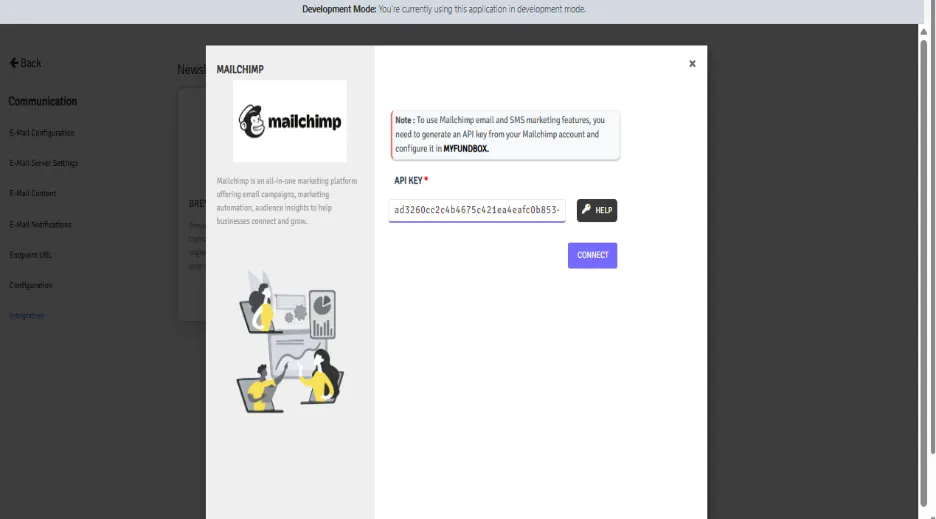
- Paste your API key in the box
- Click "Connect"
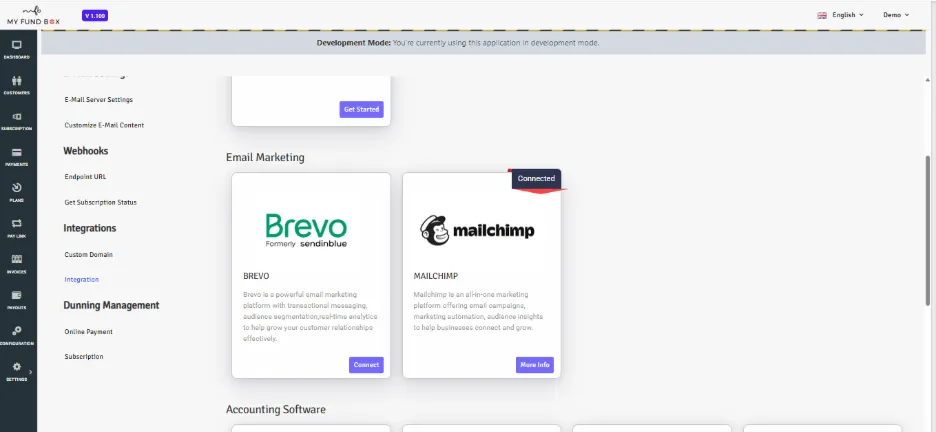
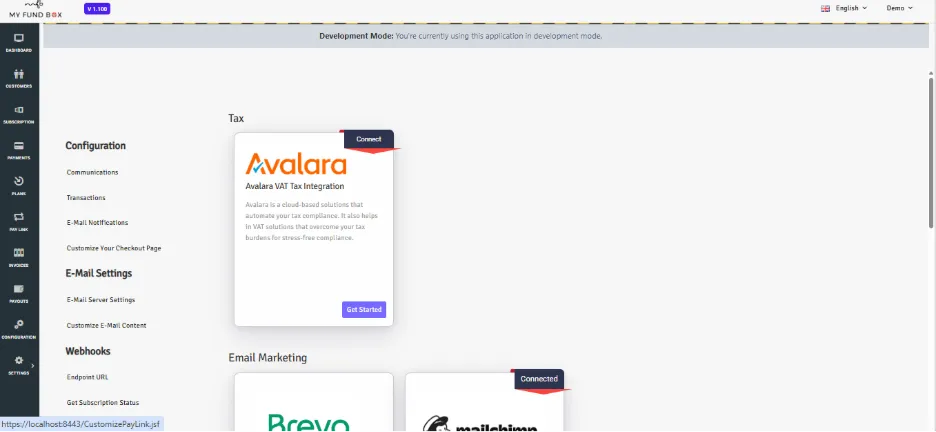
✅ Connection successful! Your dashboard now shows "Connected"

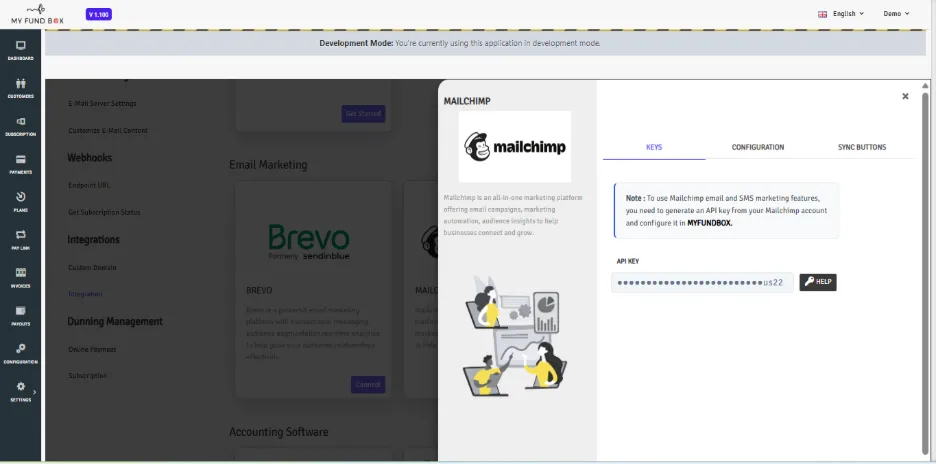
Dashboard - Three Tabs After Connection:
Tab 1: Keys
- Shows: ●●●●●●●●●●●●●●●●●●●● (your hidden API key)
: Links to Brevo/Mailchimp guides
Mailchimp API Guide :
Tab 2: Configuration
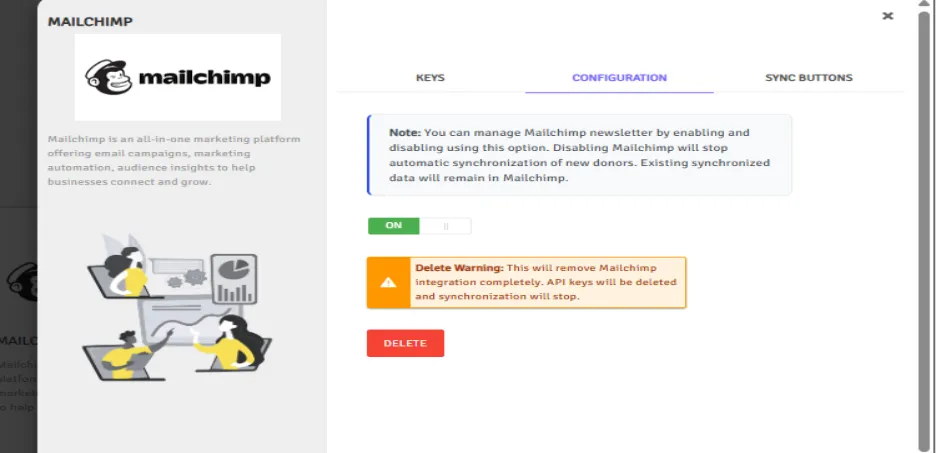
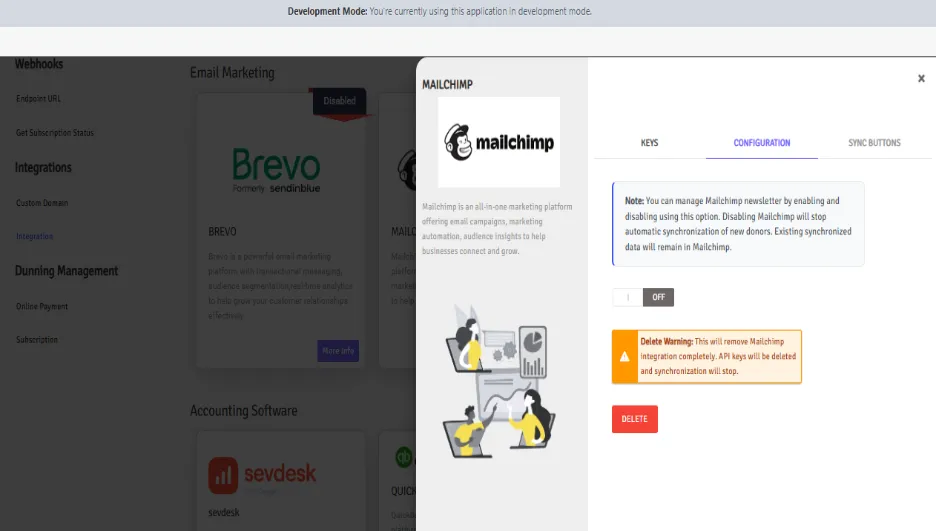
GREEN (ON) = New customers auto-sync immediately
- BROWN (OFF) = No auto-sync.
Delete Button:
- Confirmation popup appears first
Removes the connection completely
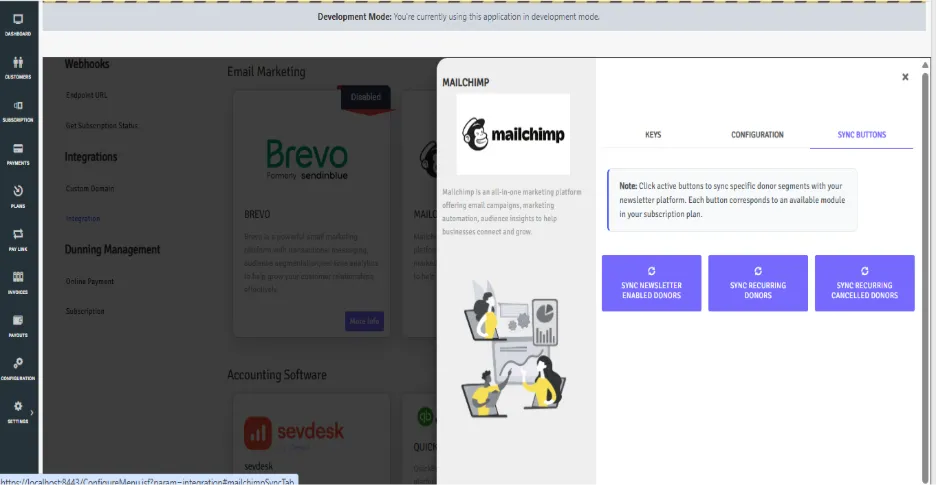
Tab 3: Sync (Visible when switch is ON) - Three Buttons:
- Sync Newsletter enabled Customers
- Customers who enabled newsletter checkbox
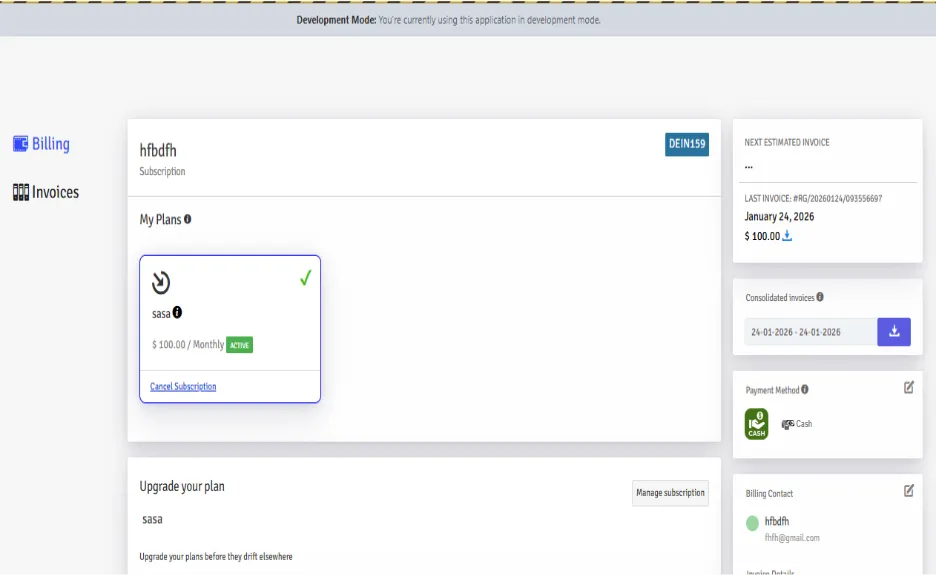
- Sync Recurring Cancelled
- Customers who stopped recurring donations
- Sync Recurring Customers
- Monthly/regular giving customers
For New Donations:
Nothing to do! System automatically sync contacts when any newsletter is enabled :
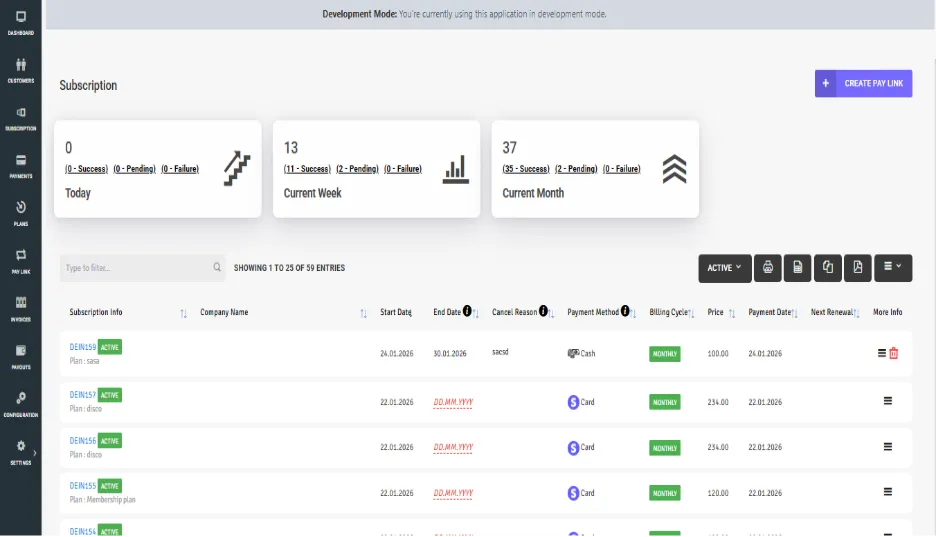
- Checks if customer opted-in for newsletter
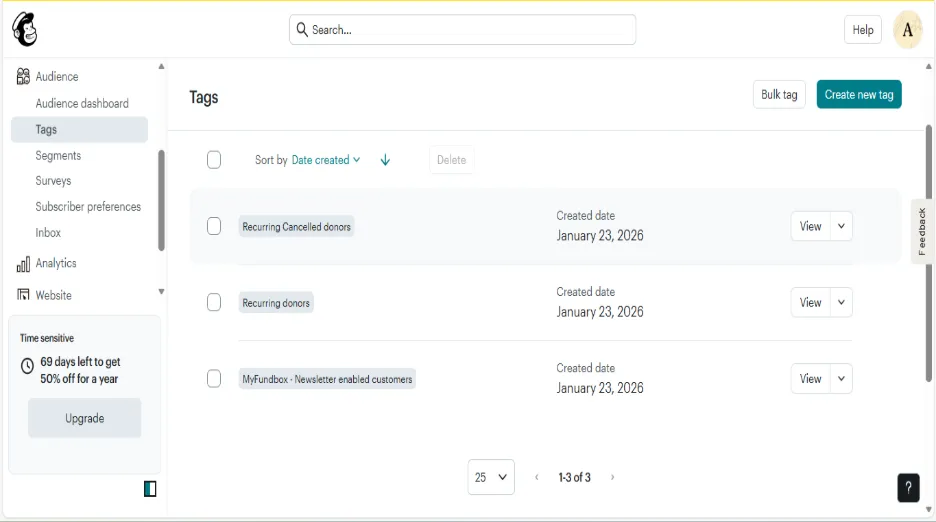
- Adds to correct lists based on donation type
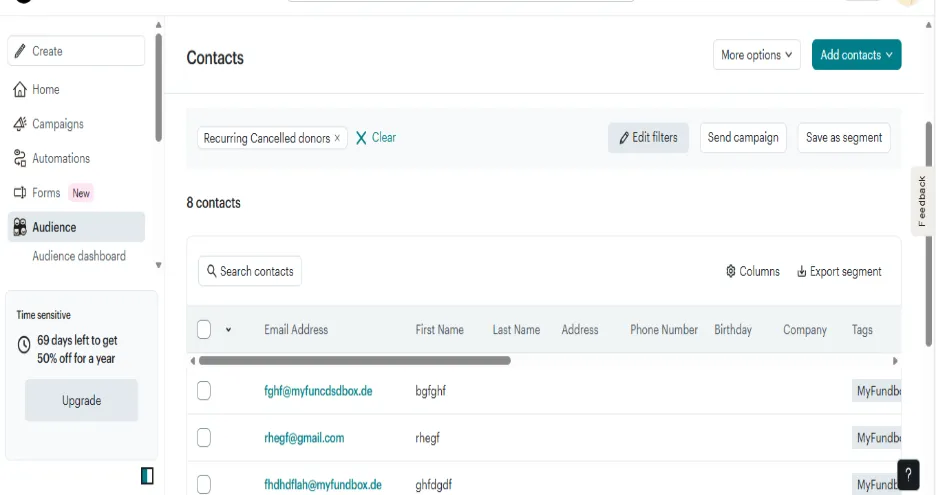
For Existing Customers:
Click sync buttons to:
- Update recently added customers
- Add customers who missed auto-sync
Important Note :
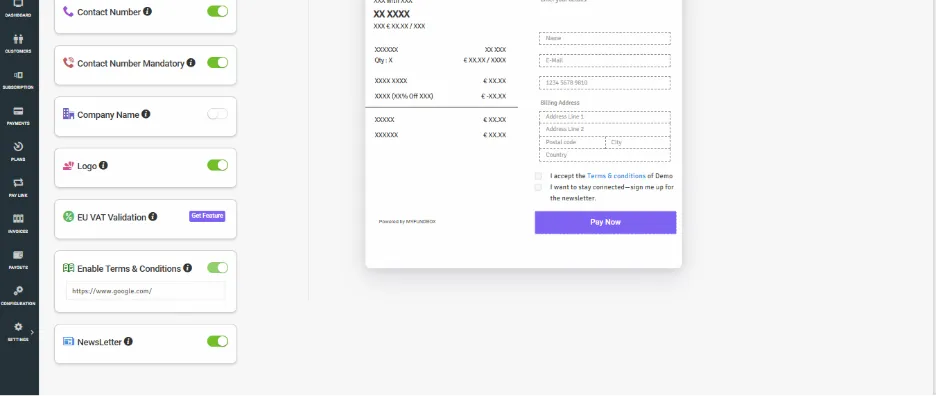
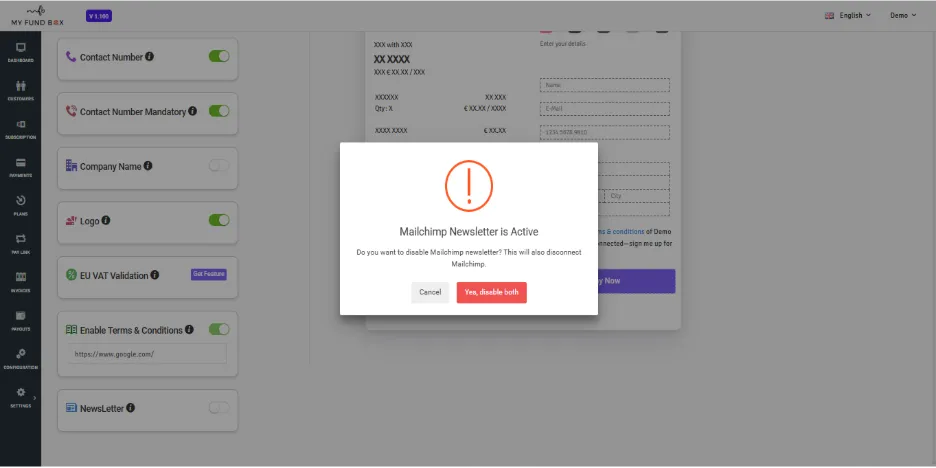
- In Customize your checkout page tab , you can see Newsletter module, it will be automatically enabled if we connected any one of the newsletter.
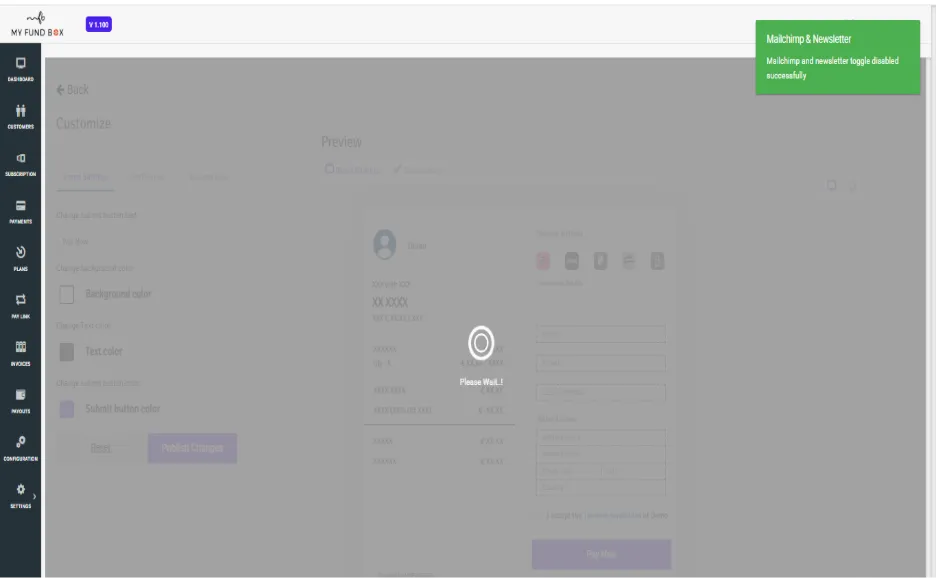
- If we disable the newsletter toggle, a warning popup will show as Mailchimp is connected.
- If we click disable button, it will disable both the toggle and the Mailchimp newsletter in the integration tab.
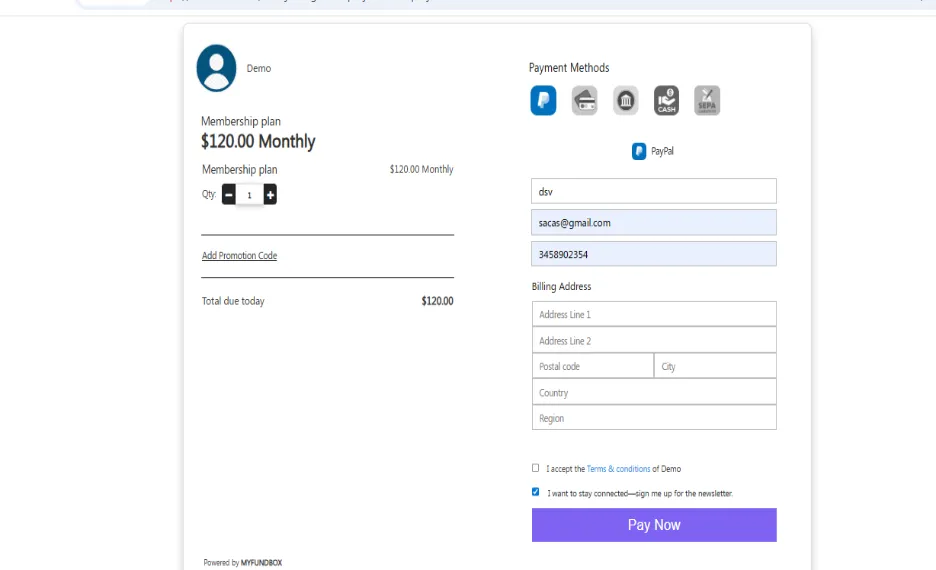
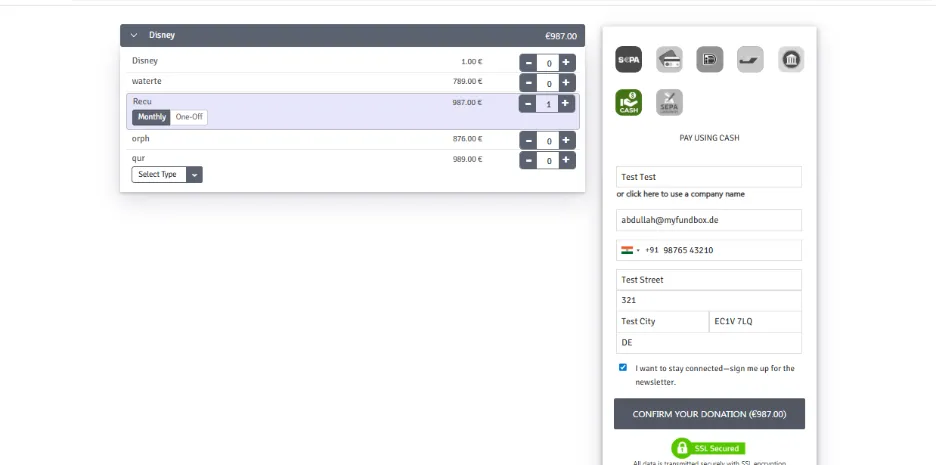
- You can see a checkbox named as “I want to stay connected – sign me up for the newsletter”. If someone checks this box and donates, he will be synced to the lists/tags.
MultipleDBox checkout page :
OVP checkout page :