DOCUSIGN
INTRODUCTION:
This document describes how User can create an Account in Hubspot software and get Keys and credentials to connect to MYFUNDBOX product.
Connect MYFUNDBOX to Docusign with credentials
Step 1: Create a Docusign Account
Visit the DocuSign Developer Portal: 👉 Docusign Developer Portal
Click Log In.
If you do not have an account, click Sign Up or Create an account and complete the registration process.
Step 2: If already having an account, Sign In
Go to: 👉 Account Login
Enter your Email and Password and click Log In.
Step 3: Create an App
Click the Admin module and Click Apps and keys from the left sidebar (as shown in Figure 1.0).
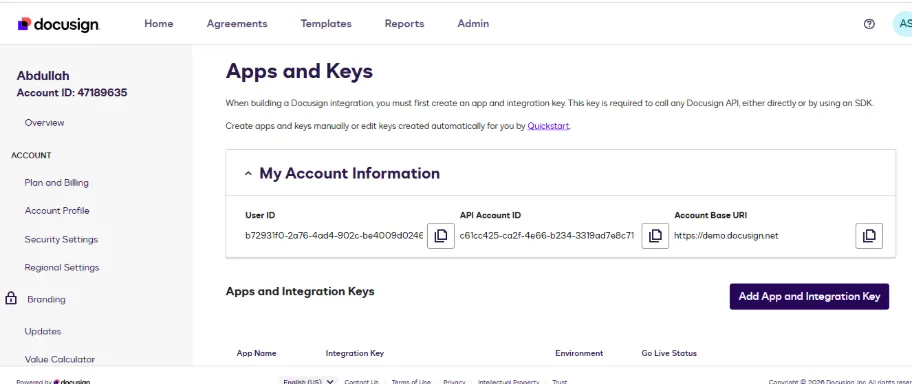
Fig 1.0
- Click Add App and Integration Key, enter your application name, and then click Create App. After the app is created, you will receive the Client ID. Here, the Integration Key acts as the Client ID (as shown in Figure 1.1).
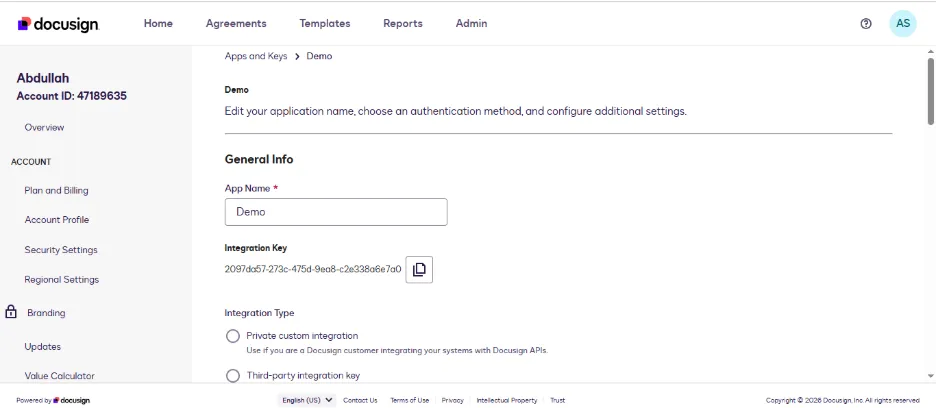
Fig 1.1
- Scroll down to the Authorization section and click Add Secret Key. Store this key securely, as it will be hidden after the app is created (as shown in Figure 1.2).
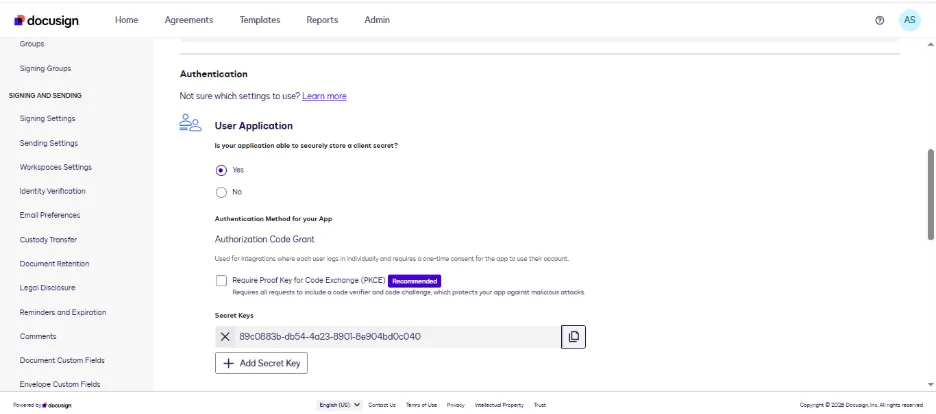
Fig 1.2
- Scroll down to Additional Settings > Redirect URIs, then click Add URI and enter the following URI: https://subscription.myfundbox.com/DocuSignOAuthResponse.jsf
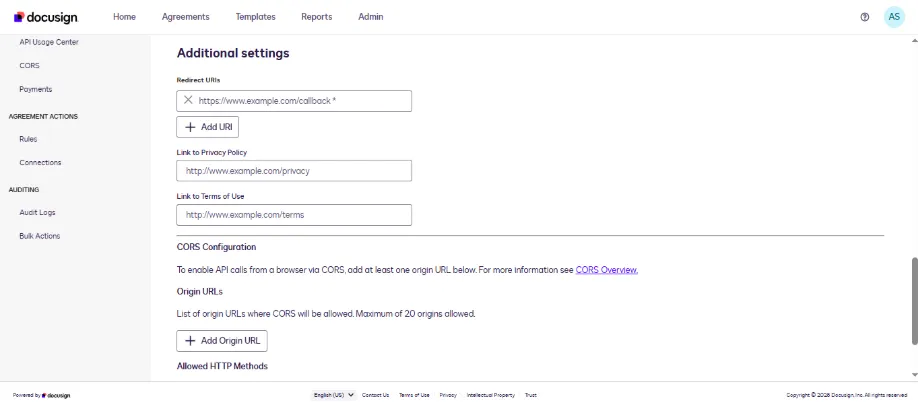
Fig 1.3
- Scroll down to the bottom and select all HTTP methods (as shown in Figure 1.4).
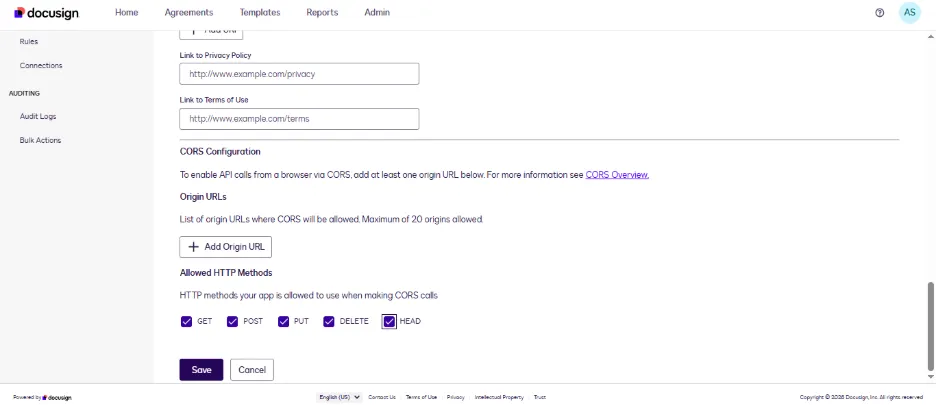
Fig 1.4
Now click Save to save your app.
Now Client ID, Client Secret, App ID, and API Key are ready.
Step 4: Connect MYFUNDBOX to Hubspot with credentials.
- Sign in to MYFUNDBOX
- Navigate to Configuration > Integration > Digital Signature > Docusign (as shown in Figure 1.8)
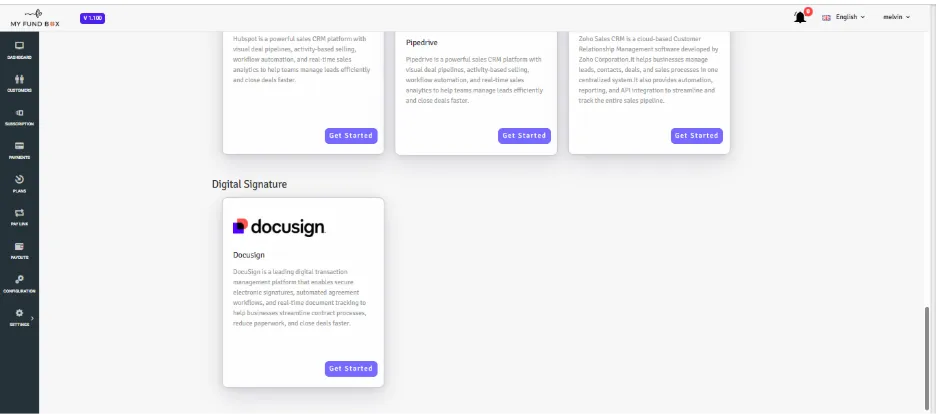
Fig 1.8
- Click Get Started, and it will navigate like (as shown in Figure 1.9)
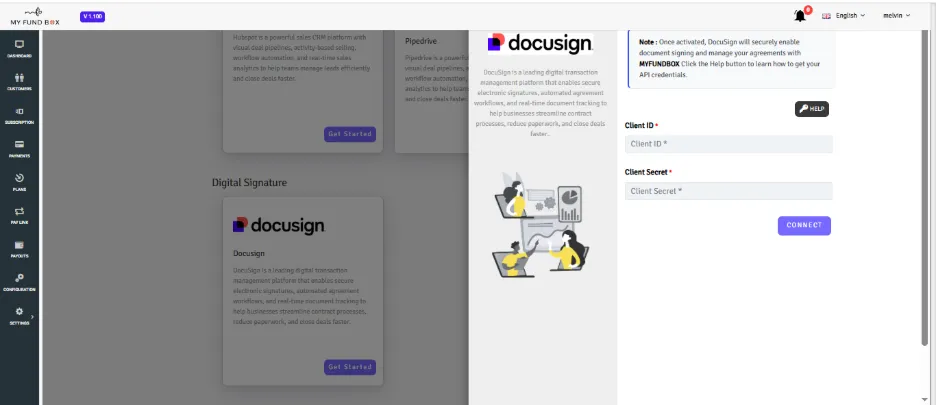
Fig 1.9
- Enter the Client Id, Client Secret
- Click Connect
- Navigate to Docusign Authenticate page (as shown in Figure 2)
- Complete Your account credentials and click "Allow Access"
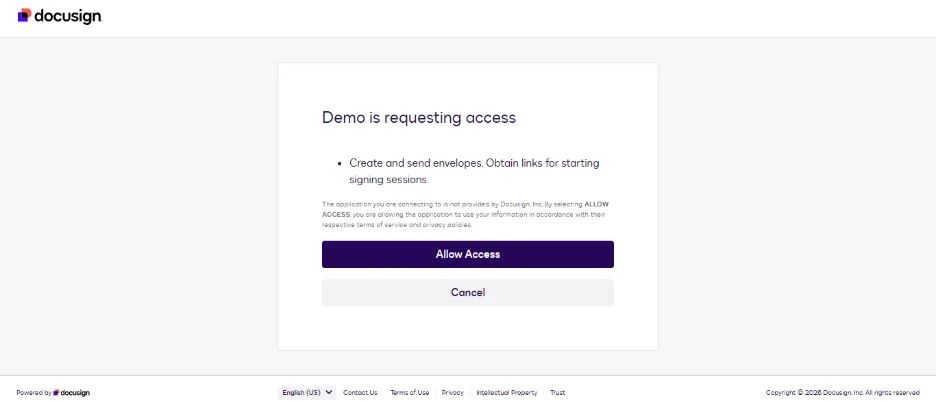
Fig 2
After authorization, it will navigate to the Templates page (as shown in Figure 2.1)
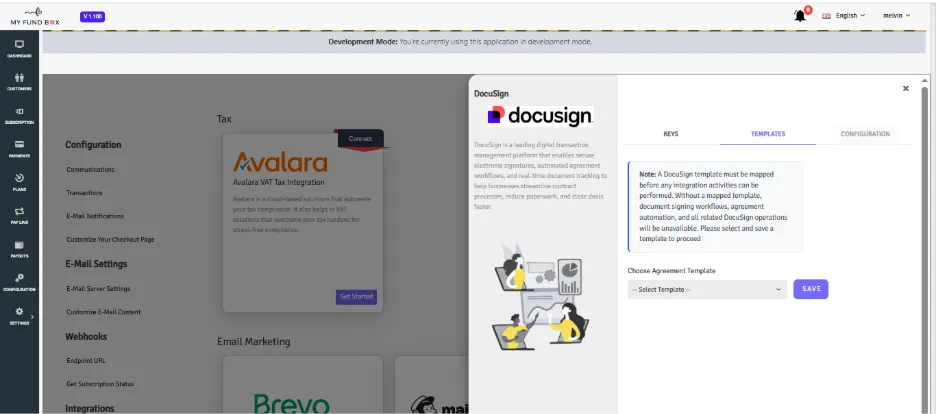
Fig 2.1
Once you Configure Your template and save, Your Connection was completed successfully
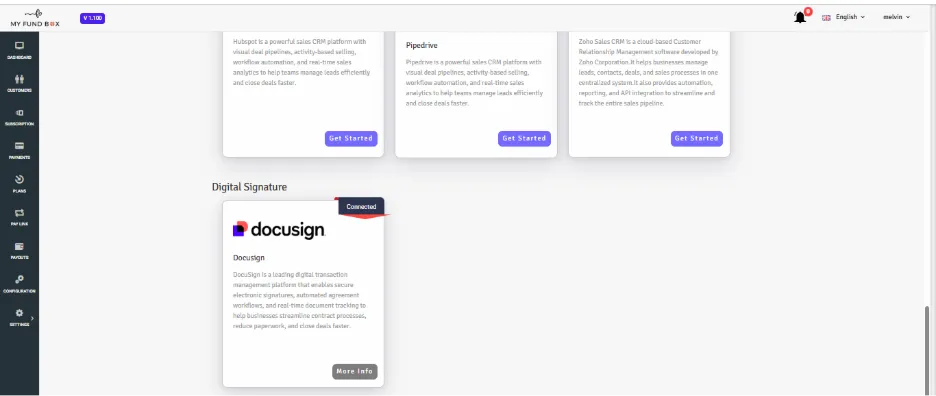
Fig 2.2
Manage Configuration
- Enable/Disable Docsusign
- Delete Docusign
Enable/Disable Docusign
- Sign in to MYFUNDBOX.
Navigate to Configuration > Integration > Digital Signature > Docusign (as shown in Figure 2.3).
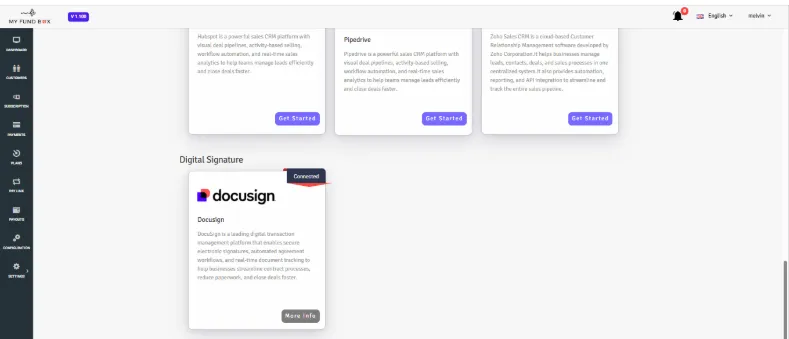
Fig 2.3
- Click the More Info > Configuration tab (as shown in Figure 2.4)
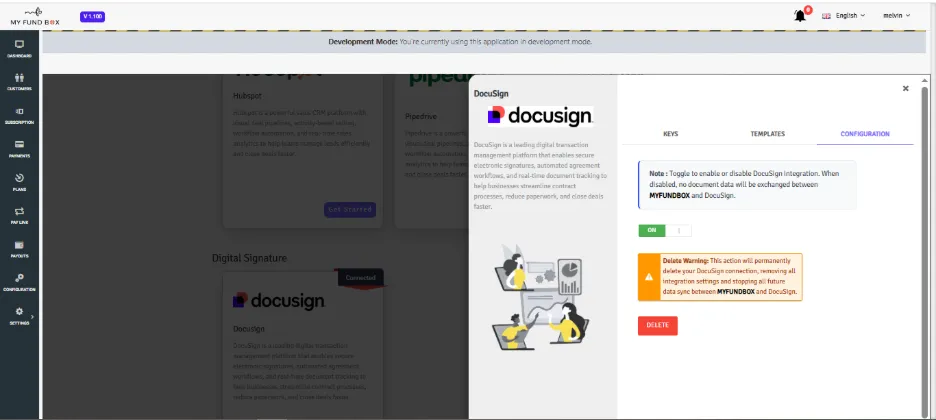
Fig 2.4
Delete DocuSign.
- Click the More Info > Configuration tab (as shown in Figure 2.5)
- Click Delete and click Yes Delete for delete this connection (as shown in Figure 2.6)
- Your Docusign connection as been deleted (as shown in Figure 2.7)
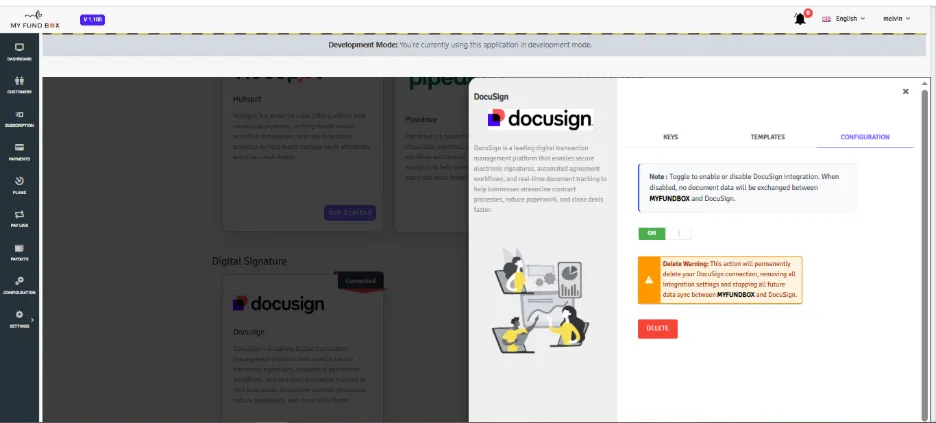
Fig 2.5
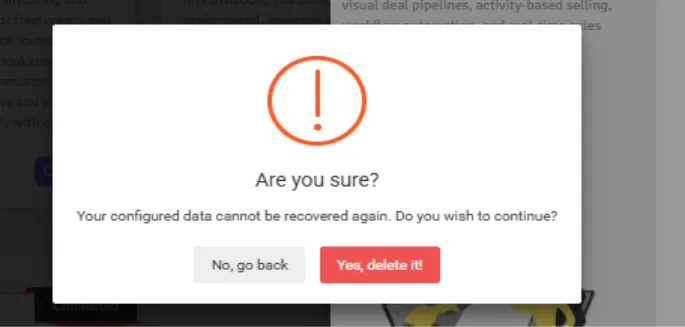
Fig 2.6
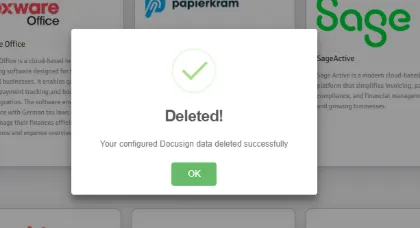
Fig 2.7
How to Sign an Agreement
- Before paying for the subscription, sign the agreement for the subscription (as shown in Figure 2.8).
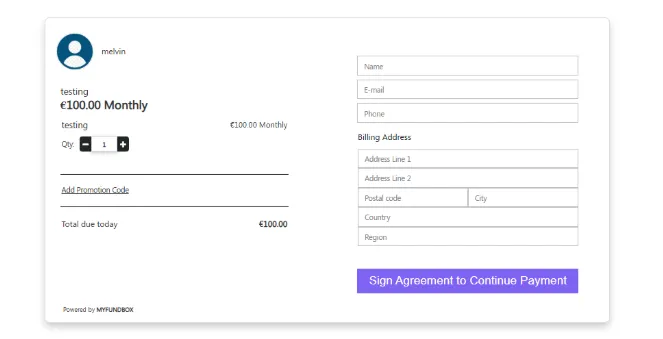
Fig 2.8
- Enter the mandatory fields and click Sign Agreement to continue with the payment.
- A modal will open to sign the agreement (as shown in Figure 2.9).
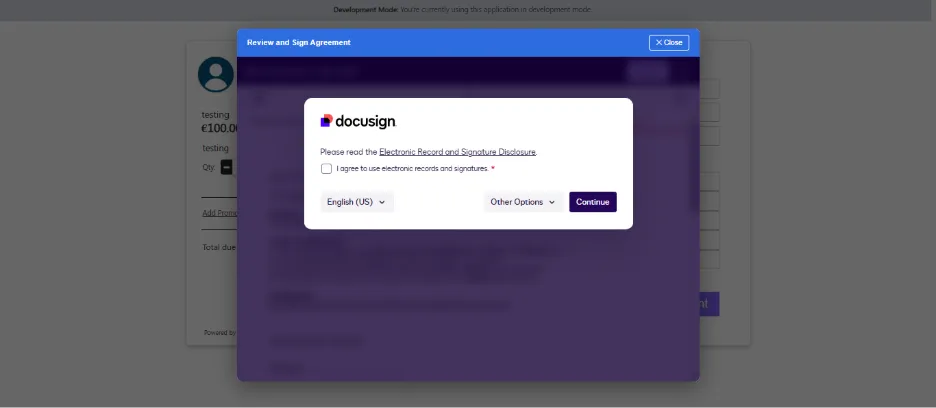
Fig 2.9
- Select the checkbox and click Continue. It will navigate to the agreement document page (as shown in Figure 3).
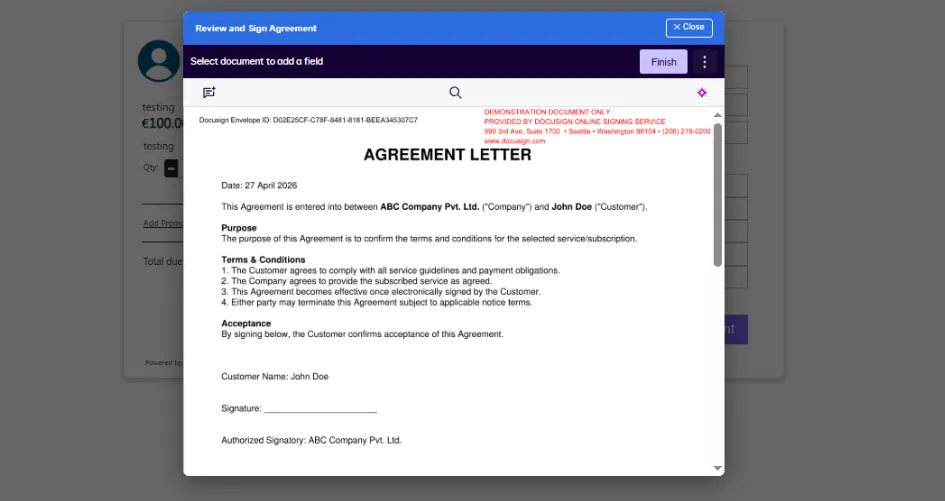
Fig 3
- Click Where You want to Sign and click Signature and Sign (as shown in Figure 3.1).
- Sign and Click adopt and sign its redirect to your document (as shown in Figure 3.2).
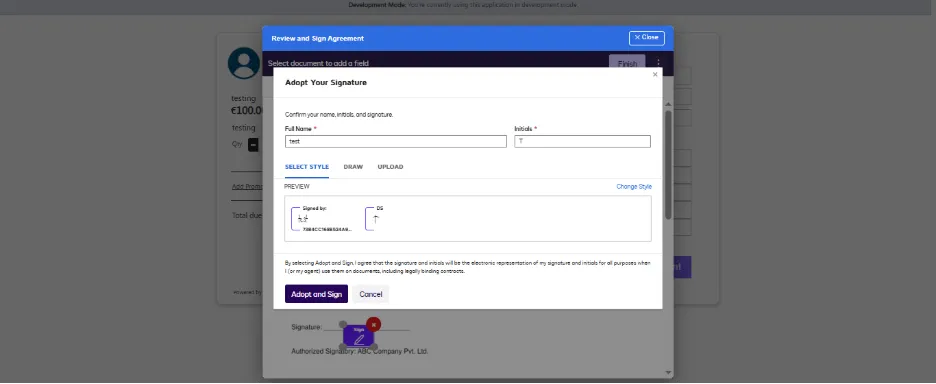
Fig 3.1
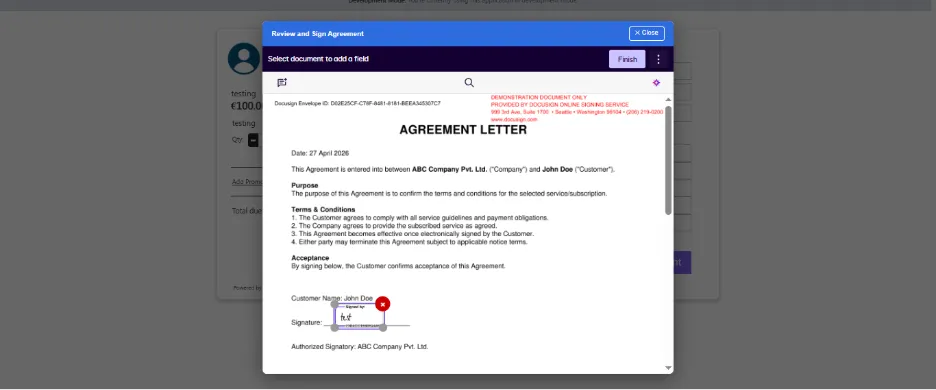
Fig 3.2
- Click "finish"; it will redirect to the success page (as shown in Figure 3.3).
- Close the tab; it redirects to the payment page (as shown in Figure 3.4).
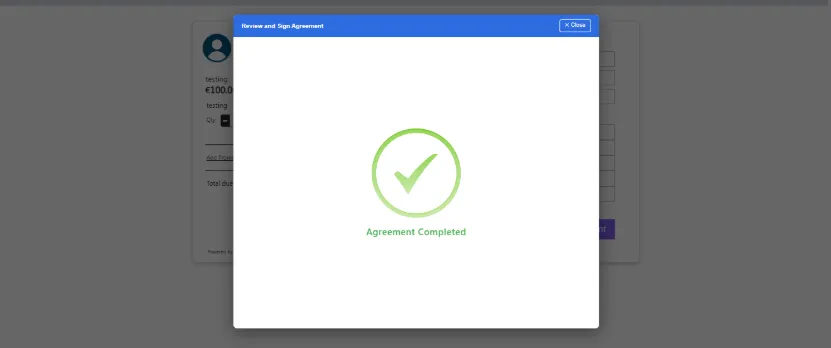
Fig 3.3
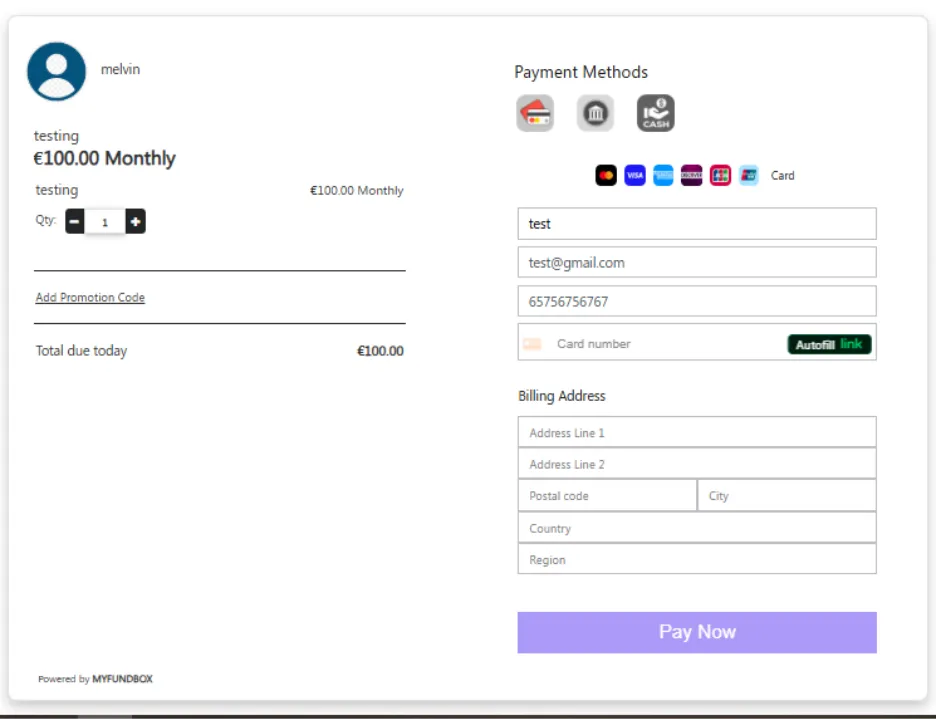
Fig 3.4
Now as usual pay for the Subscription
Manage Docusign Details
Customer Portal after upgrade subscription part (as shown in Figure 2.8).
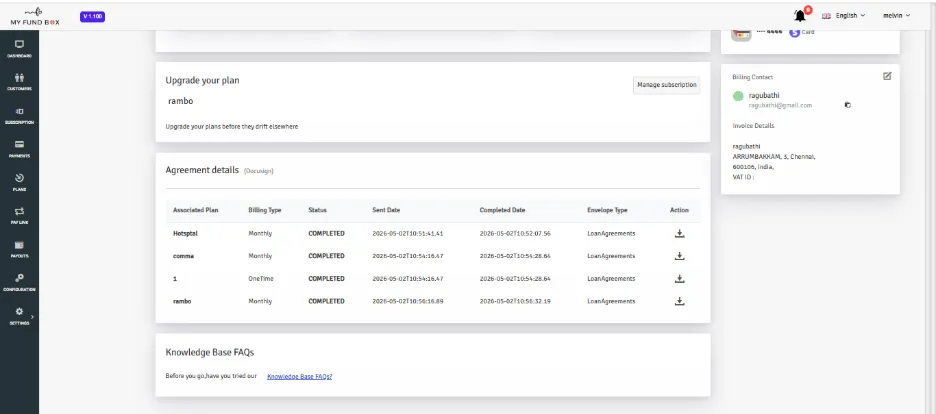
Fig 2.8