D.VELOP
17 min
PROJECT : MYFUNDBOX – SUBSCRIPTION
Step : 1. INTRODUCTION
This document describes how users can integrate Dvelop e-signature platform with MYFUNDBOX to require legally binding agreement signatures before processing subscription payments and one-time transactions.
Step : 2. D.velop Account Setup
2.1 Access D.velop Cloud Portal
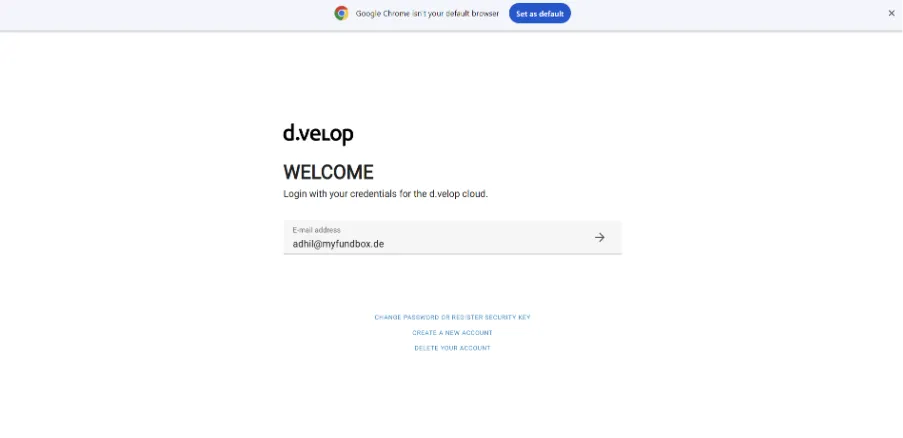
- Navigate to https://my.d-velop.cloud/
- Sign in using your Dvelop administrator credentials
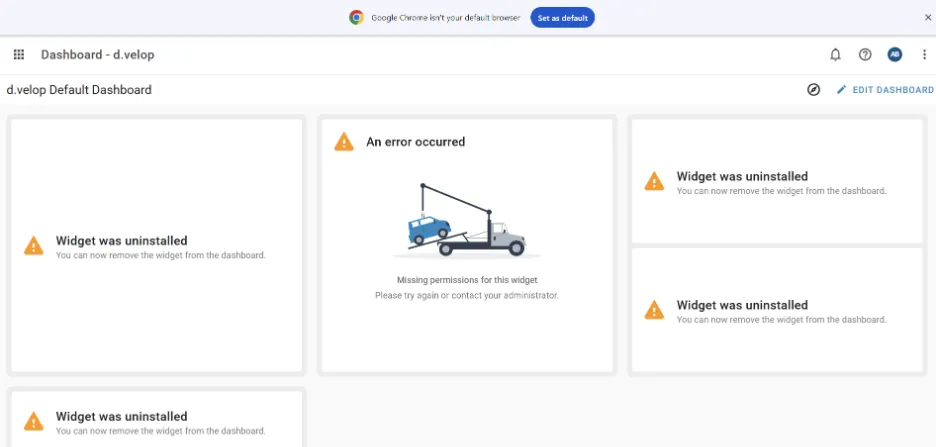
- Click the settings button at the top-left corner.
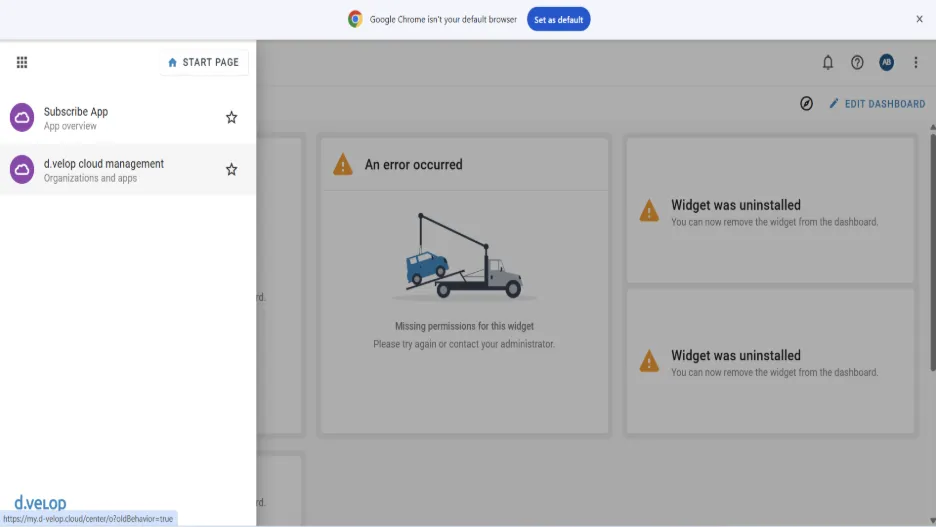
- Click the d.velop cloud management
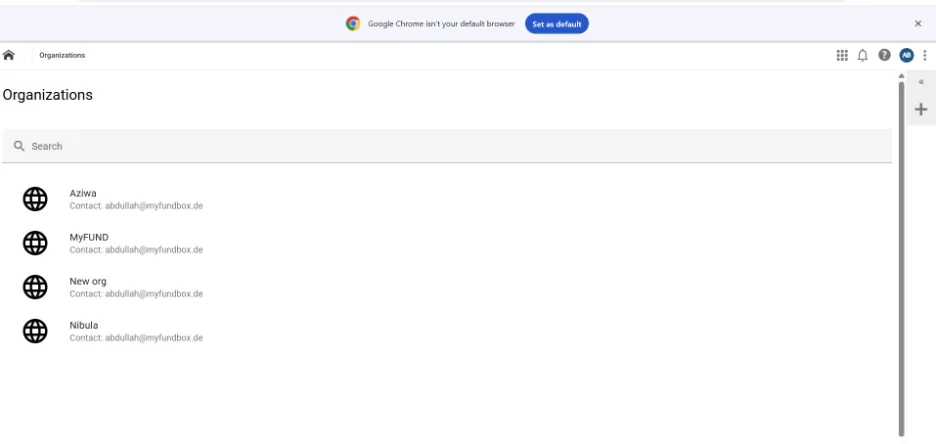
- Here you will see the Organizations that has been created by you.
- Create an organization, click the + symbol at the top right corner.
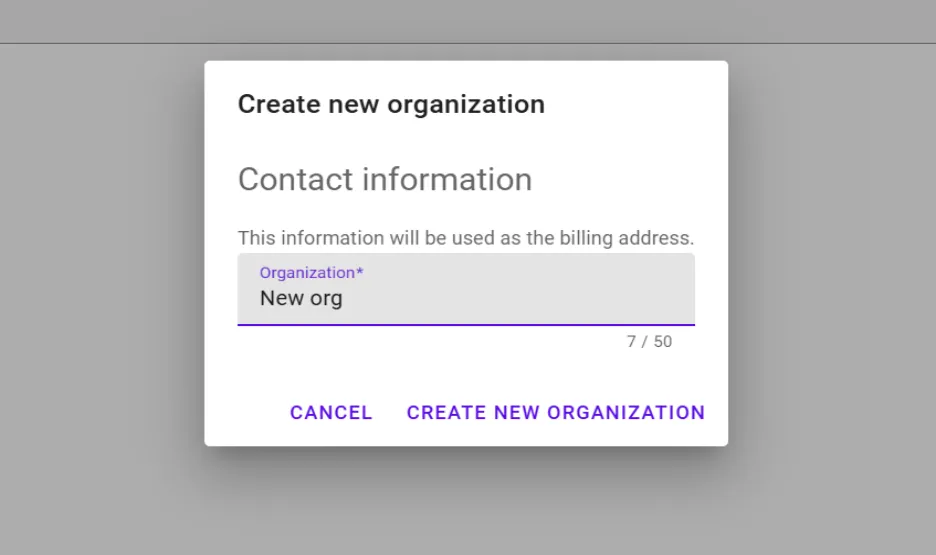
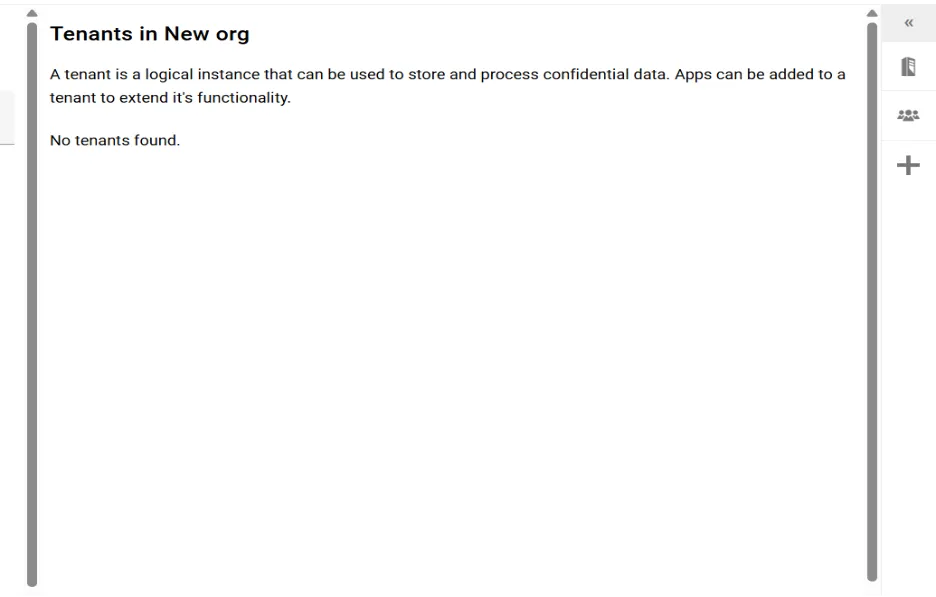
- Create a tenant by clicking on the + symbol at the right side of the page
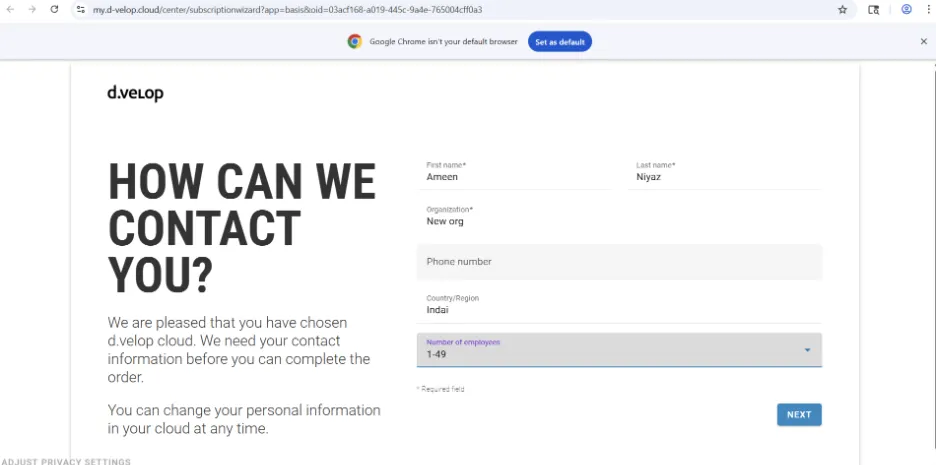
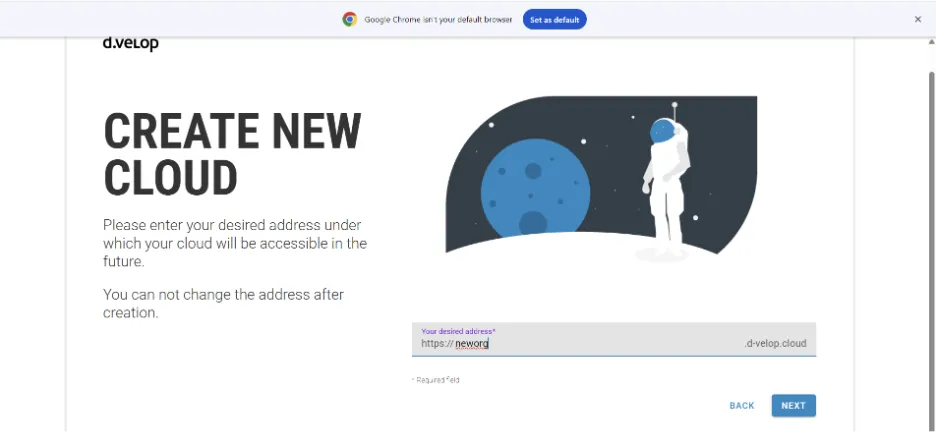
- You need to choose a tenant name; that will be your d.velop URL to login to your d.velop cloud tenant account and it is the tenant ID
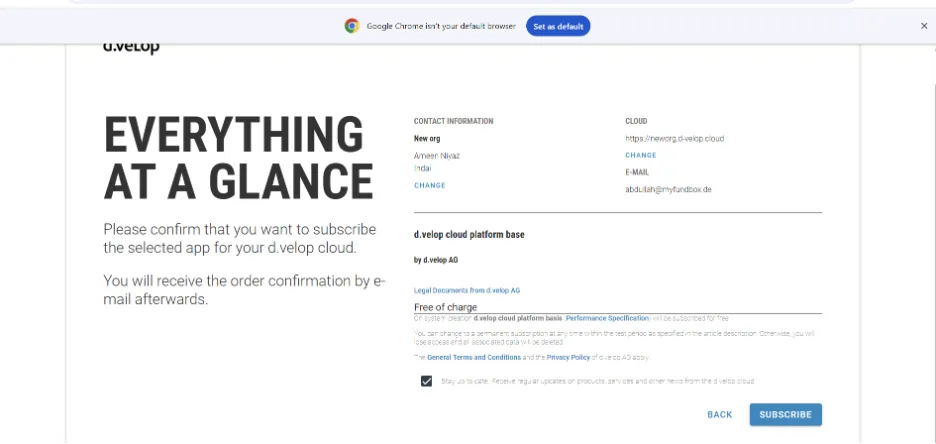
- Click the Subscribe button.
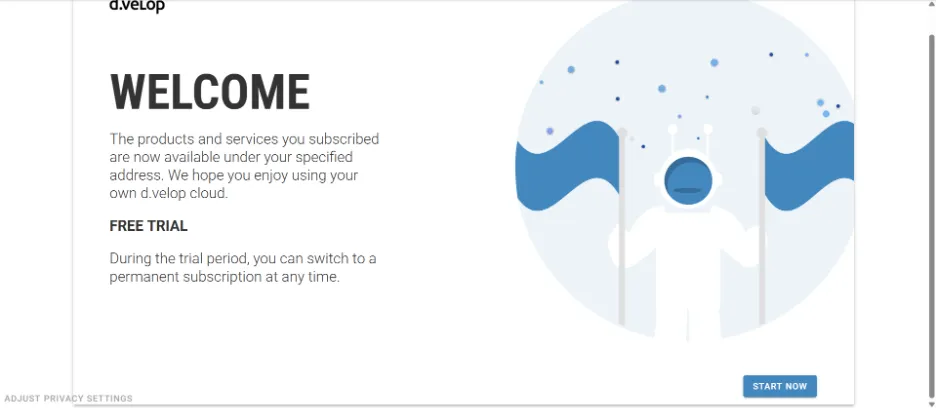
- Click Start Now.
- In Organizations page, you can see your organization and your contact details
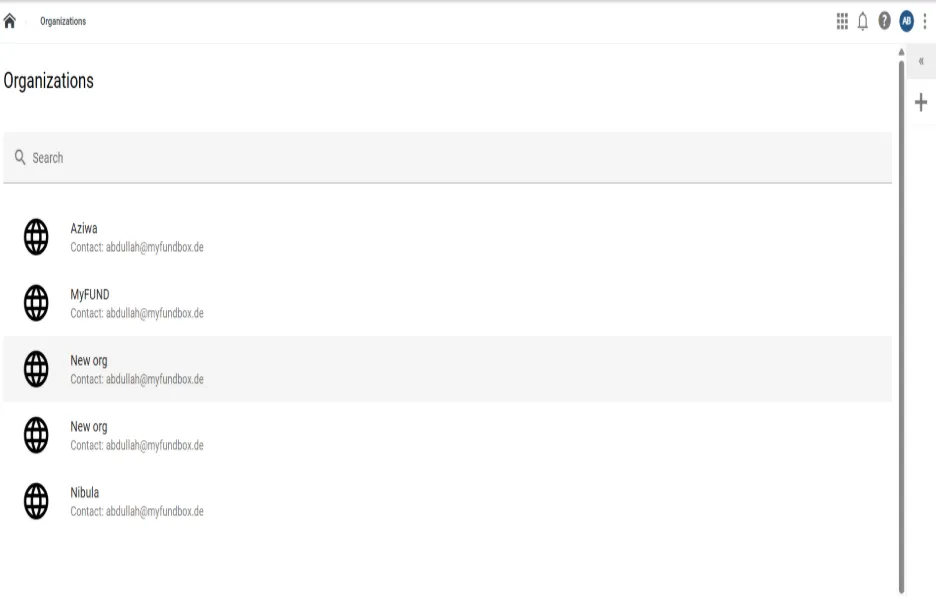
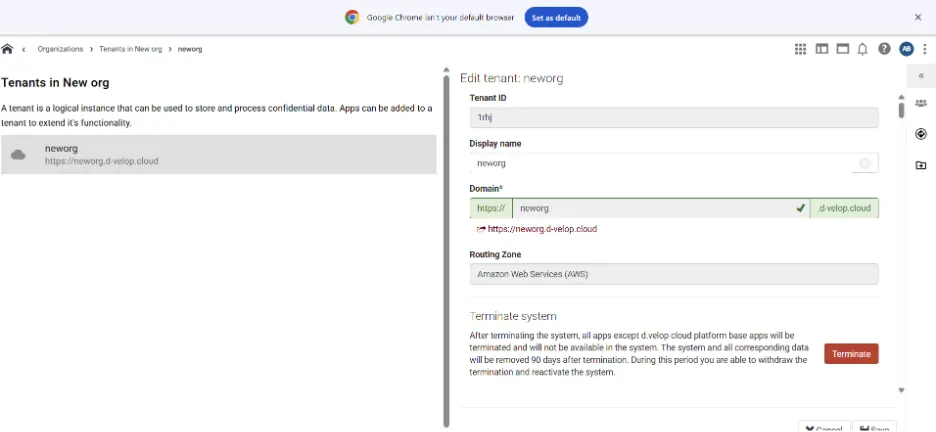
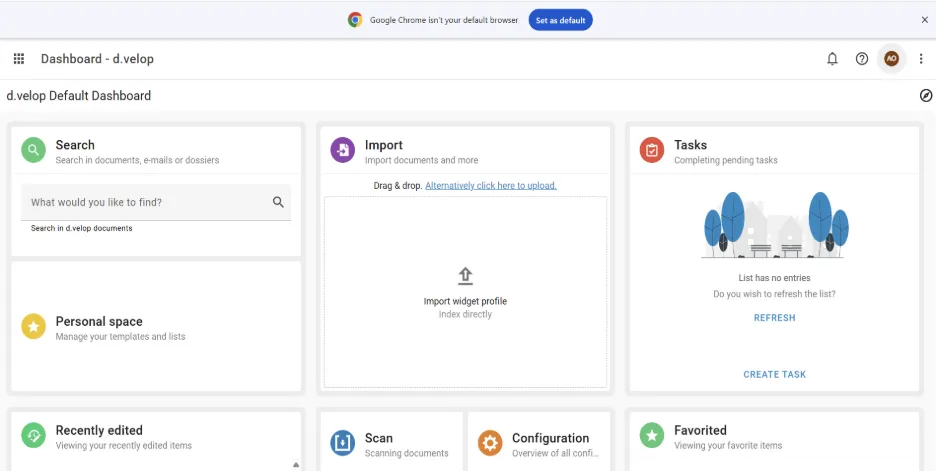
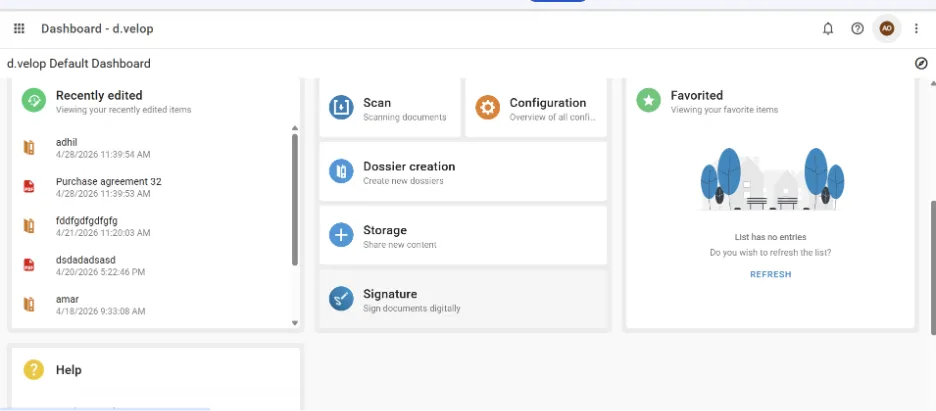
- Click the red link to navigate to your dashboard
- After navigating purchase the digital sign module. Click the sign app purchase link.
2.2 How to get client credentials
- After seeing the dashboard, click configuration.
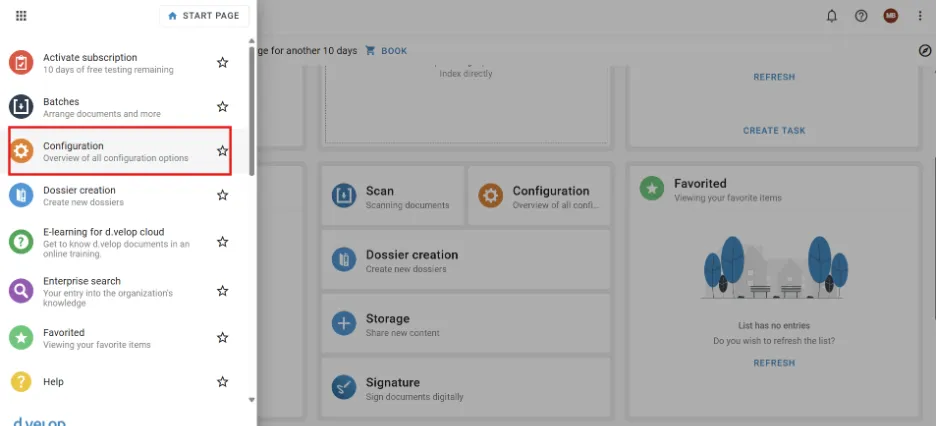
- Navigate to the column named as “OpenID Settings”
- Click Settings of the OpenID provider
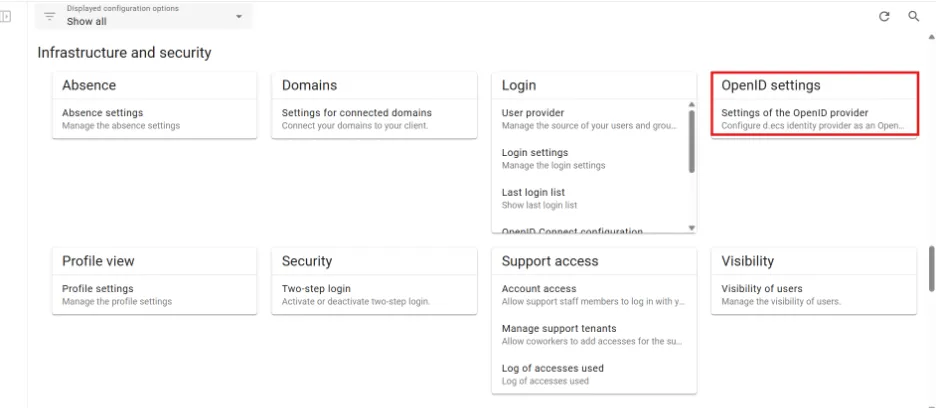
- Click Add Configuration.
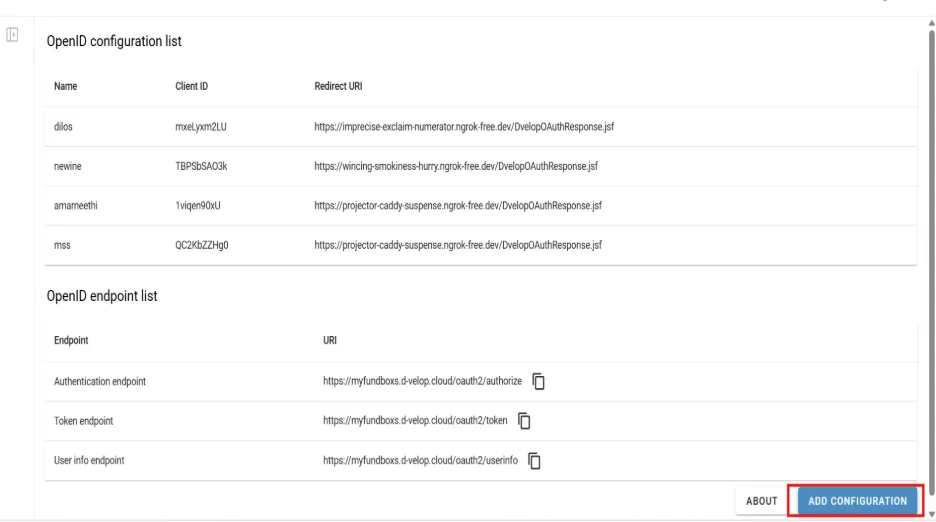
- Give a name and then in Redirect URL -> Replace ngrok URL with our application domain URL

- Click Scope and give validity of refresh token as 720 hours (30 days).
- Click Save.
- You will get a client ID and client secret.
- Copy the Client ID and Client Secret.
Step : 3. Connecting D.velop with MYFUNDBOX :
- In our Subscription application, click Configuration.
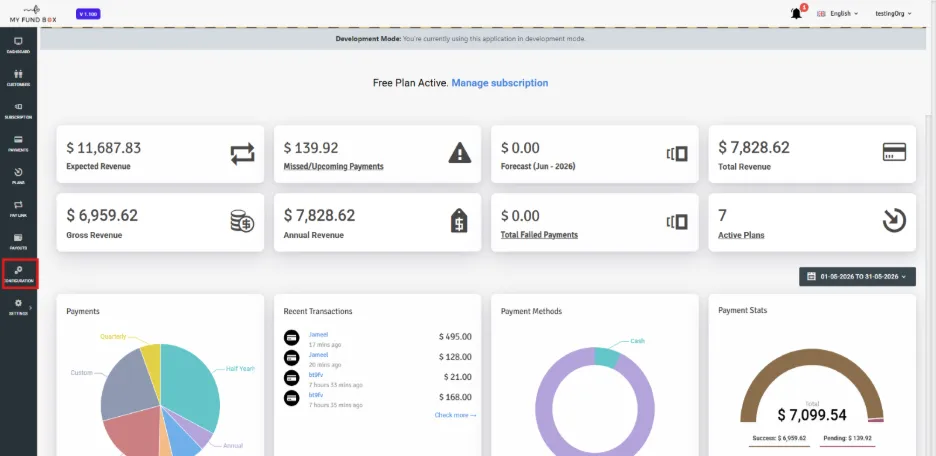
- Click Integration
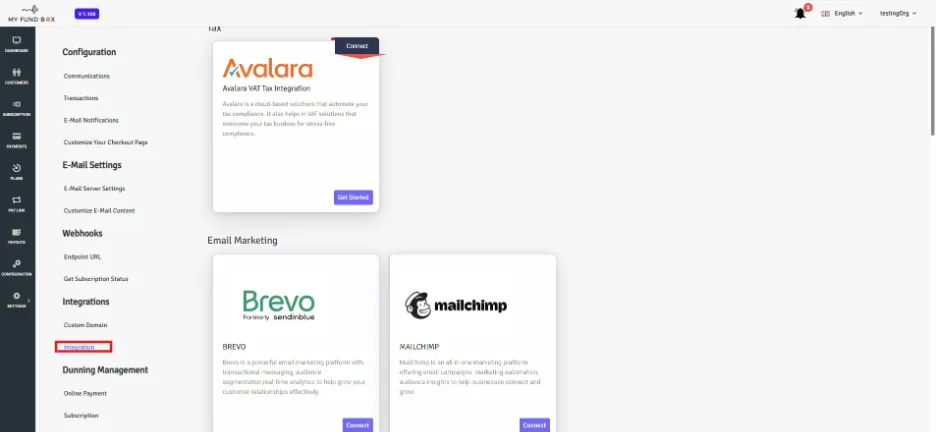
- Scroll to the bottom; You will see the Digital Signature – D.velop along with Docusign
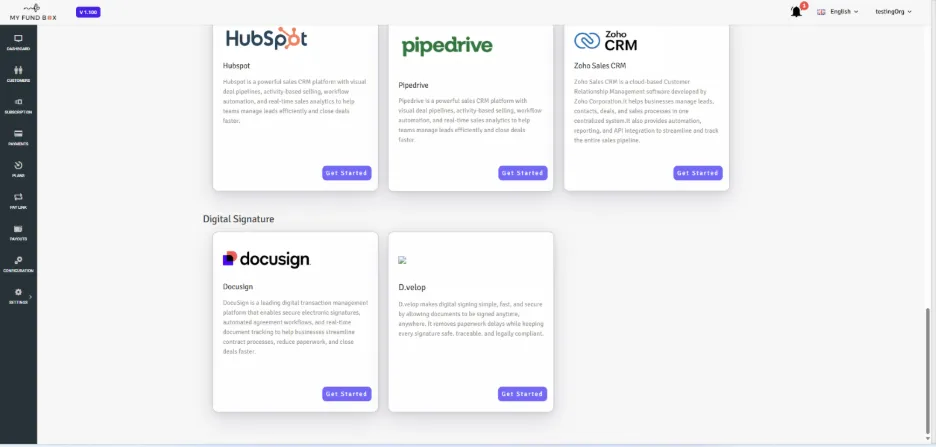
- Click Get Started.
- A modal with the required fields of client id, secret, tenant Id
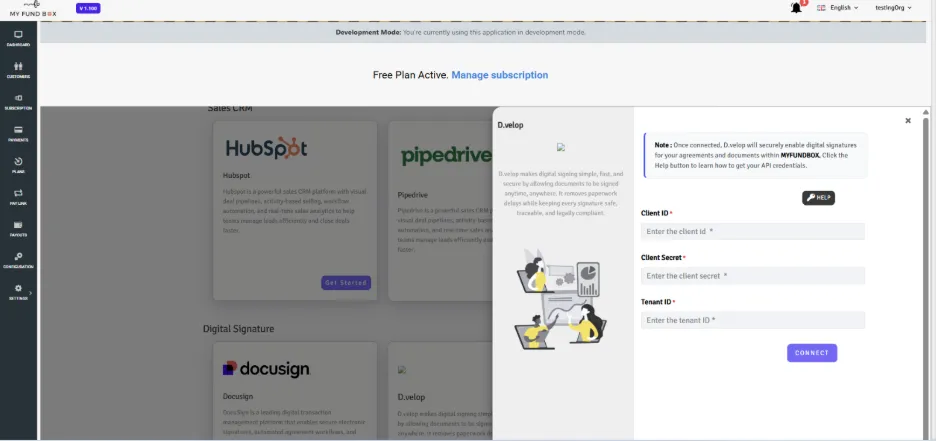
- Paste all the required credentials and click Connect.
- Tenant Id is the created tenant name in D.velop.
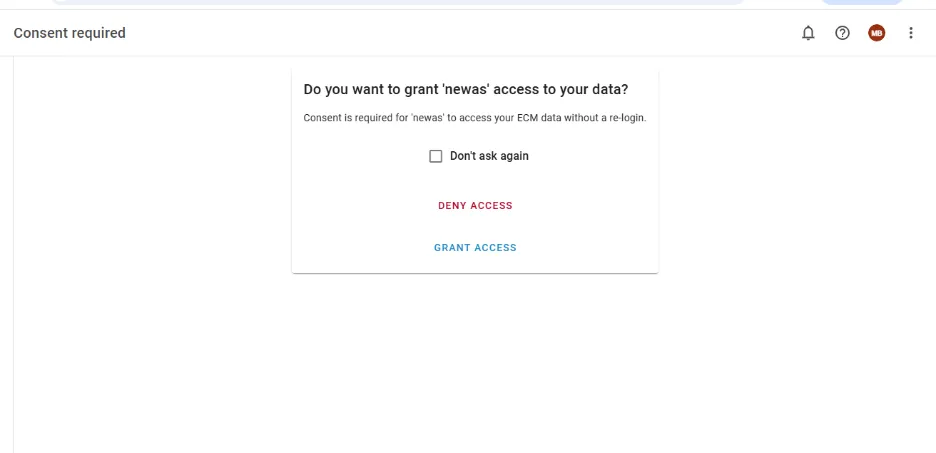
- You can see your app name.
- Click Grant access.
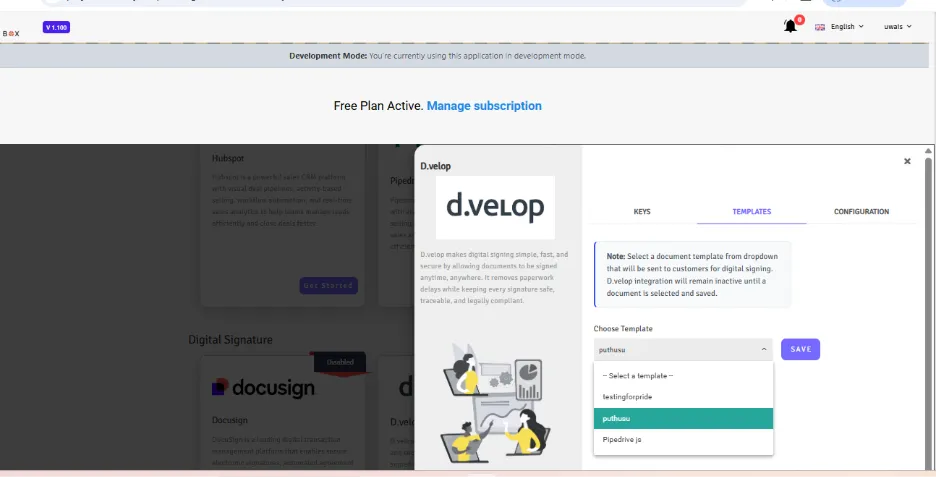
- It will be redirected and the modal will open to the templates tab.
- Select a template. Without selecting a template d.velop will remain inactive.
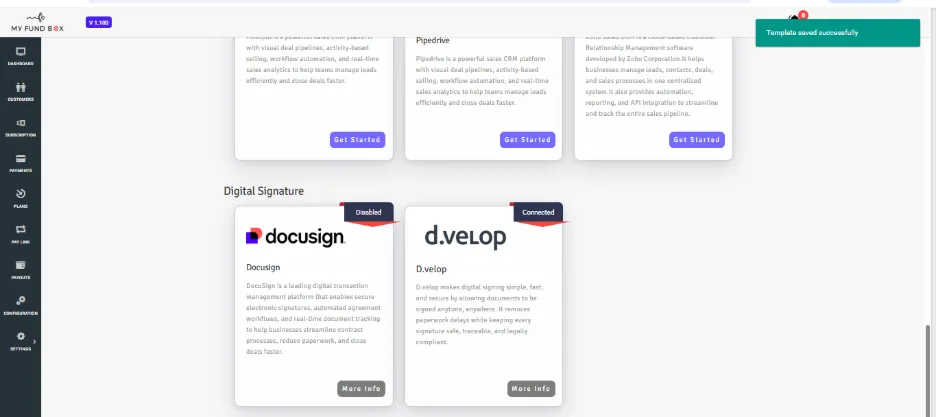
- After selecting the template , you can see dvelop is connected. The connection will be active for 30 days.
- After 30 days, need to reconnect the d.velop integration as mentioned from the start of this step 3.
Step : 4. Manage Configuration
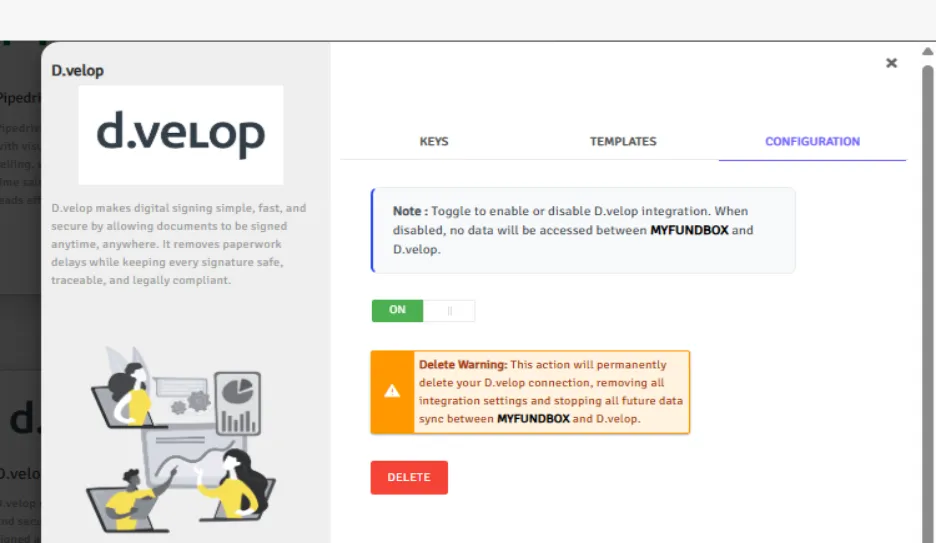
- Enable/Disable D.velop
- Delete D.velop.
4.1 Enable/Disable D.velop
- After connection, Click More Info -> Configuration
- You can enable/disable d.velop. If disabled, the sign agreement functionality will not work.
4.2 Delete D.velop
- Click the More Info > Configuration tab
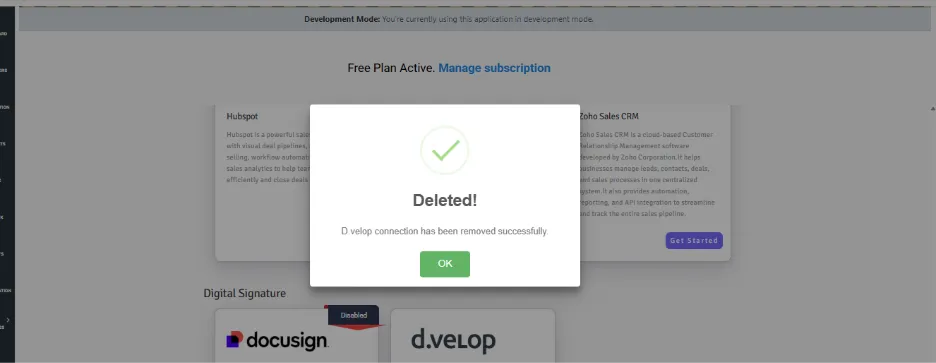
- Click "Delete" and click "Yes." Delete to delete this connection.
- Your D.velop connection will be deleted
Step : 5. How to Sign an Agreement
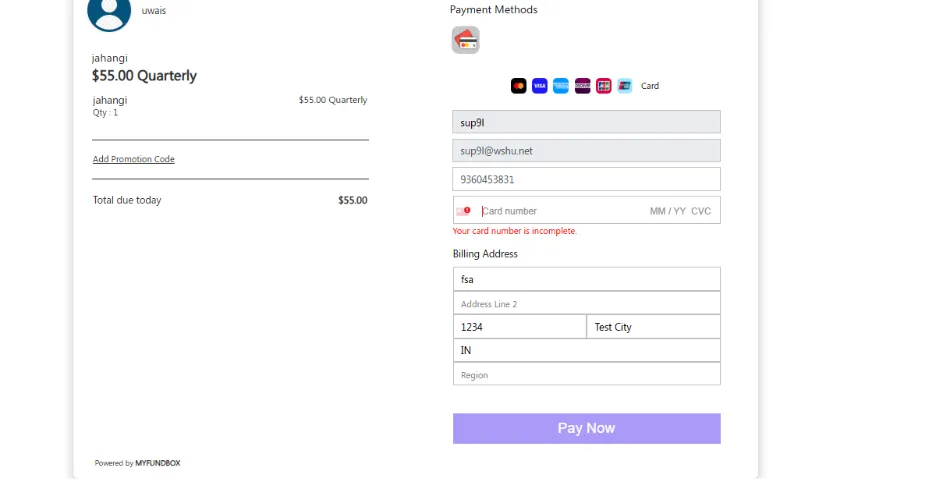
- Before paying for the subscription, sign the agreement for the subscription.
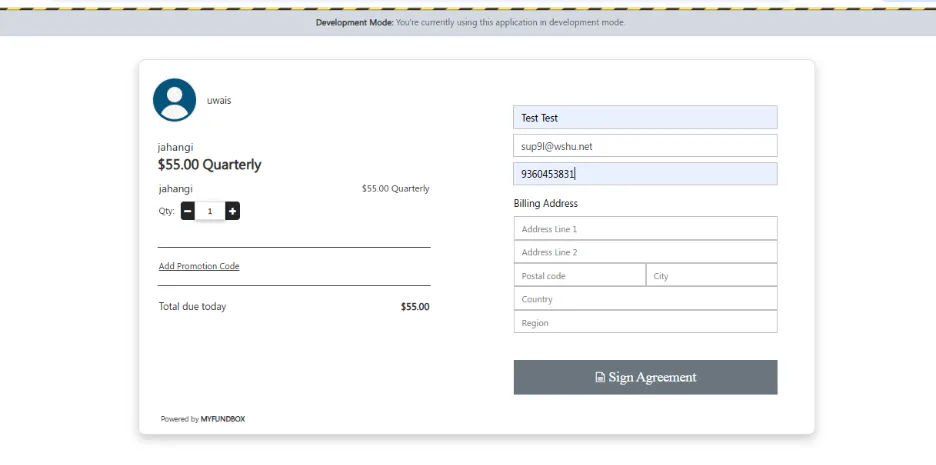
- Click Sign the Agreement
- You will see a popup as Send Email.
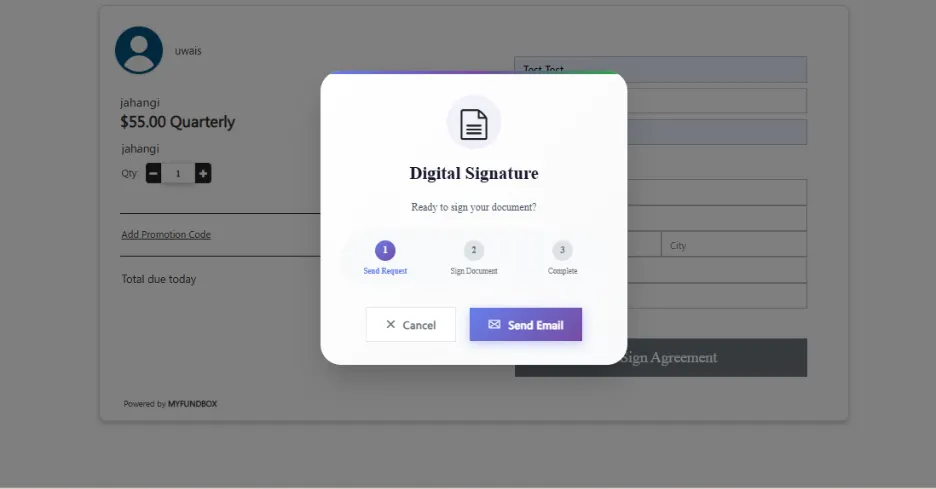
- Click Send Email
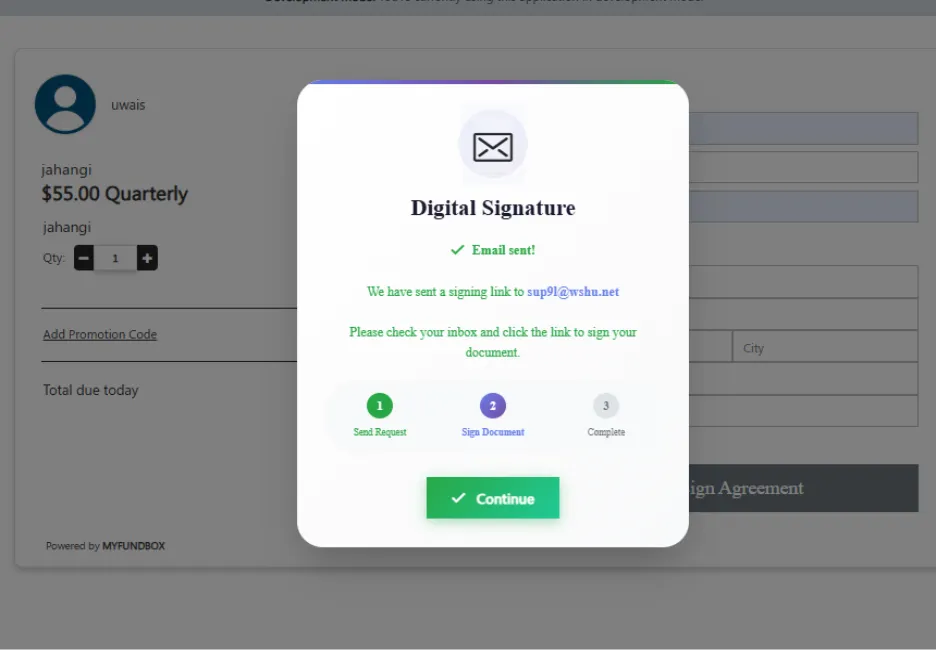
- Click Continue.
- The agreement document will be sent to the email for signing.
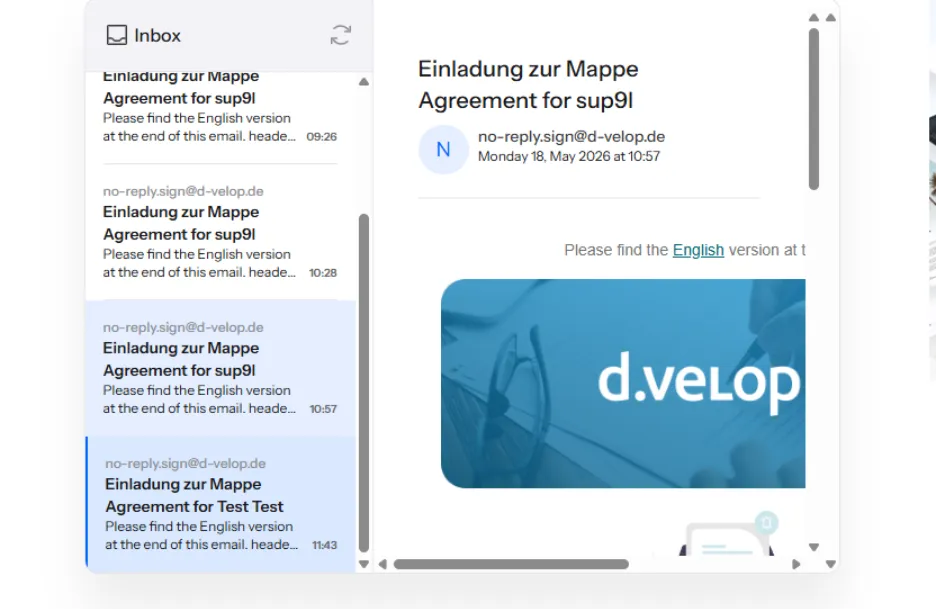
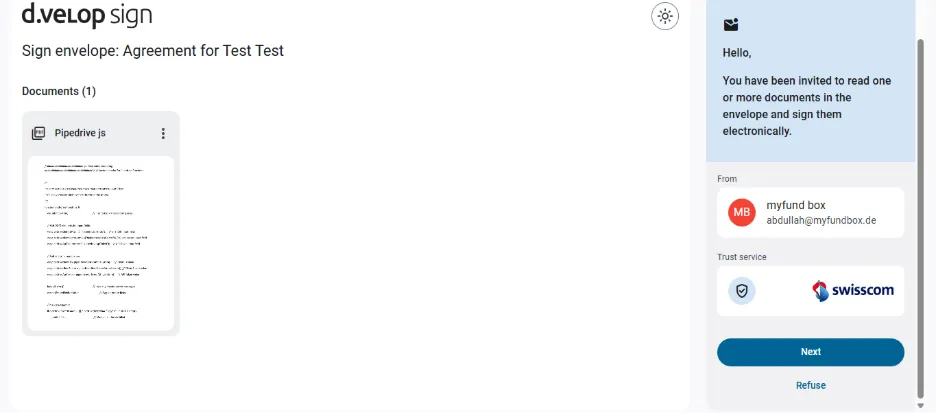
- Click Next
- Then, click Sign
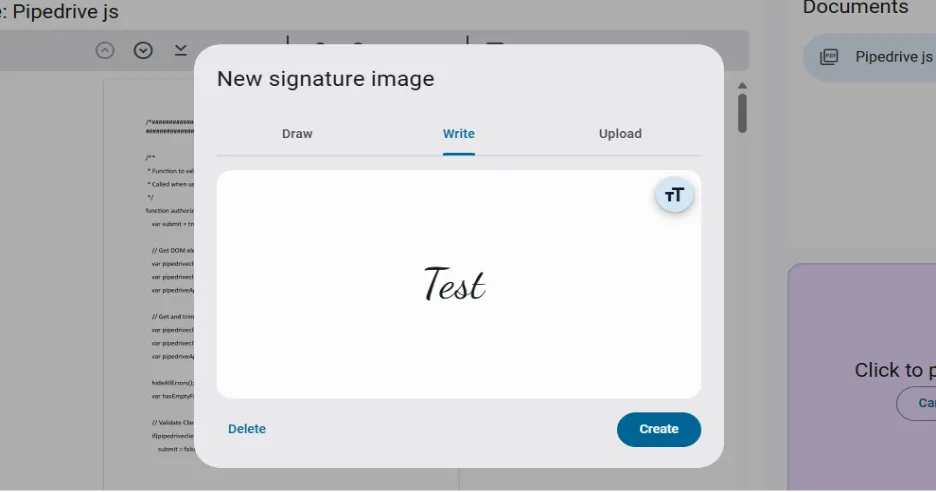
- Click Create and place your sign correctly inside the document
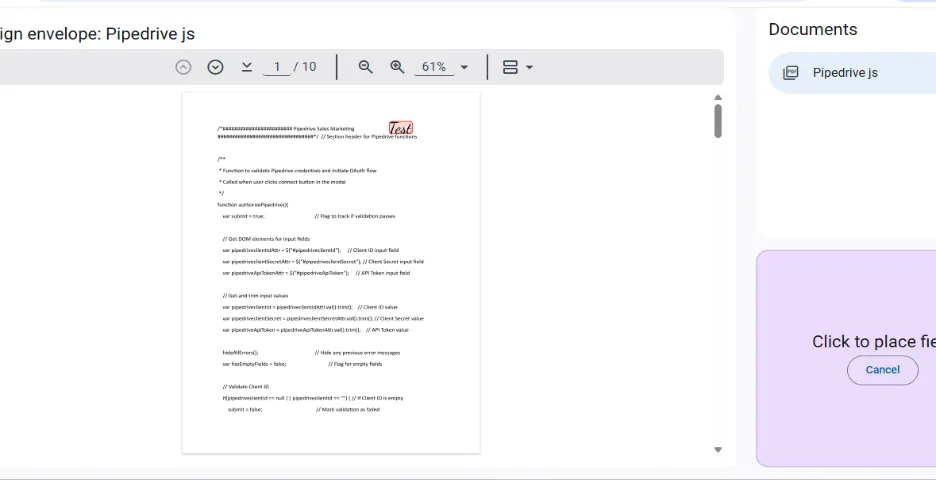
- Click Finish.
- You will see the signed page.
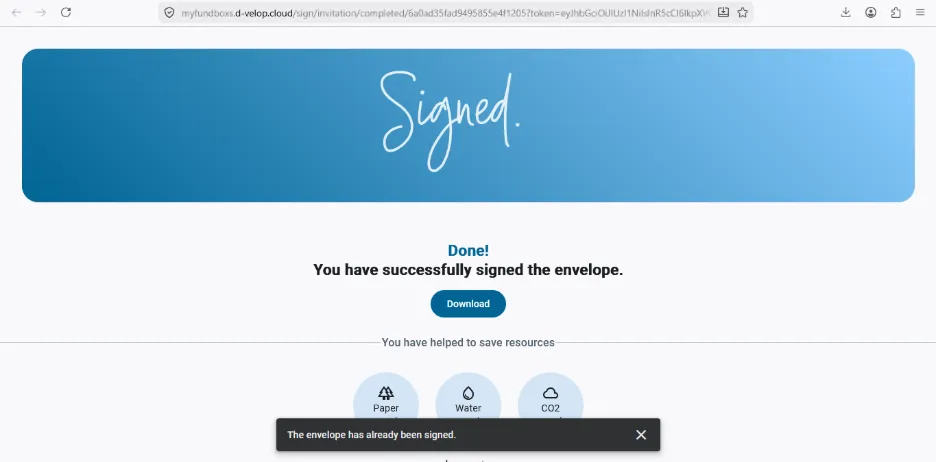
- Enter all the required details and click Pay Now.
- Navigate to the customer portal
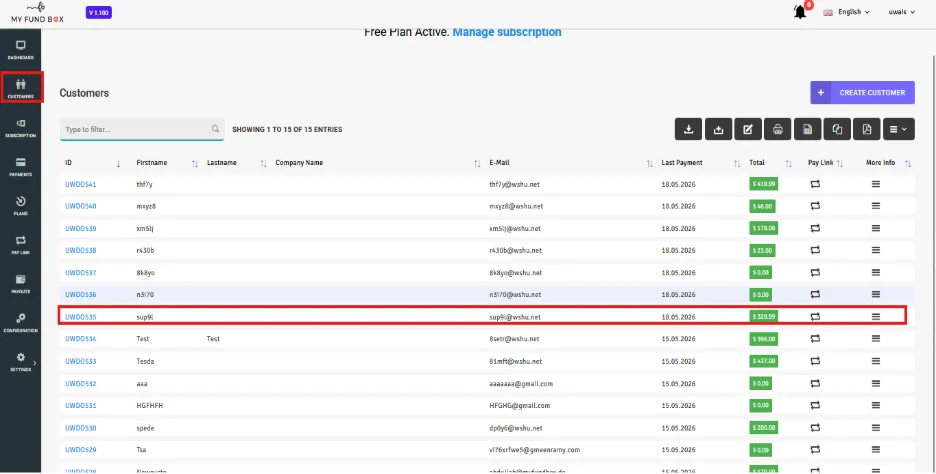
- After paying, you can see the envelope details inside the customer portal.
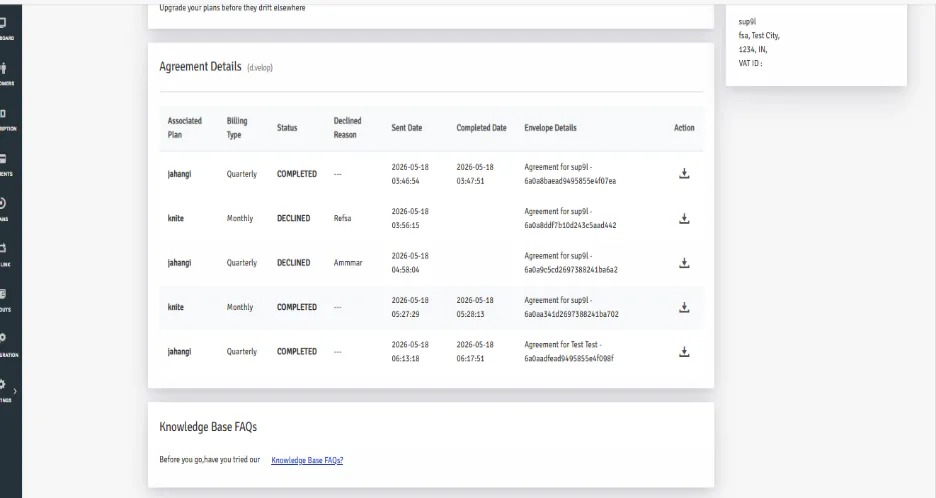
- You can download your signed document by clicking the download icon in the Action column.