Papierkram
12 min
This document describes how a user can create an account in papierkram and use it in the MYFUNDBOX subscription product.
limitations
- Euro is the only supported currency.
- Valid tax rates are 0%, 5%,7%,16%, and 19%.
- In the trial account, you can send up to 5 emails per day in Papierkram. To increase this limit, please upgrade to a paid account.
Instruction (Invoice Status)
The invoice is recorded as paid in our system but remains unpaid in Papierkram—please update the status to maintain synchronization.
- Click on the option shown below
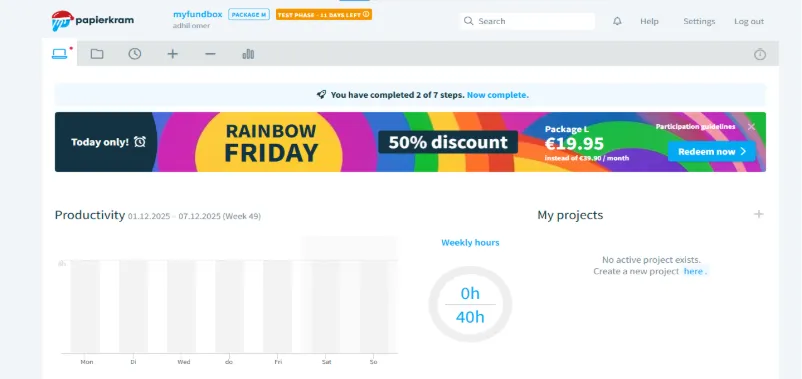
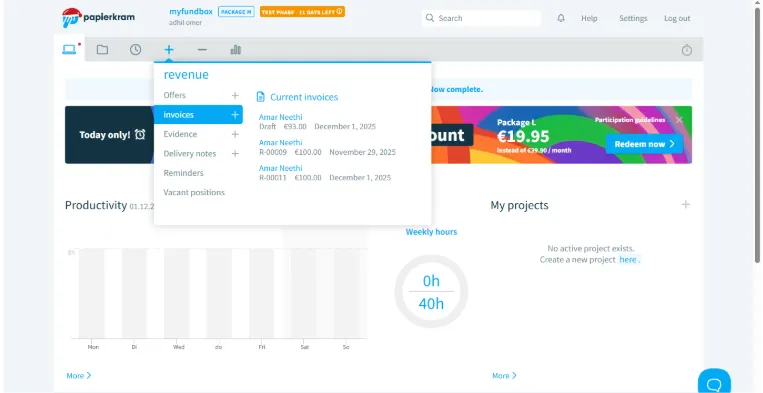
- Select the Invoice option to open and manage the invoice details.
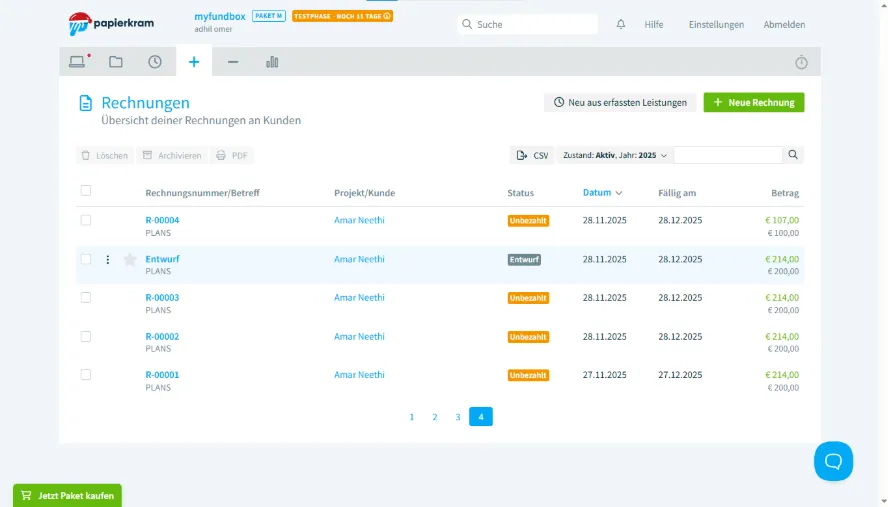
- Select the invoice whose status you want to update.
- Select the Record Payment option to update the invoice payment details.
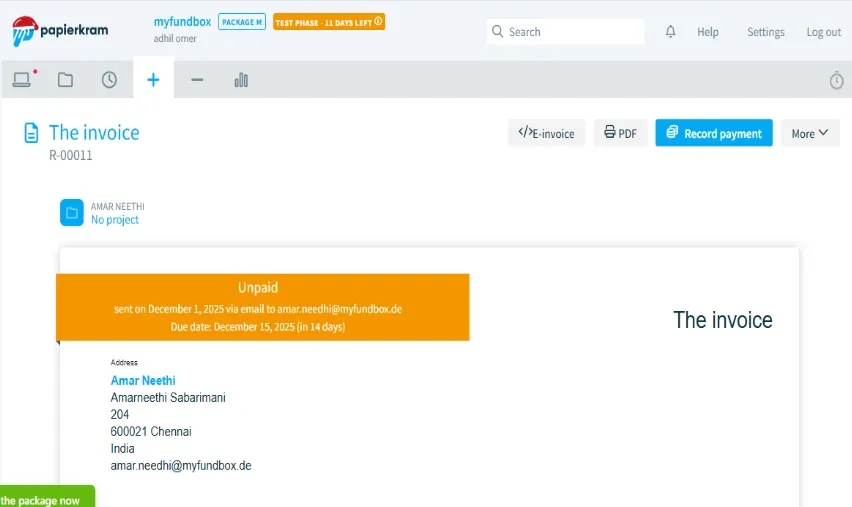
- Click on Intake; once selected, it will switch to Output — then click Save to confirm.
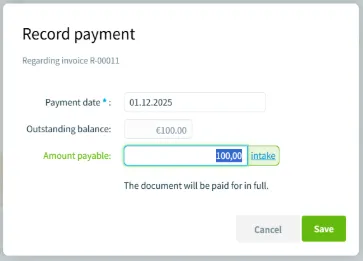
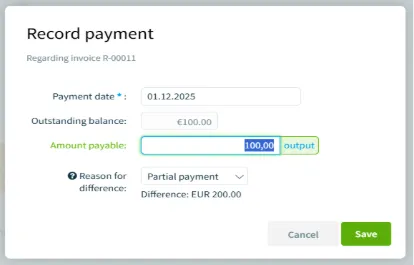
“This action will update the invoice status from unpaid to paid.”
Create papierkram account
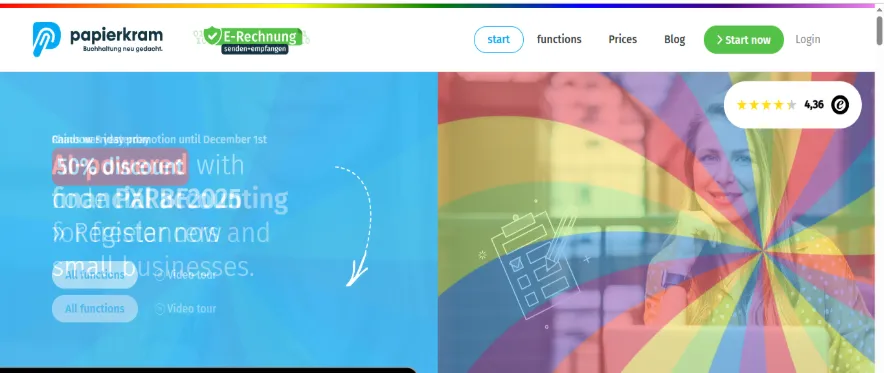
- Go to “https://www.papierkram.de” and click on the “Start Now” button.
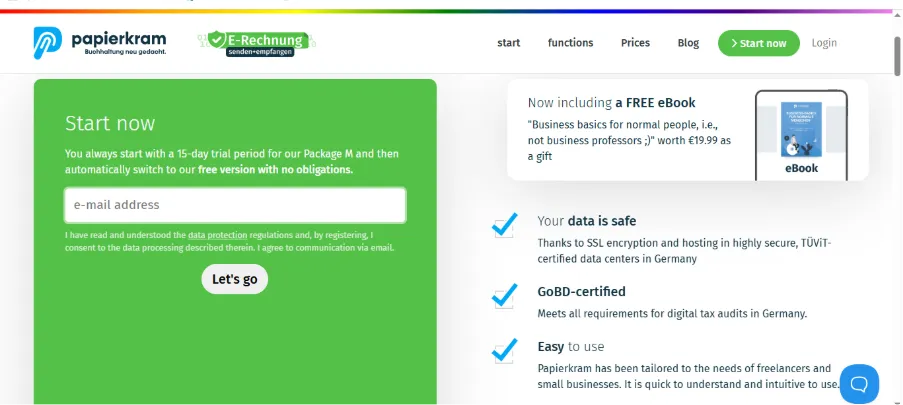
Start your account by entering your email, then click “Let’s go.”
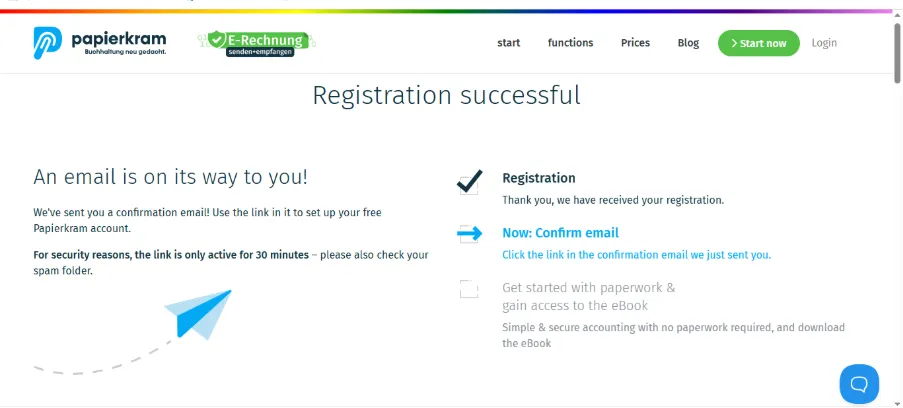
- Check your email to confirm your account
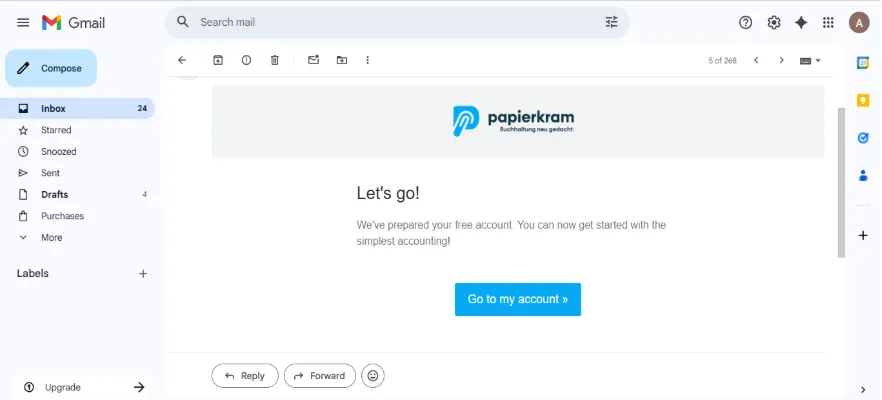
- Open the email you received and click “Go to my account”
- Enter your credentials to continue.
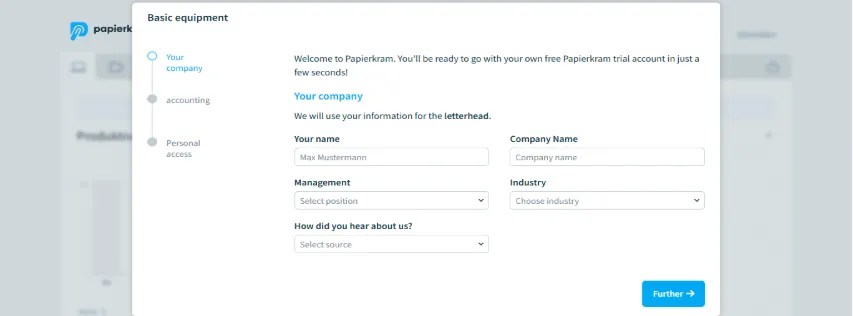
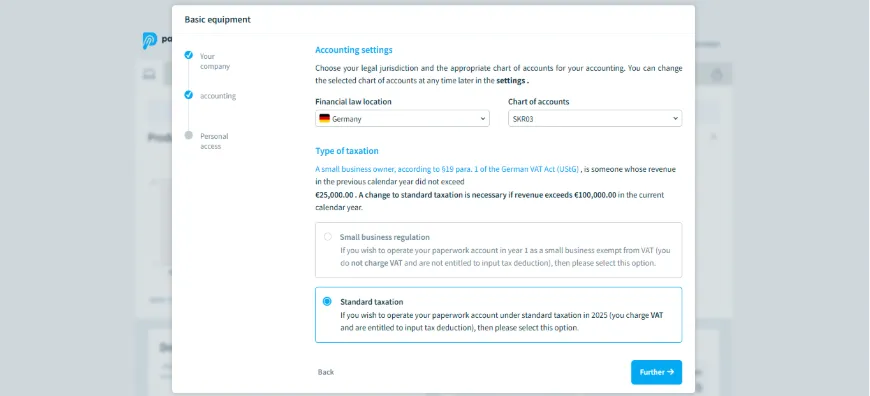
- Enter your access credentials. Be sure to store your domain name, as it is mandatory during the connection process.
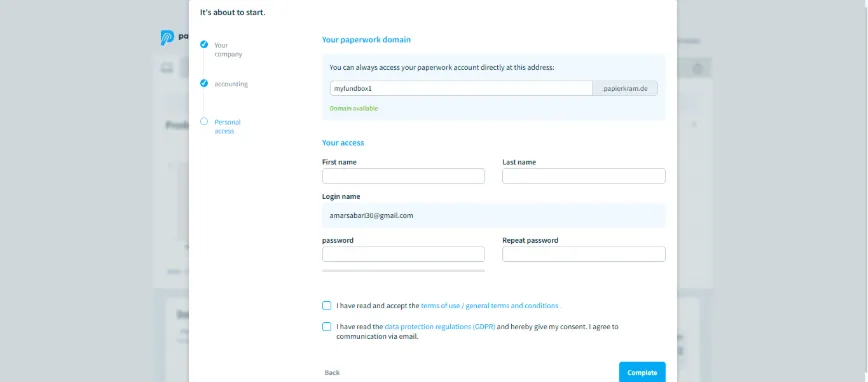
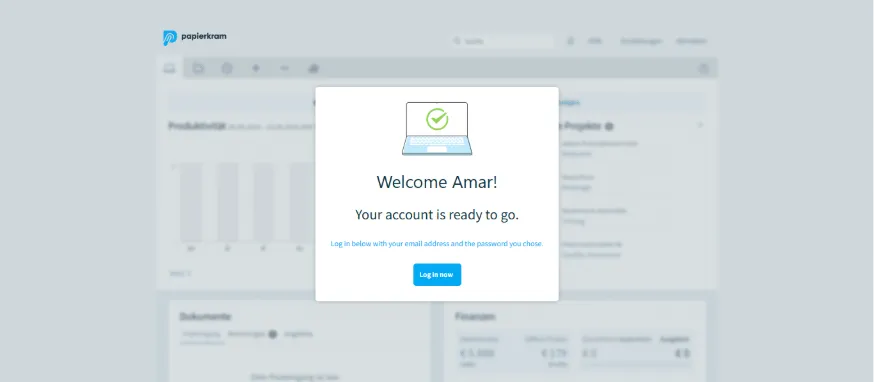
- After finishing, proceed by clicking “Log in now.”
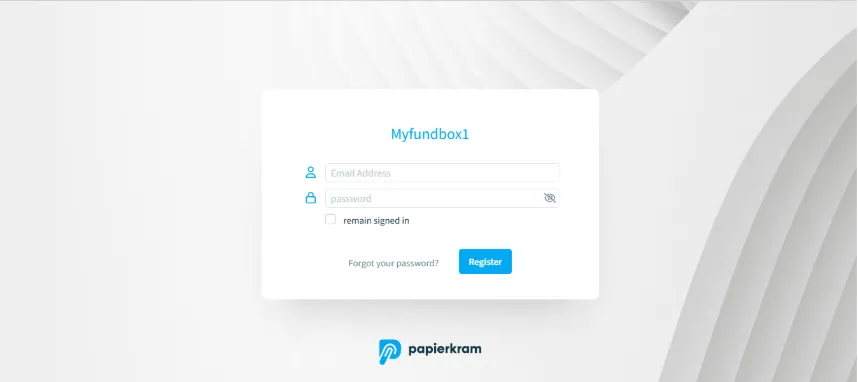
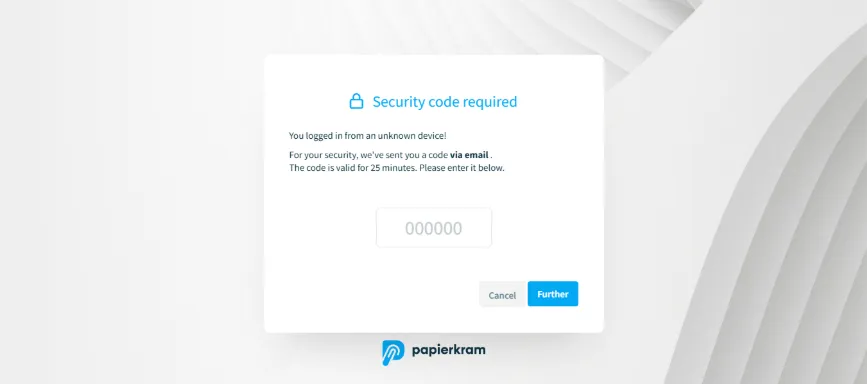
- Once you’ve entered your login details, check your Gmail for the security code. Enter the code and click “Further.”
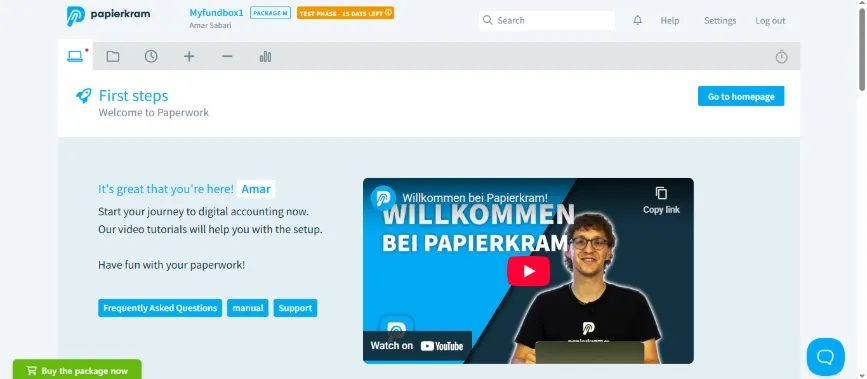
Setup finished — you can start using your account right away.
To get Access Token
- Click on settings button
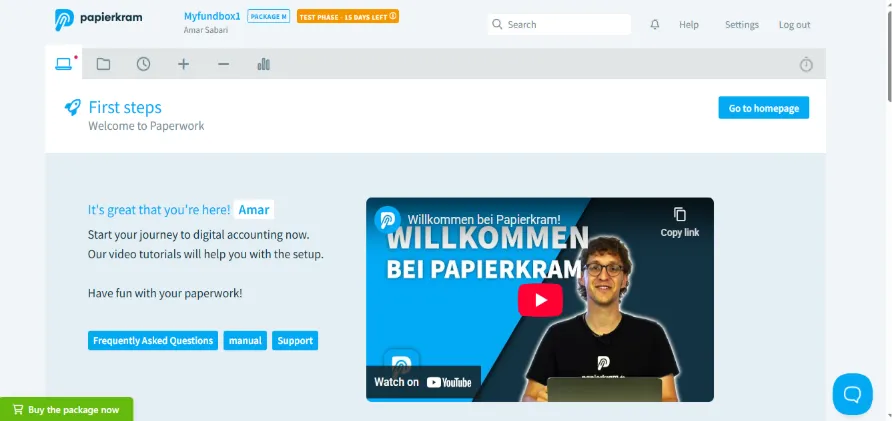
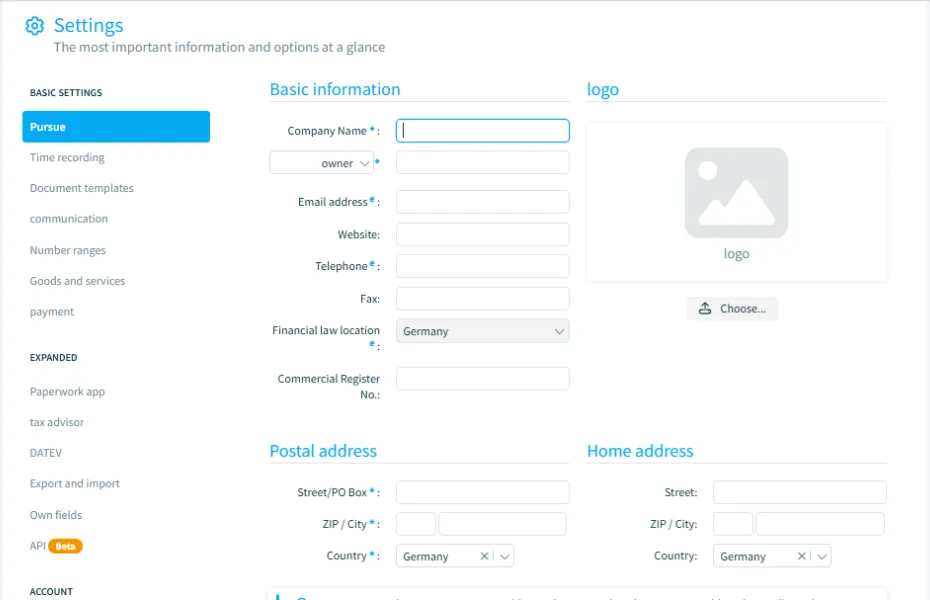
- click on the option shown below
- Enter a name for the token, then click “Create New Token.”
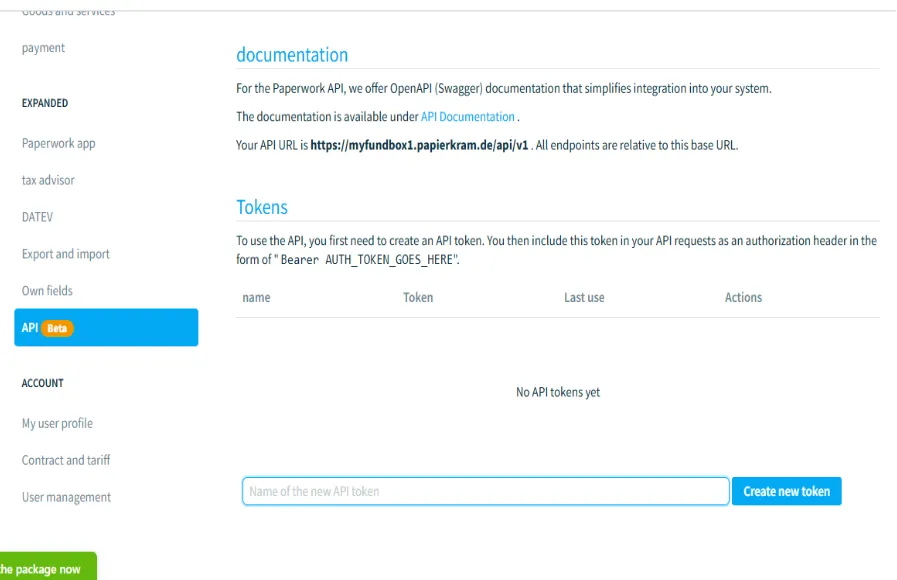
- Keep the access token safe, since it’s required for establishing the connection.
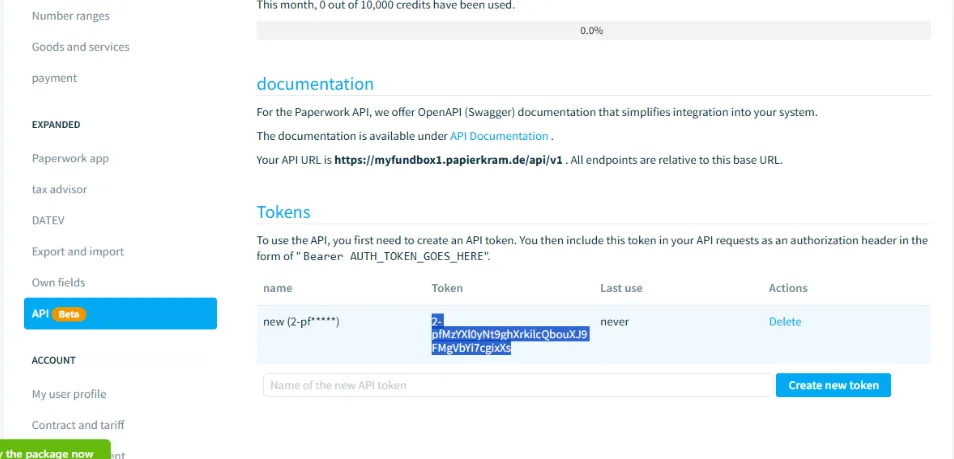
Your access token and domain name are now ready.
Connect Papierkram in MYFUNDBOX
- Sign in to MYFUNDBOX.
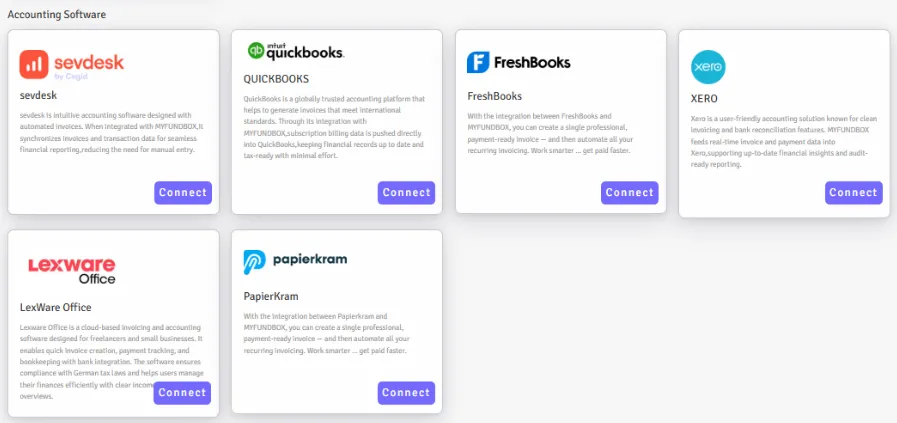
- Navigate to Configuration → Integrations → Papierkram → click the Connect button.
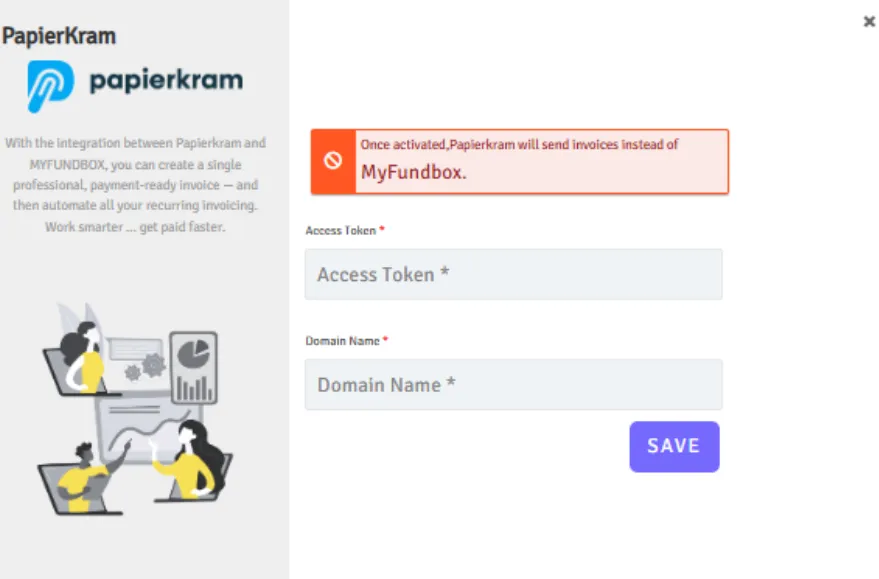
A pop-up will open. Enter the Access Token and Domain Name, then click Save button.
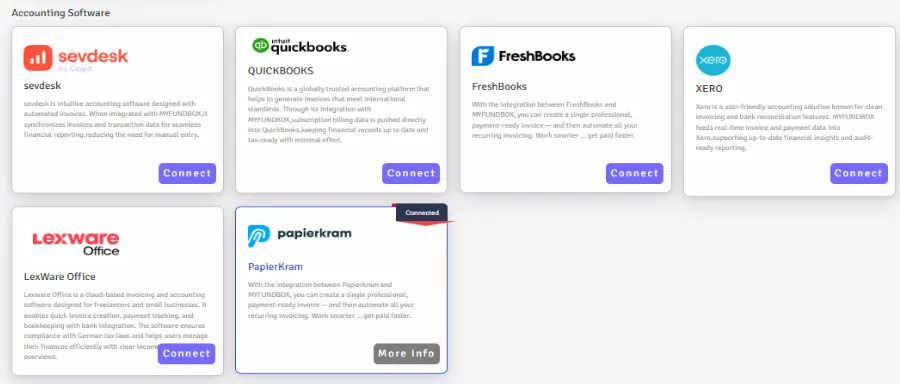
- After a successful connection, you will see "Connected" in the Papierkram module of your MYFUNDBOX account
To Enable/Disable/Delete Connections
For Enable/Disable Connections
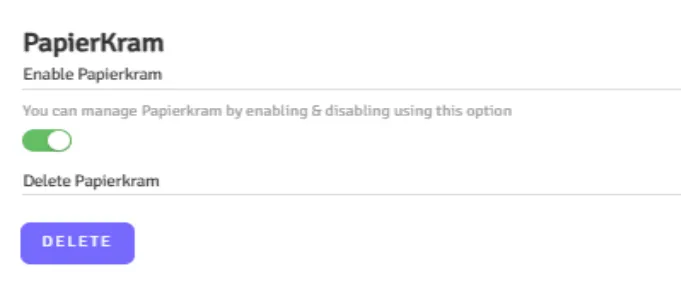
- In Manage Papierkram, you can enable or disable the Papierkram connection by clicking the toggle button or by clicking the more info button
- This only enables or disables the connection; it does not fully disconnect it
For Delete Connections
- If you want to delete or disconnect the Papierkram account, click the Delete button and then click Yes, delete it
- Your connection will be revoked.
- If you disconnect the connection, you will lose all Papierkram connection credentials from MYFUNDBOX.