Editing Or Updating Your Plan
To edit or update the plan
This guide will walk you through the steps to edit or update your subscription plan with ease. Whether you want to upgrade, downgrade, or change specific details, this documentation provides clear instructions to make the process seamless
Accessing the Plans Page
Log in to your account.
Navigate to the Dashboard.
Click on the Plans tab located in the main menu.
Editing or Updating Your Plan
On the Plans page, locate your current subscription details.
Press the Edit icon (🖉) located at the top right corner of the plan card.
A modal window will appear, allowing you to:
Change your plan type (e.g., from Basic to Premium).
Adjust billing cycles (Monthly or Annually).
Add or remove features based on your needs.
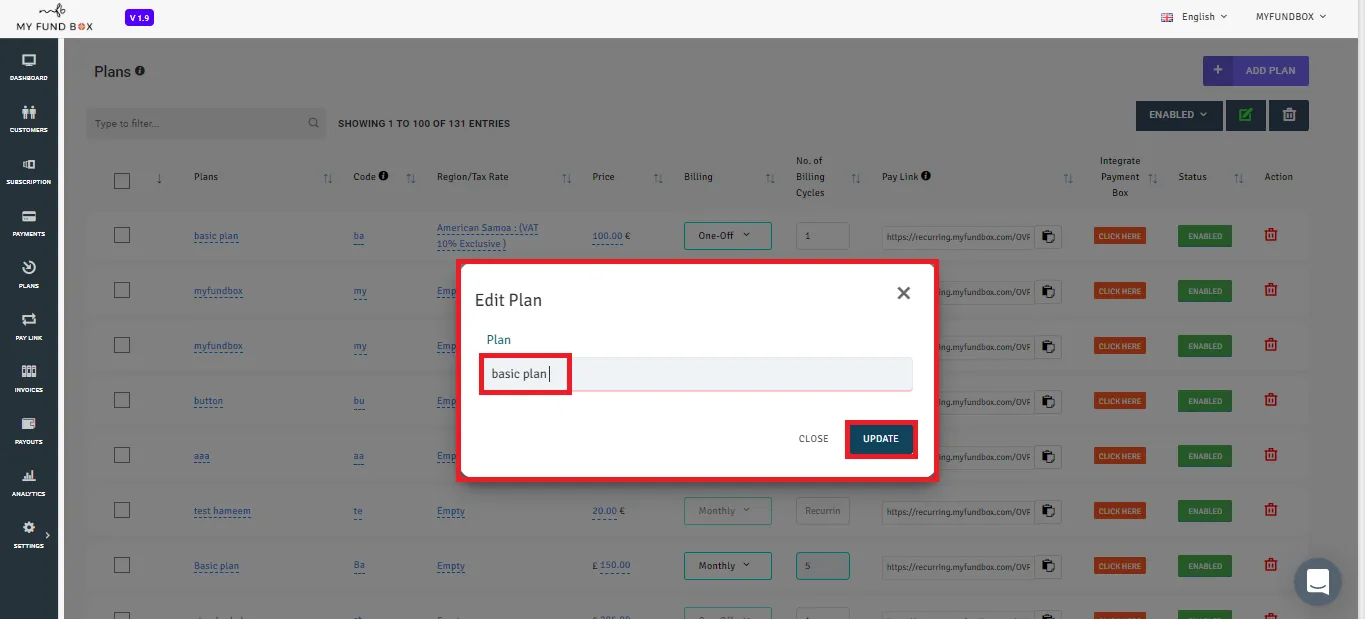
Reviewing Changes
After making your changes, click Next to review the updated subscription details.
Ensure the modifications reflect your intended updates, including:
Price adjustments.
New feature availability.
Updated billing dates.
To update your plan code
Click the edit icon and then select the Code Name of the plan that you want to change.
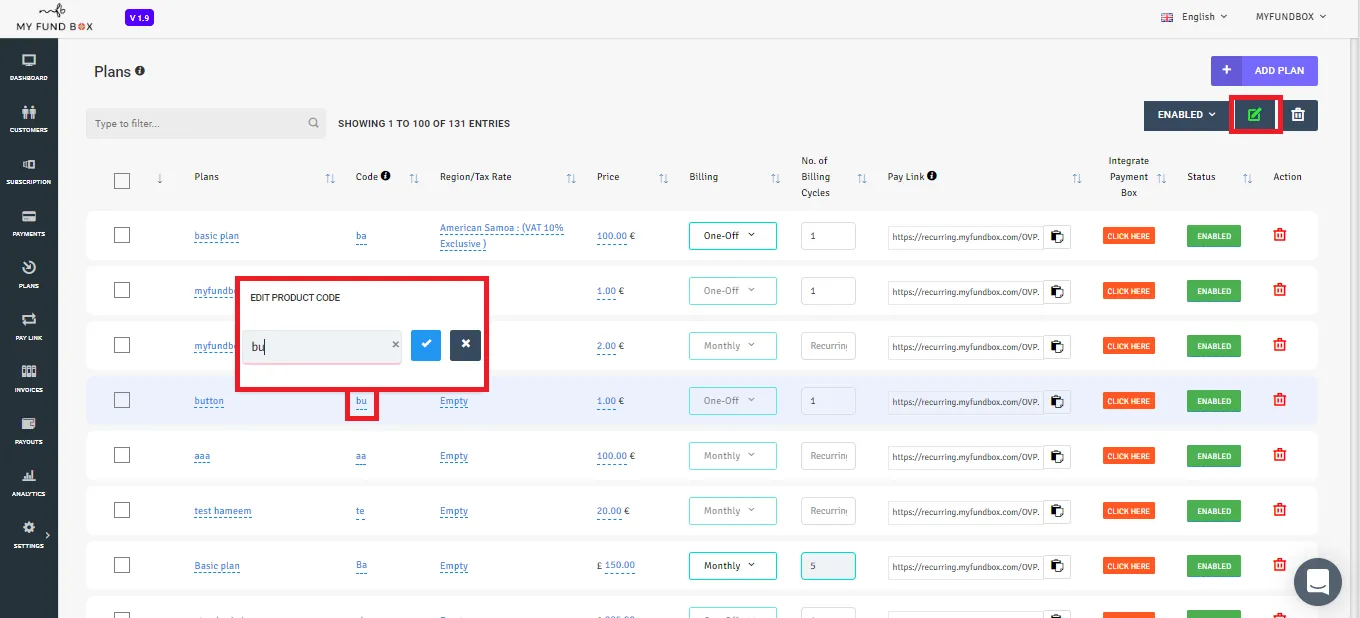
In this pop-up, you can update your code name to 10 characters and then click the 🗸 icon to update your code name.
Confirming Your Changes
Click Confirm Changes to finalize your updates.
A confirmation message will be displayed, and you will receive an email with the updated plan details.
To edit your region or tax rate
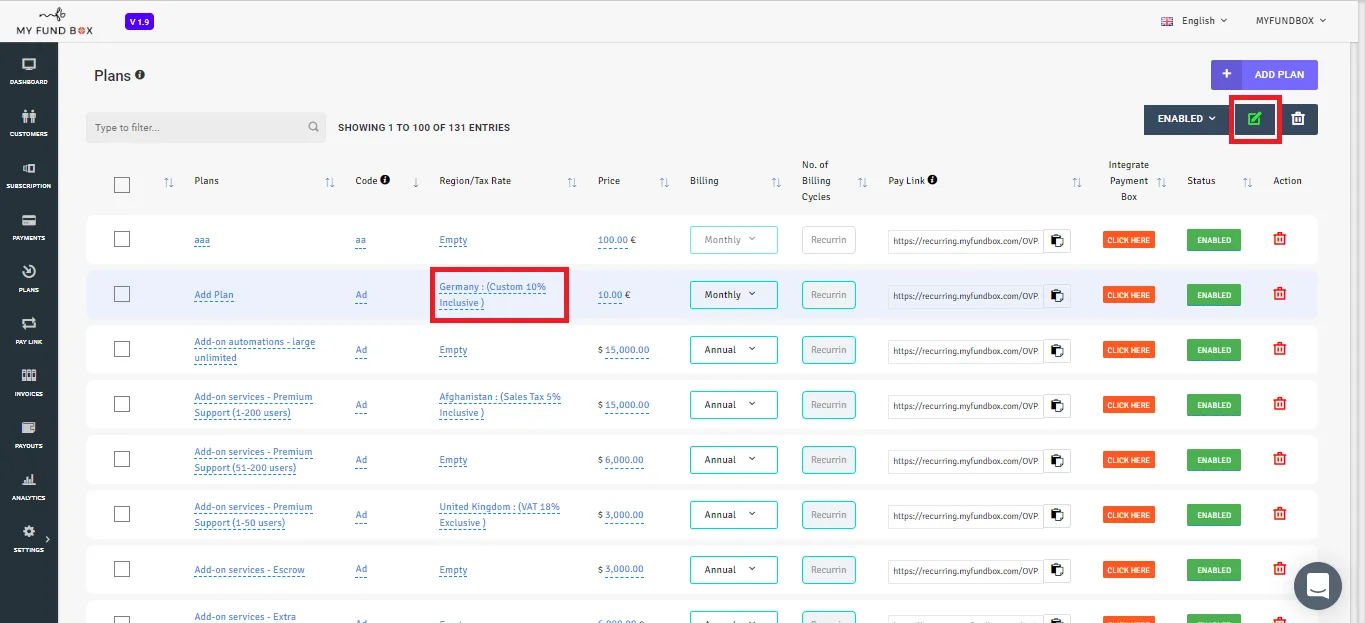
Click on the edit icon and then select the Region/Tax column of the particular plan you want to change.
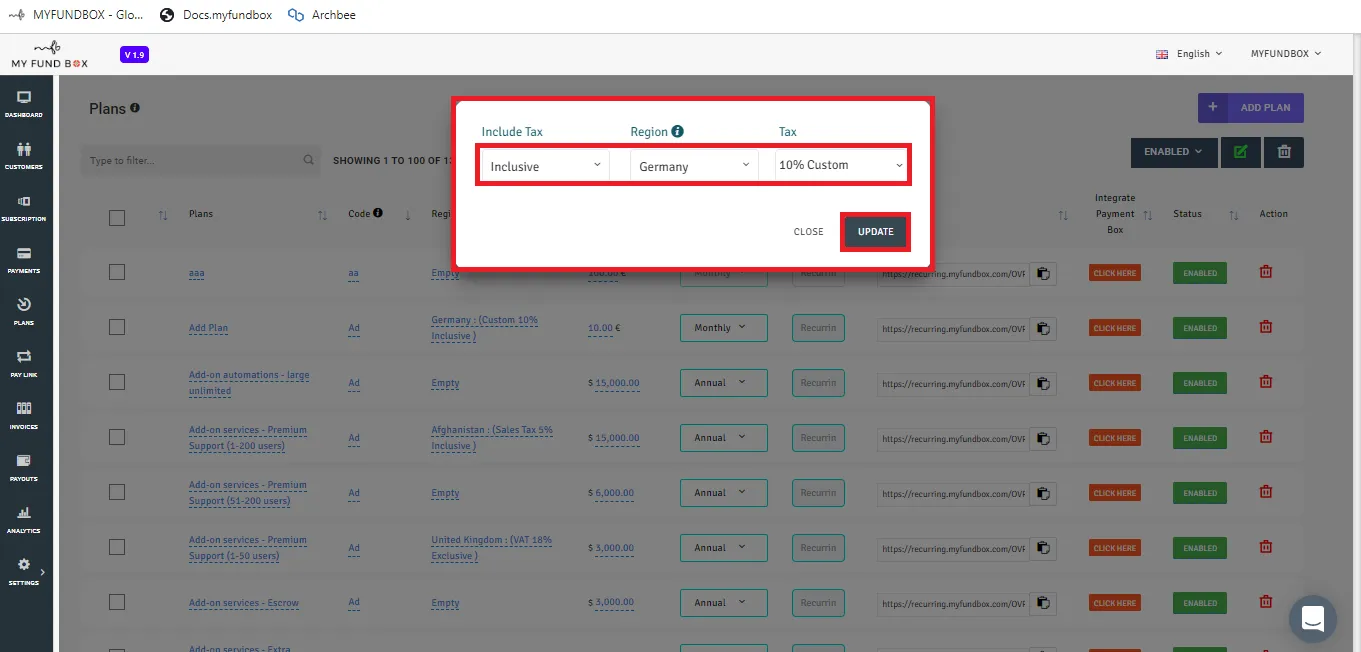
You can see a pop-up as shown below. In this pop-up, you can update your tax either it can be Inclusive/Exclusive, Region or Tax Rate.
To edit or update your plan price
Click on the edit icon and then select the Price column of the particular plan that you want to change.
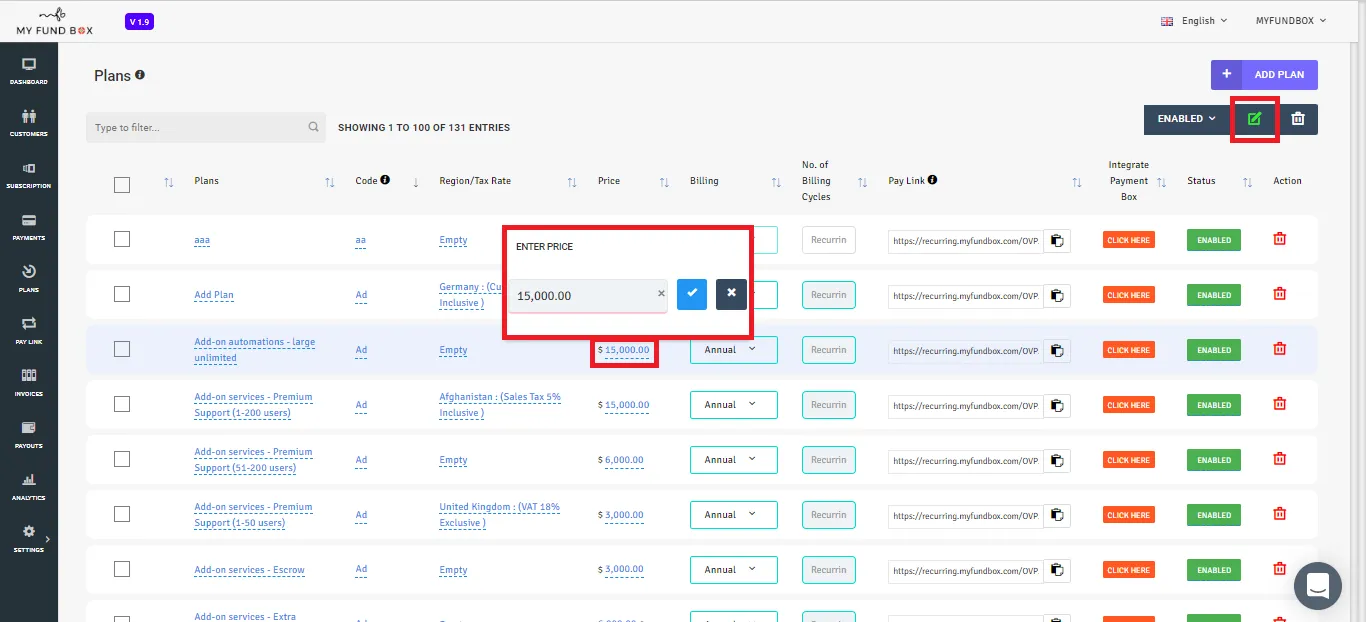
You can see a pop-up as shown below. In this pop up you can edit your plan price and press the 🗸 icon to update your plan price.
To edit the stepwise price plan
Click on the edit icon and then select the stepwise price column of the plan that you want to change
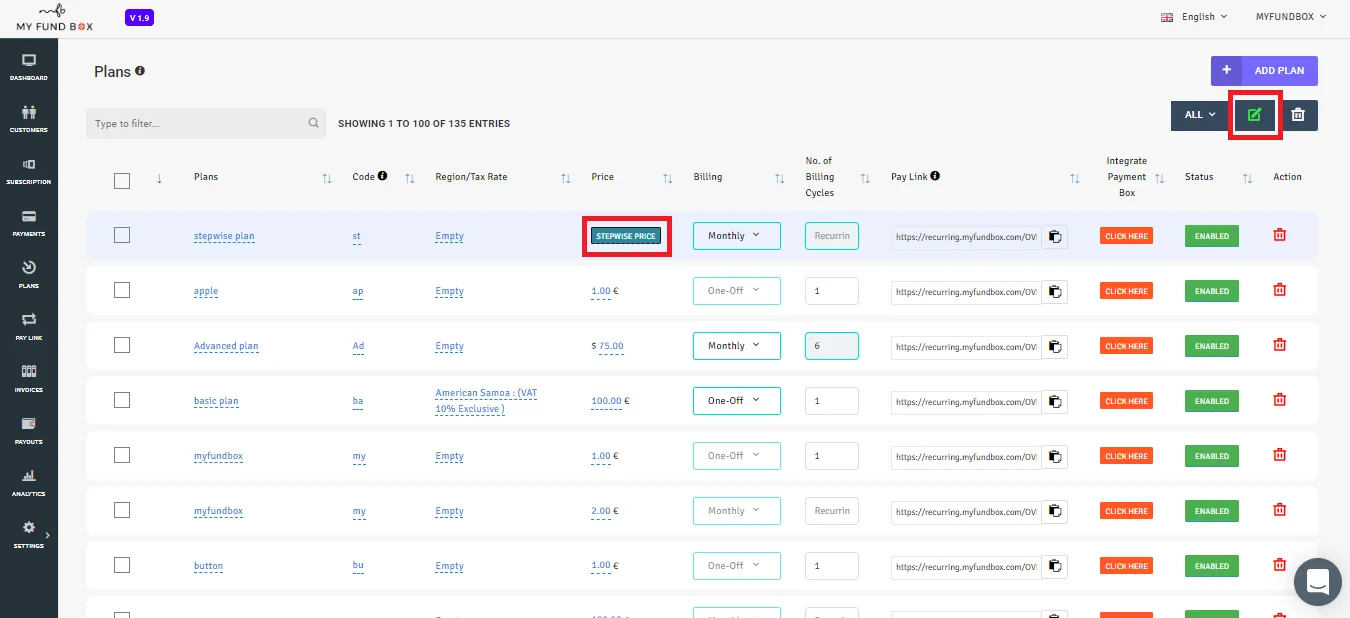
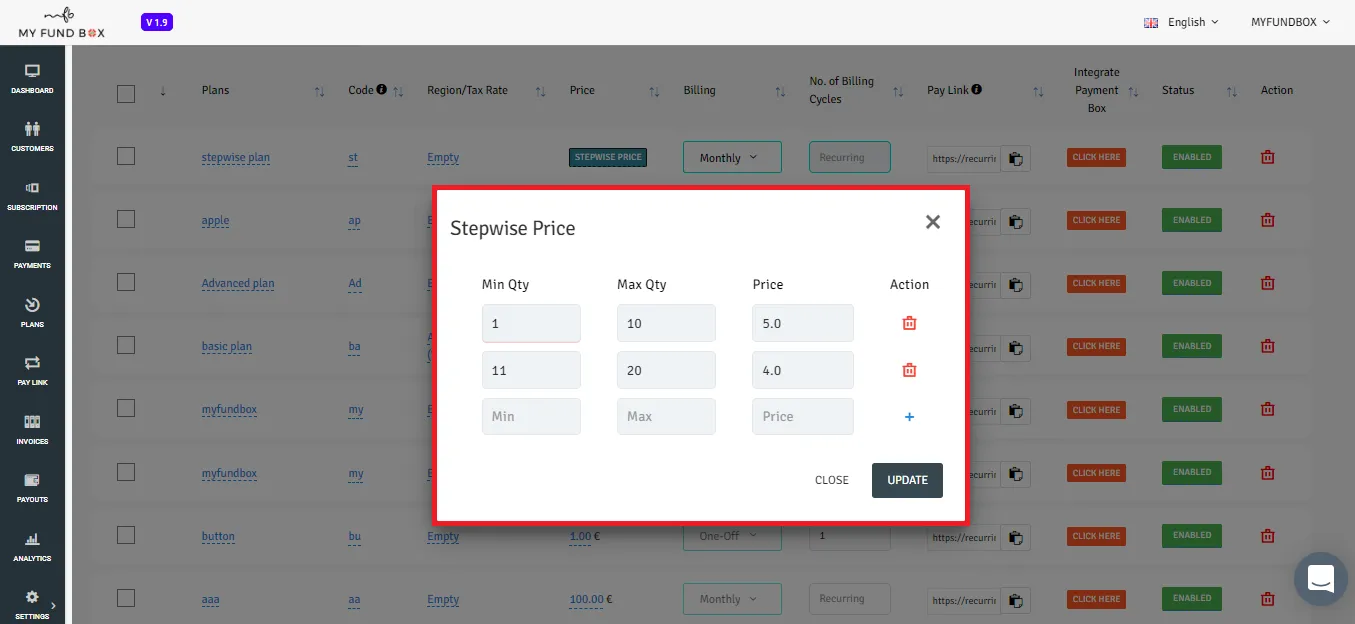
You can see a pop-up as shown below. In this pop up you can change the quantity and price of the plan, you can also delete a step in the Stepwise Price using the delete icon on the right and click UPDATE to update your stepwise plan.
To enable/disable your plan status
Click on the edit icon and then select the status column of the plan that you want to change.
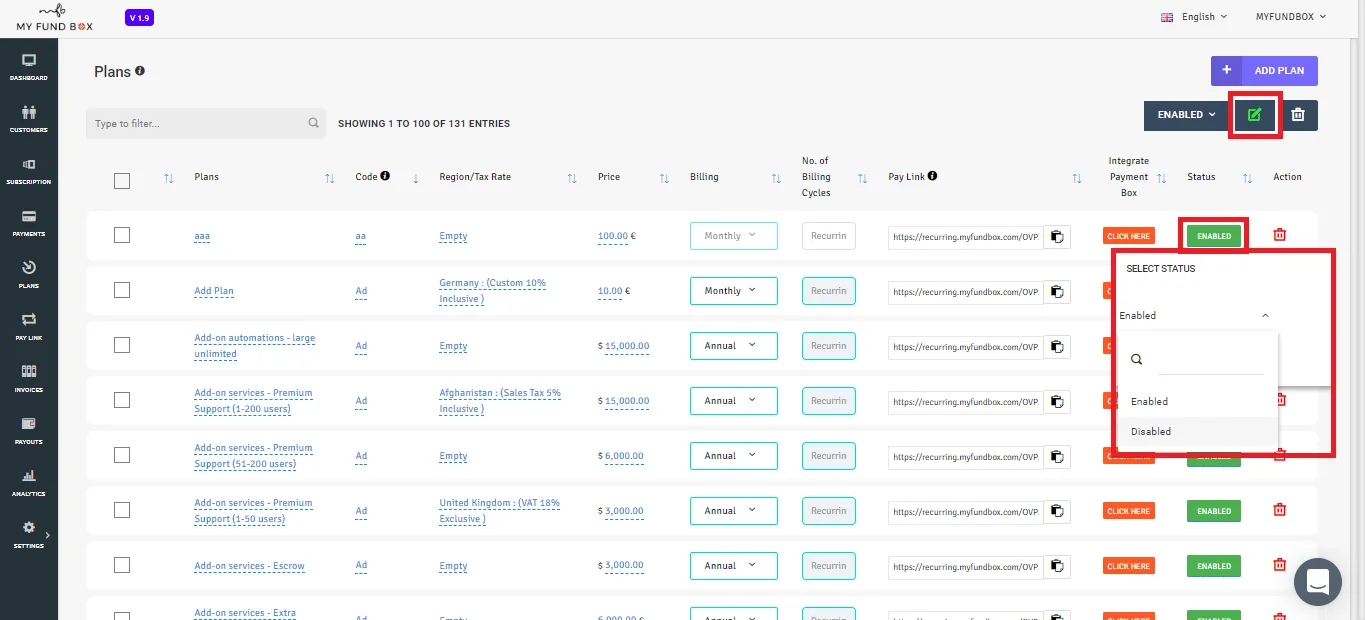
You can see a pop-up as shown below. In this pop-up, you can enable/disable the plan status and then press the 🗸 icon to update your plan status.