How to update payment method
13 min
Please follow the below steps to update payment gateway.
There are 2 ways to update a payment gateway
- Customers can update payment gateway in their portal
- Admin can Update the payment gateway for their customer
How a customer can update the payment gateway
- Firstly the customer has to access the Customer Portal. They will get Myportal URL in their respective email as shown below.
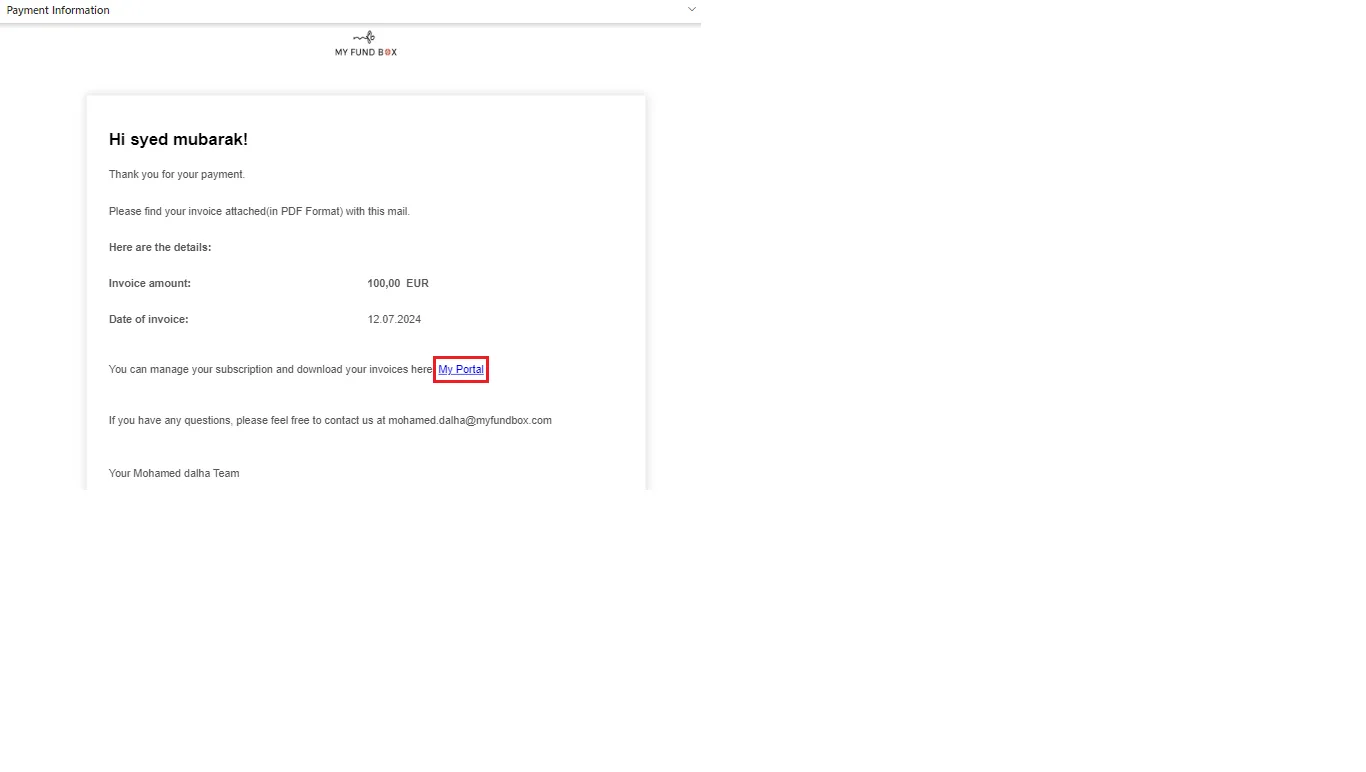
- When the customer clicks on the Myportal link, it will be redirected to their portal (Myportal)
- Then they have to select the Plan by clicking on the Plans tab to which the payment method should be updated.
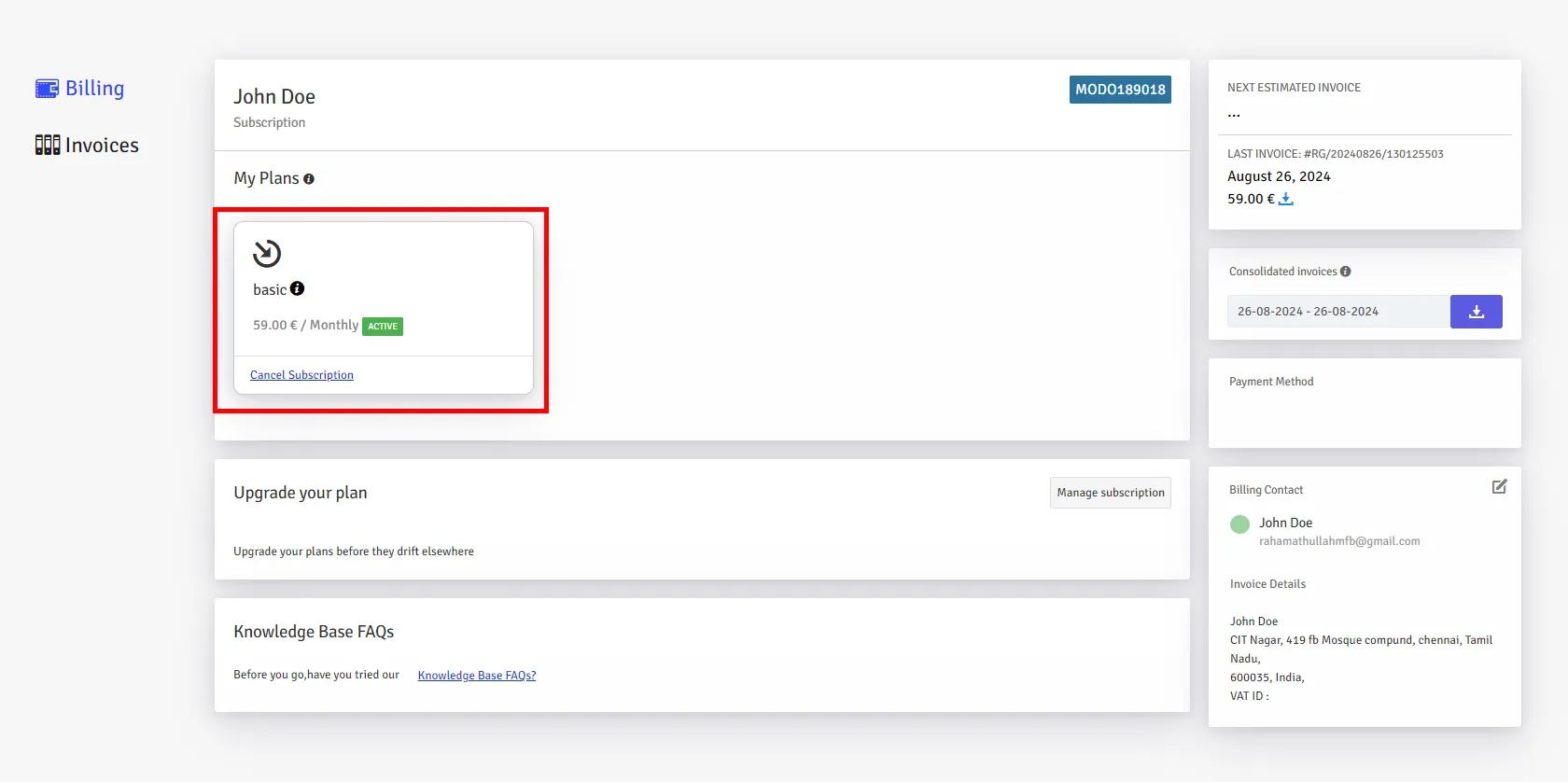
- And click on the Edit icon at the right side of the payment method option.
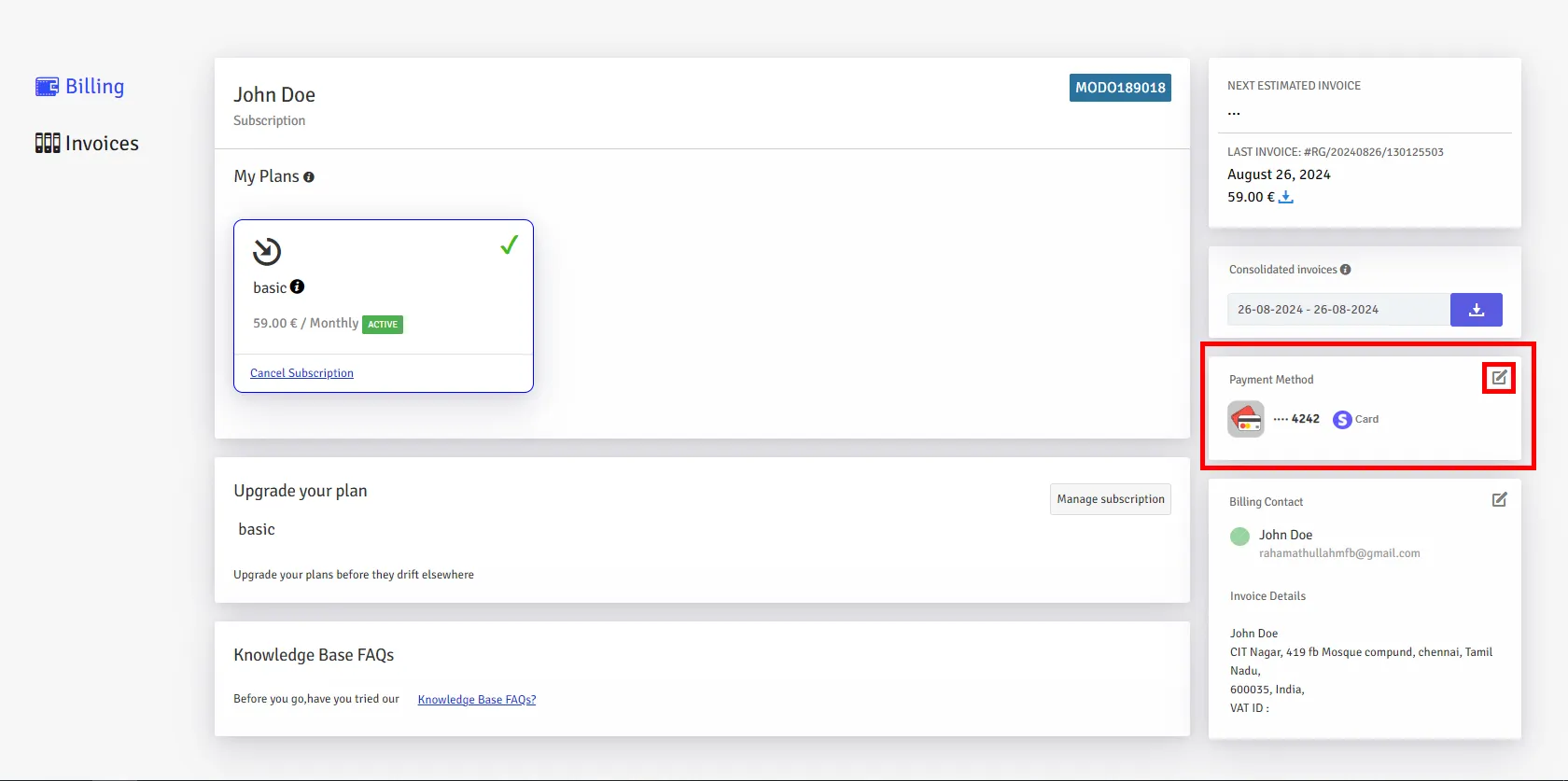
- After clicking the Icon, a pop-up appears as shown below.
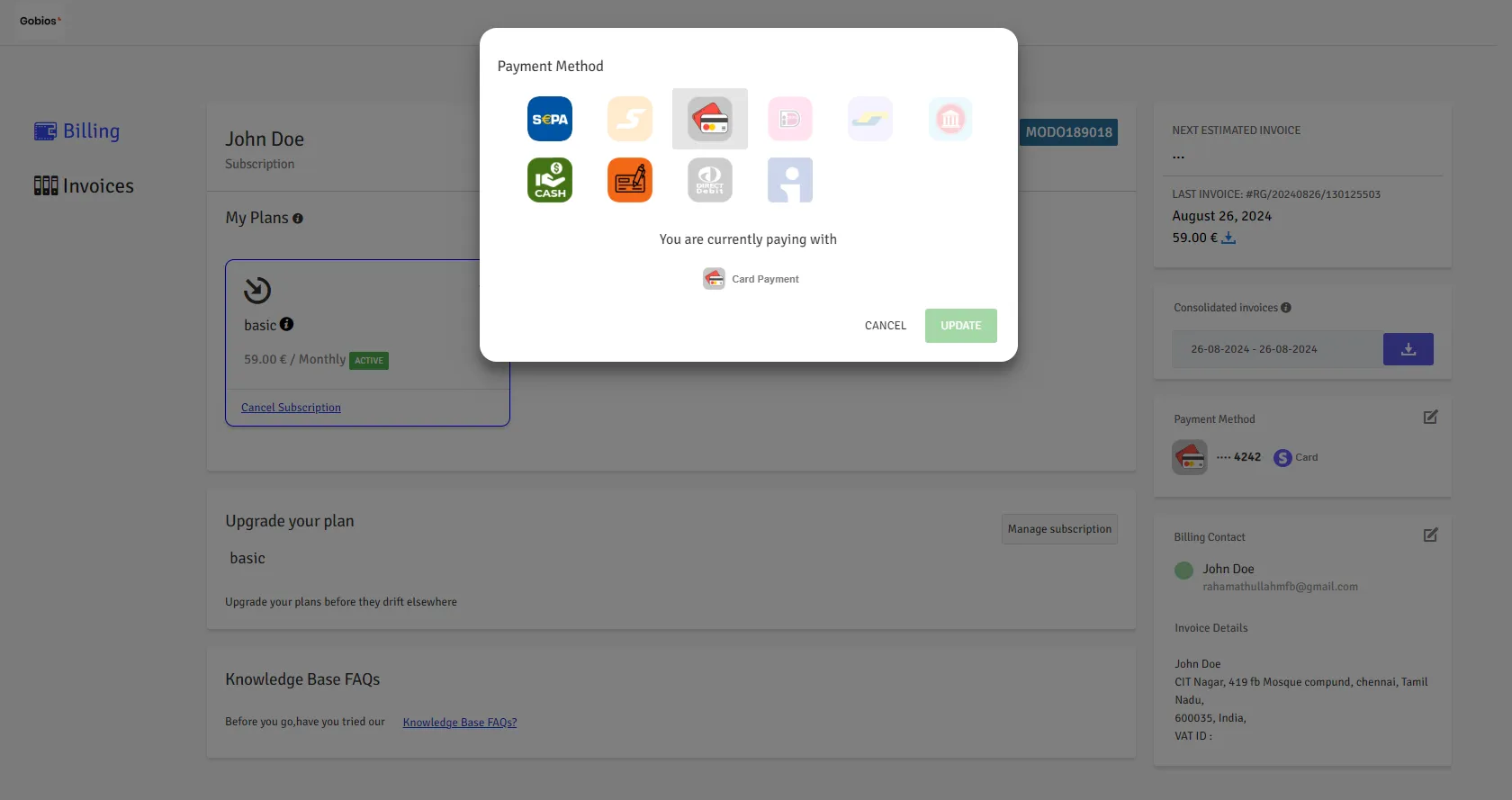
- By default a selected payment method will be displayed.
- You can choose your preferred payment method to update.
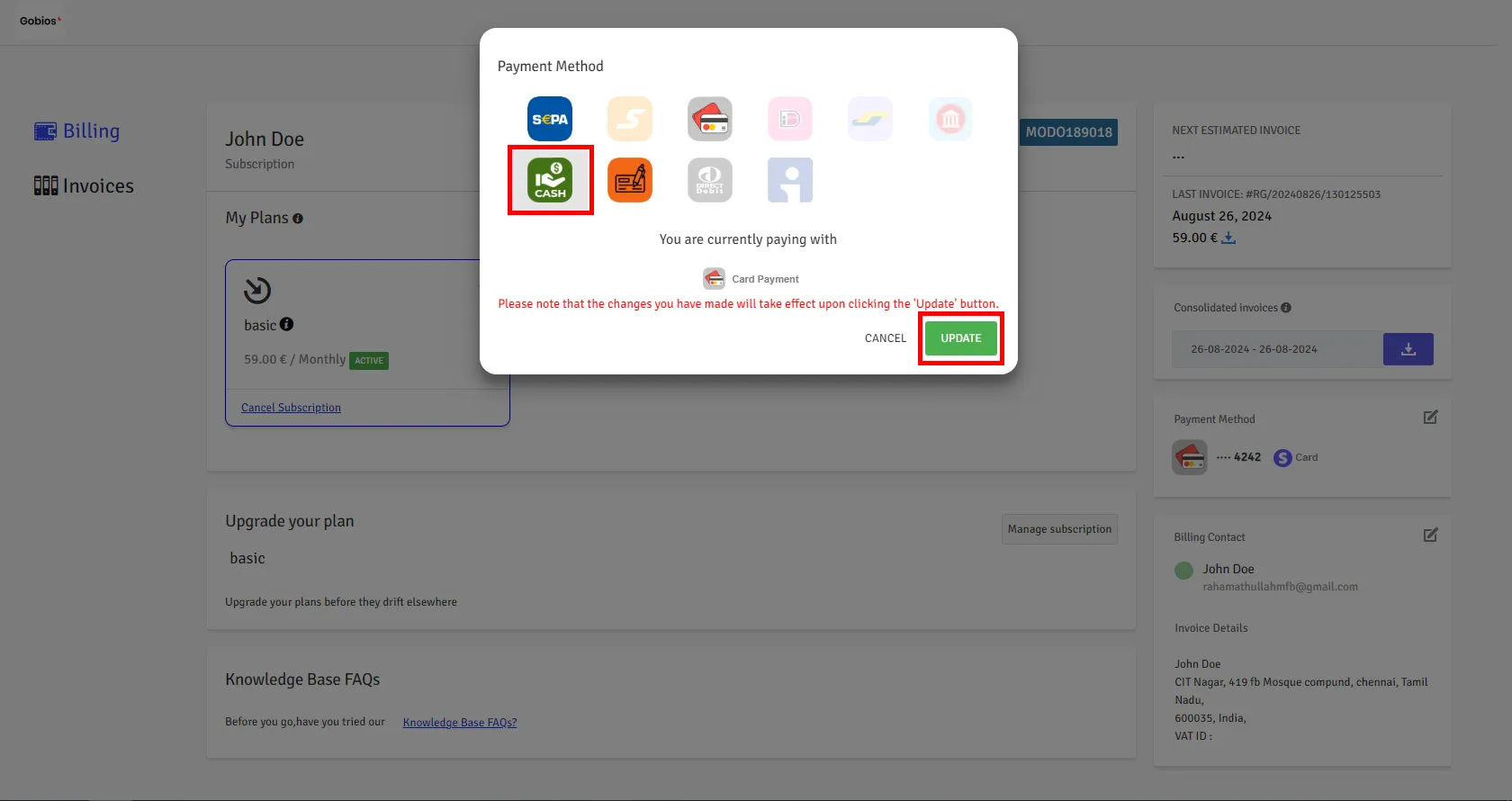
- After selecting a payment method, click on update.
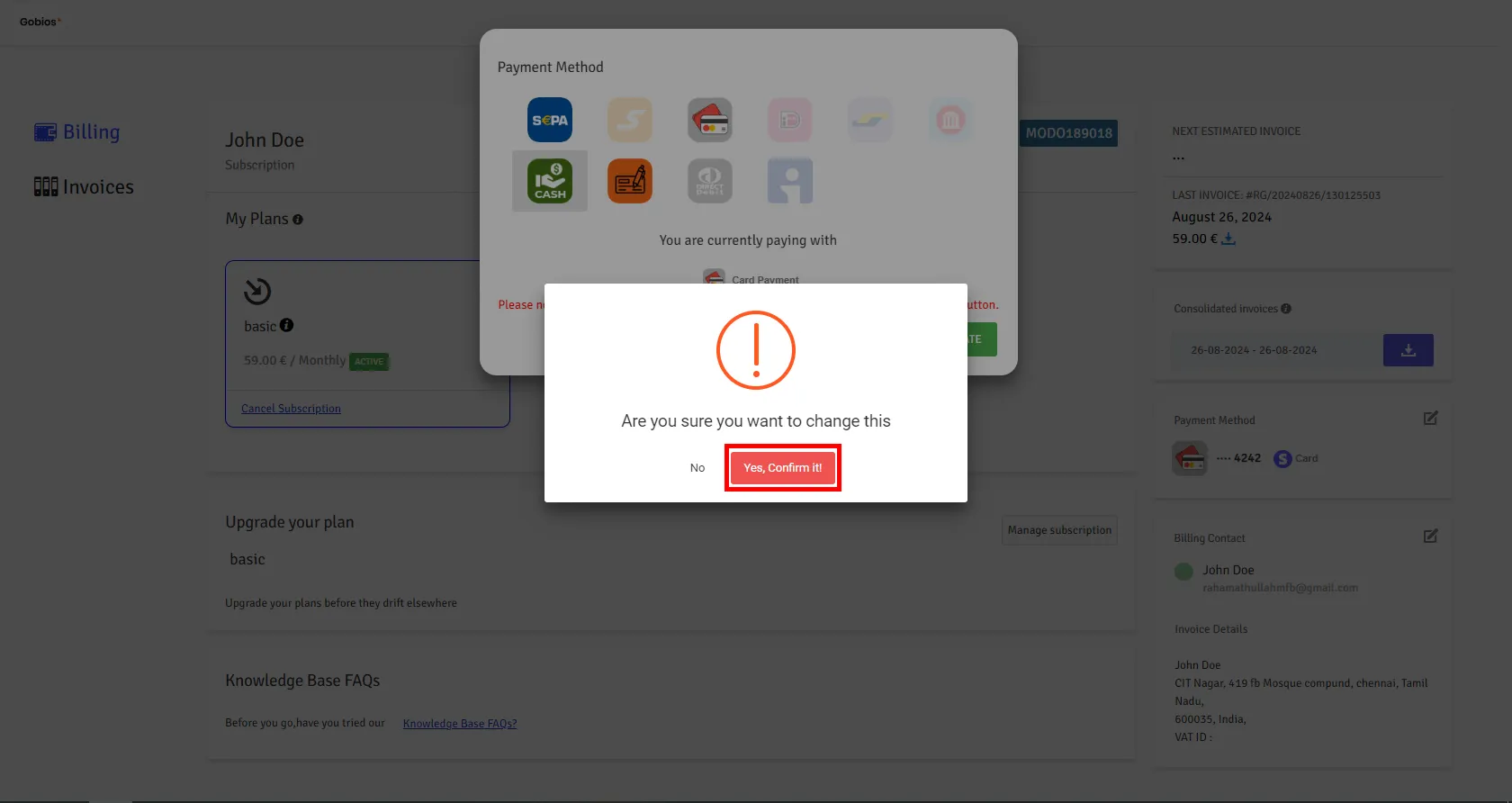
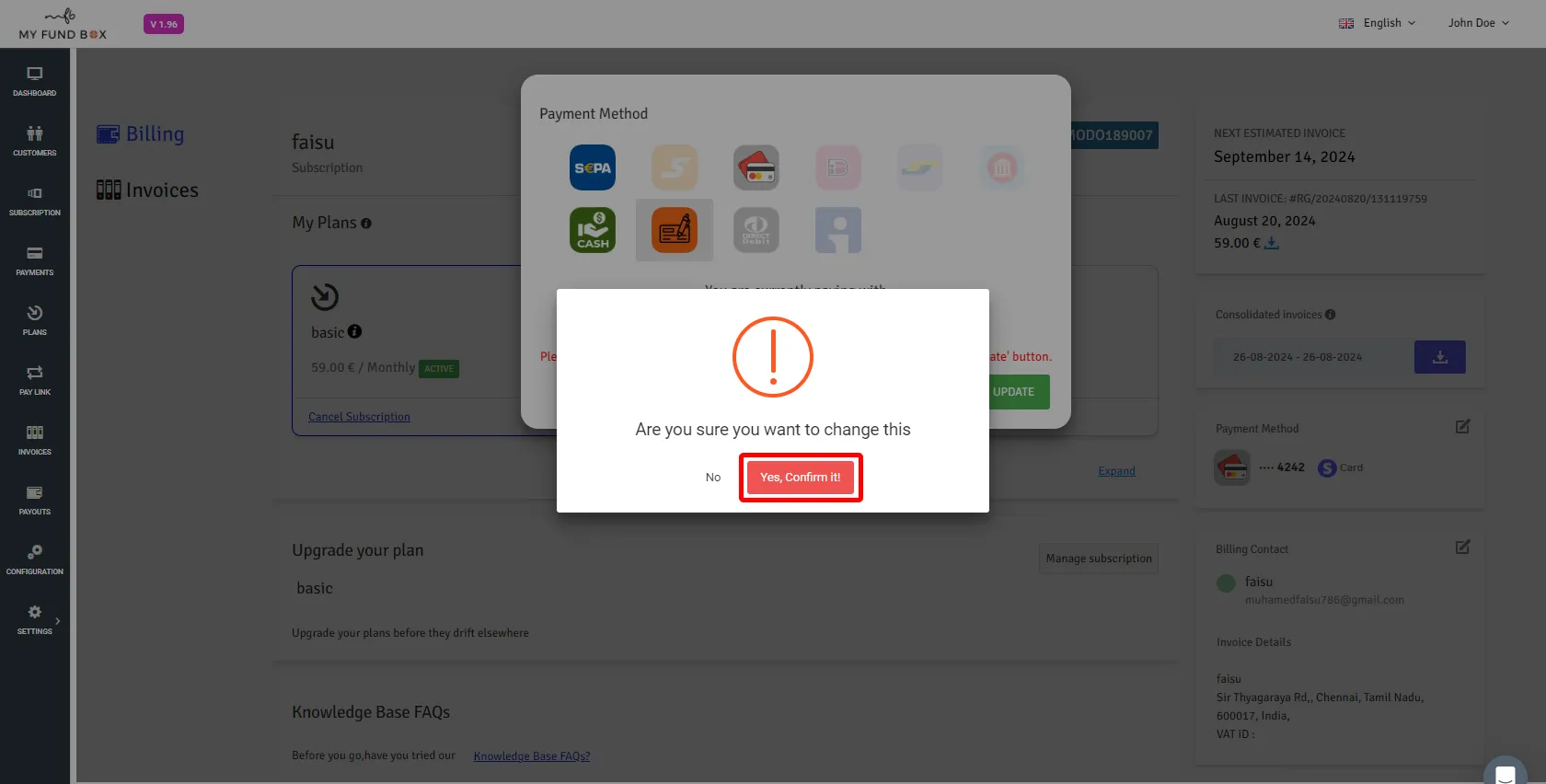
- Confirmation pop-up appears. Then click on Confirm button to proceed.
How Admins can update the payment gateway for customer
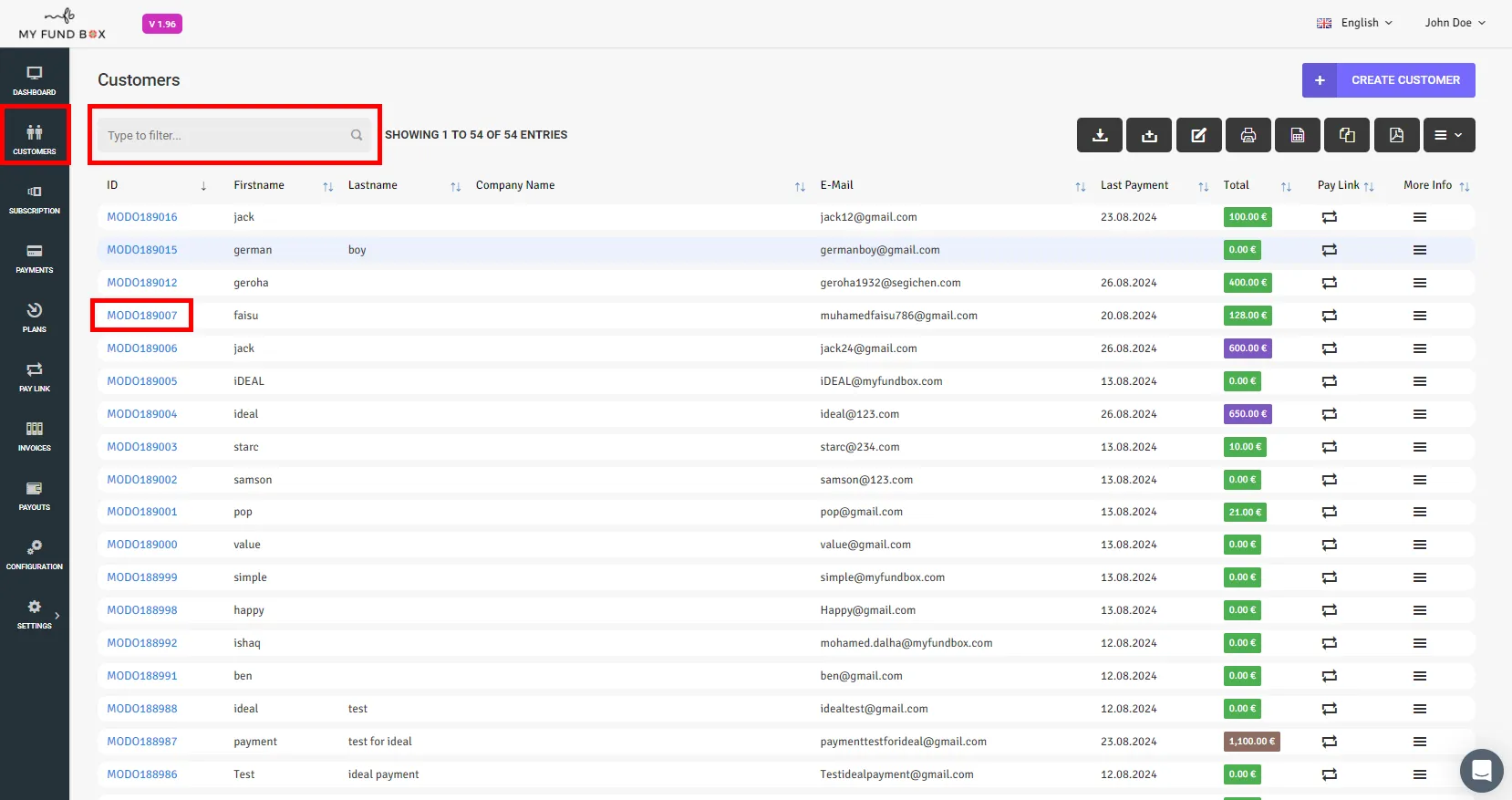
- Navigate to Customers List to update customers payment method.
- Click the customer id to redirect to their Portal Page.
- In Customer's Portal page all plans will be displayed.
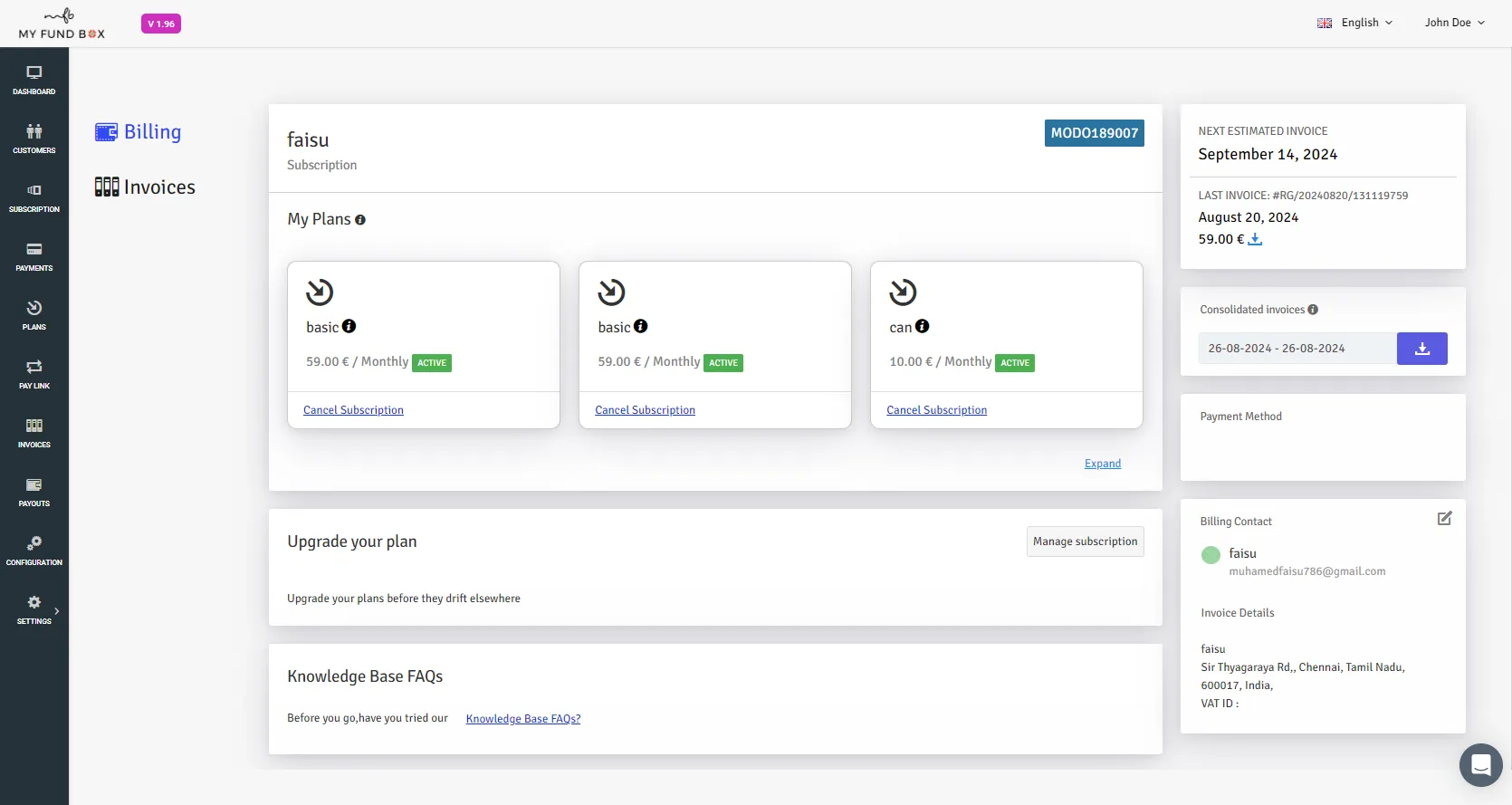
- Select the particular plan to update payment method.
- After selecting the particular plan, payment method will be displayed in the right side panel along with edit option
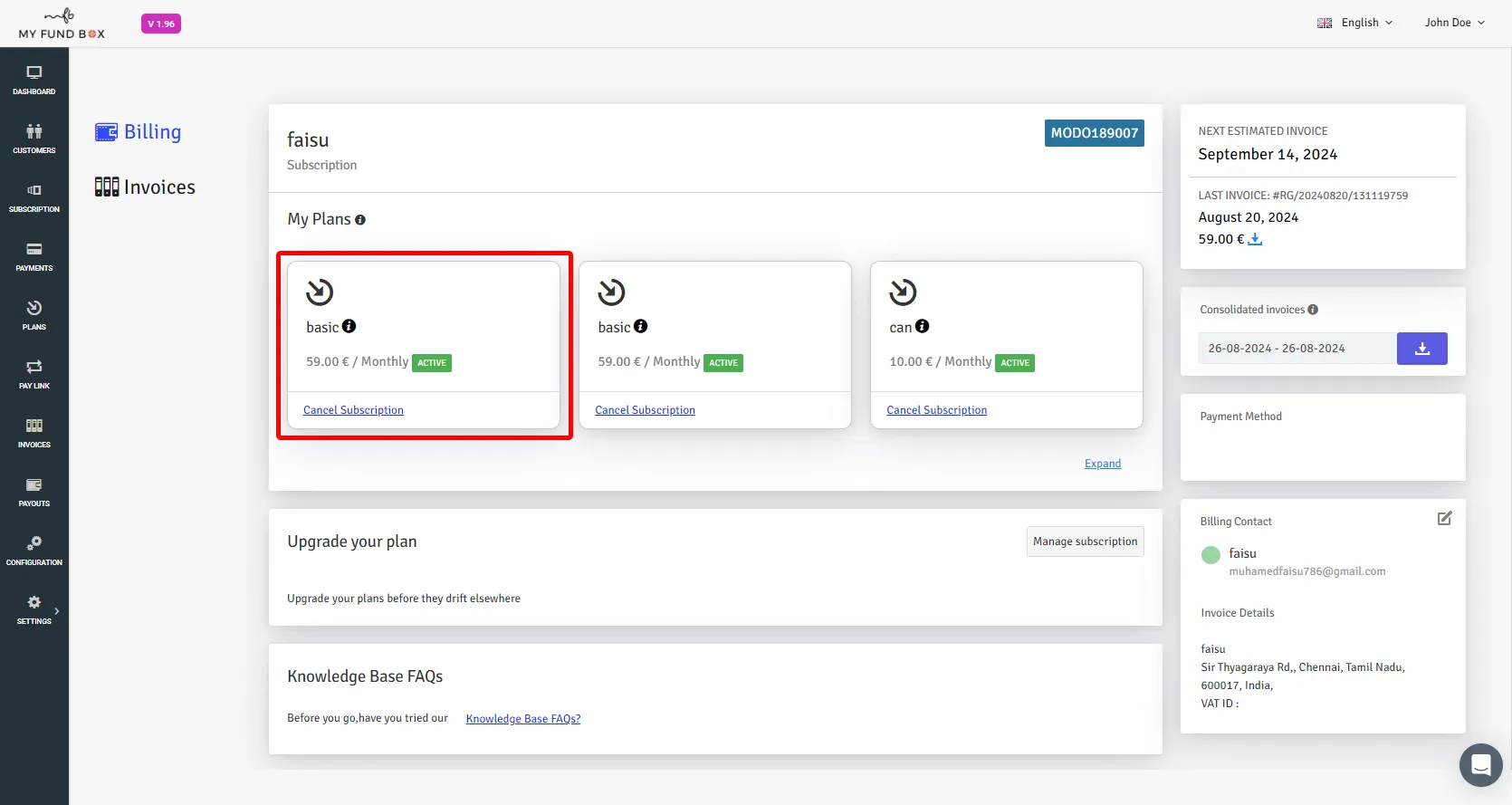
- If you want to update / change payment method , use edit option in payment method panel.
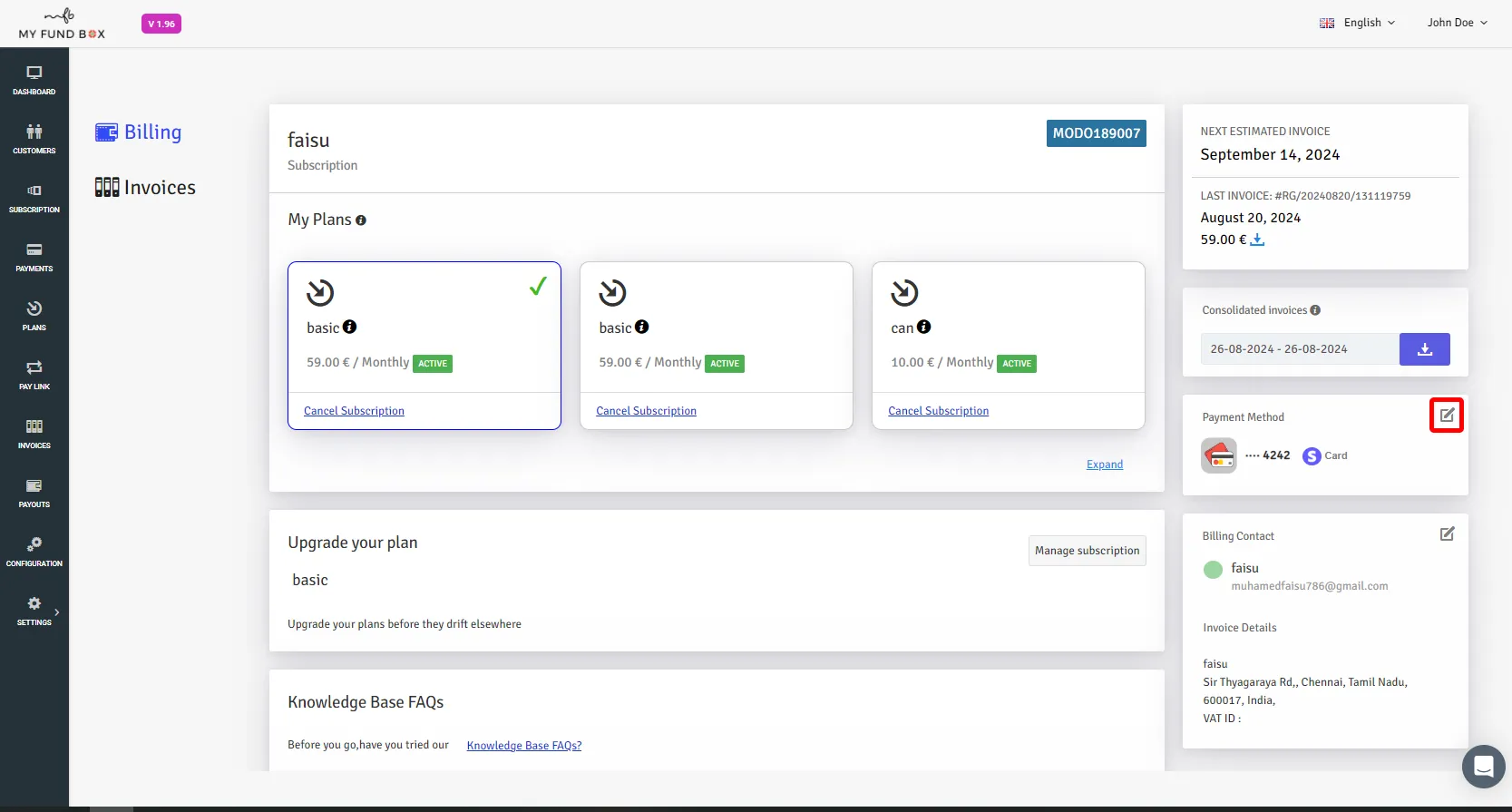
- After clicking the Icon , a pop-up appears as shown below.
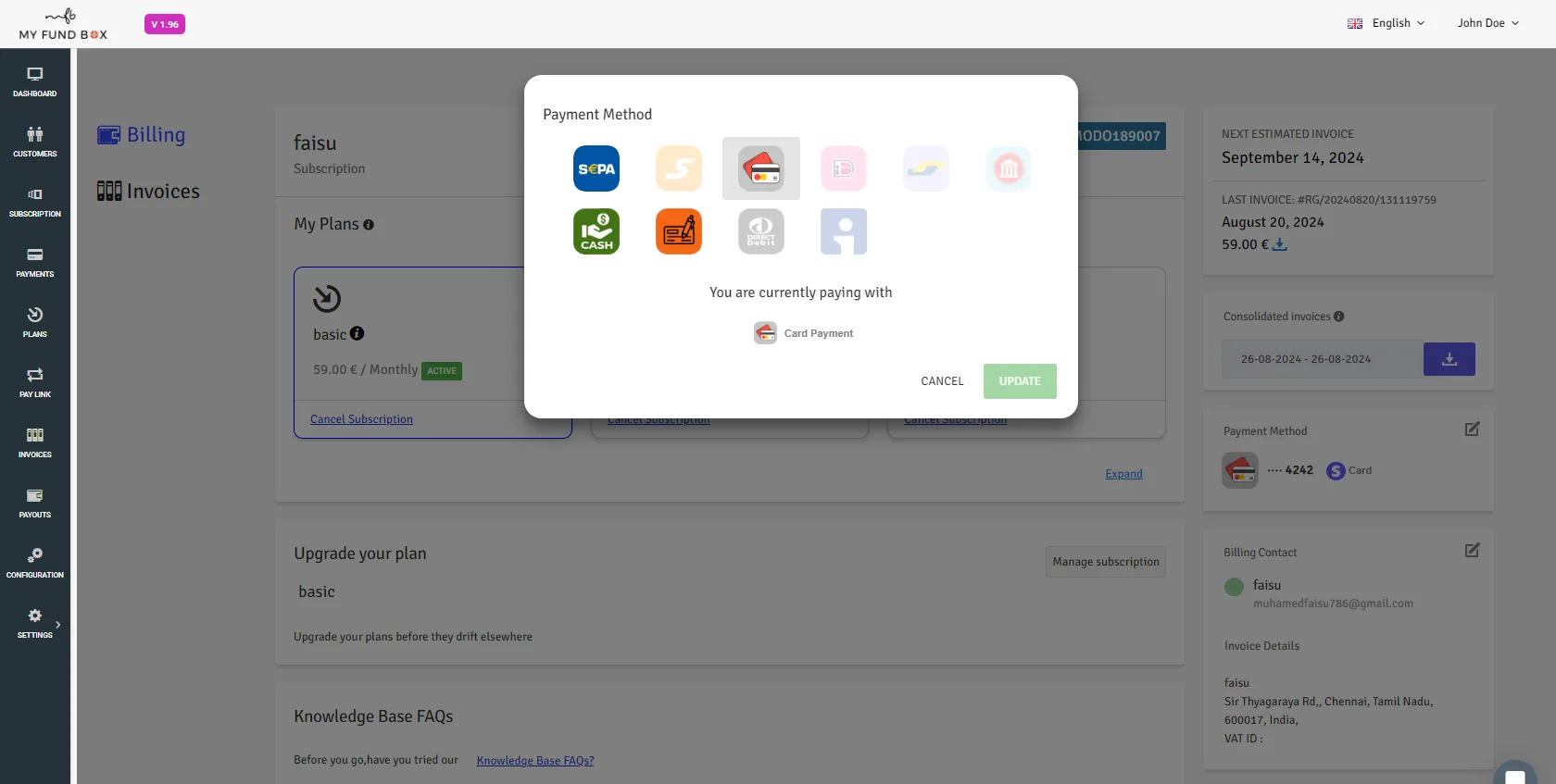
- By default a selected payment method will be displayed.
- You can choose your preferred payment method to update.
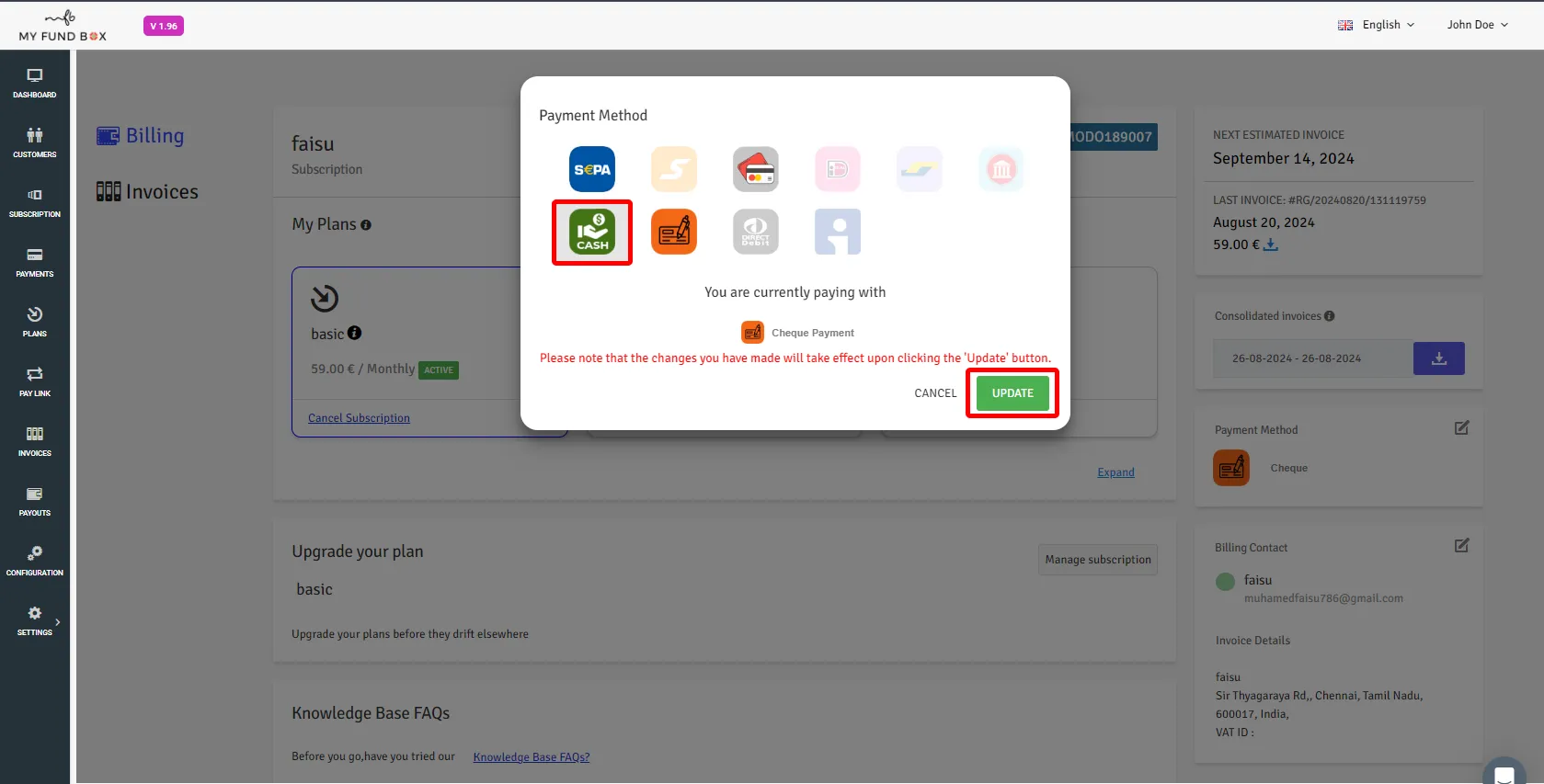
- After selecting a payment method, click on update.
- Confirmation pop-up appears. click on the Confirm button to proceed.
Thats it. You have successfully updated your payment method.