2CHECKOUT
7 min
CONFIGURATION / USER GUIDE:
Step 1: Create a Checkout.com Account
- Visit https://www.2checkout.com/
- Click Sign Up
- Complete the business registration and verification process to move your account from "Demo" to "Live" mode.
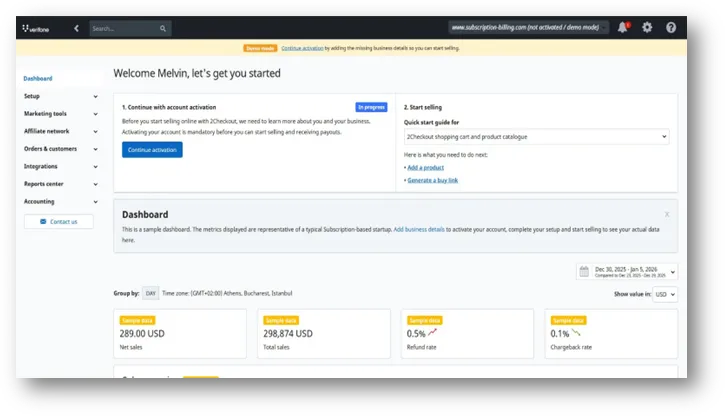
Step 2: Locate Your Merchant Code and Secret Key:
- Log into your 2Checkout Merchant Control Panel.
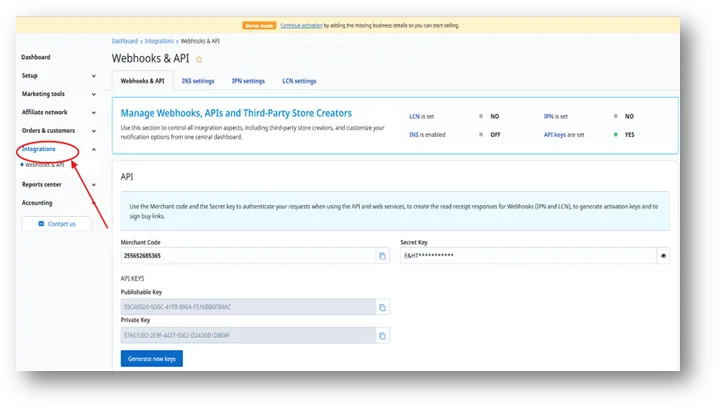
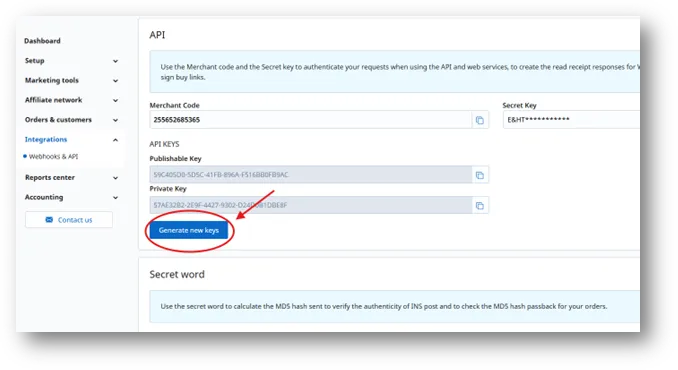
- Navigate to Integrations > Webhooks & API from the left-hand menu.
- Under the API section, you will find your Merchant Code (Account Number) and the option to generate or view your Secret Key (INS Secret Word).
Step 3: Securely Copy API Credentials:
- Click the Generate button next to the INS Secret Word if one has not been created yet.
- Copy the Merchant Code.
- Copy the Secret Key.
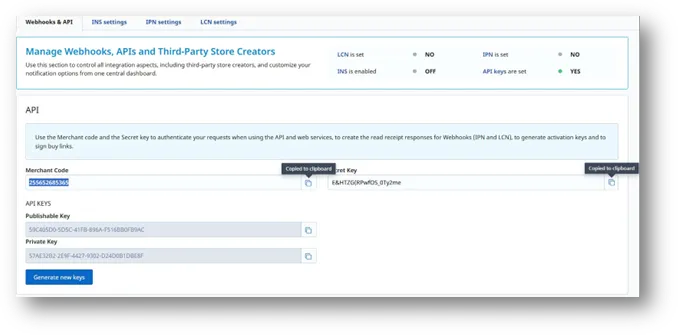
- Note: Store these credentials in a safe place. These keys are used to verify and secure your transaction data.
Step 4: Connect on MYFUNDBOX:
- Log into your MYFUNDBOX account.
- Navigate to Settings > Payment Gateways.
- Find the 2Checkout option and click the Connect button.
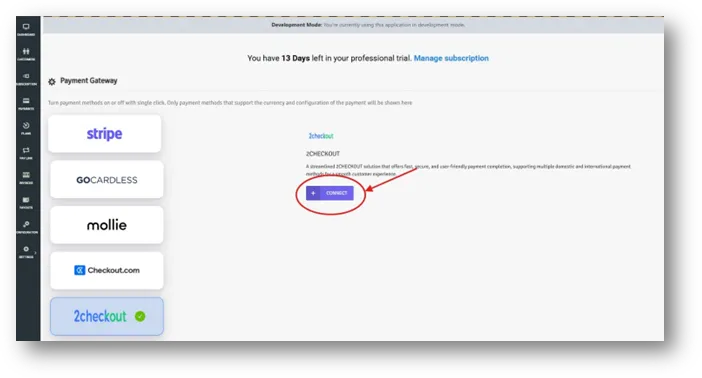
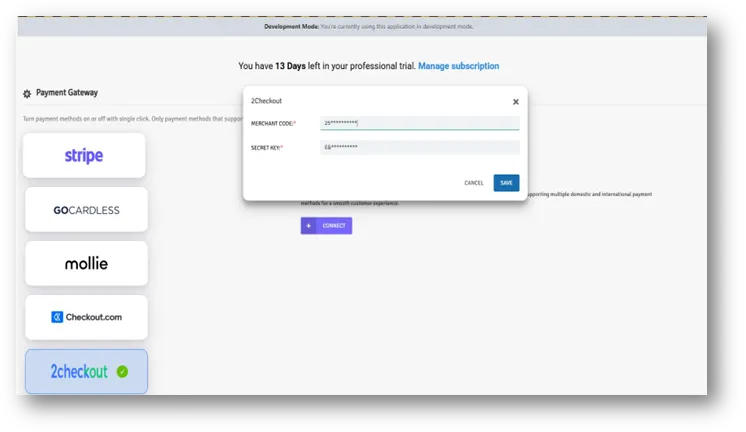
- In the connection pop-up window, paste your Merchant Code and Secret Key into the corresponding fields.
- Review the settings to ensure no extra spaces were added during pasting.
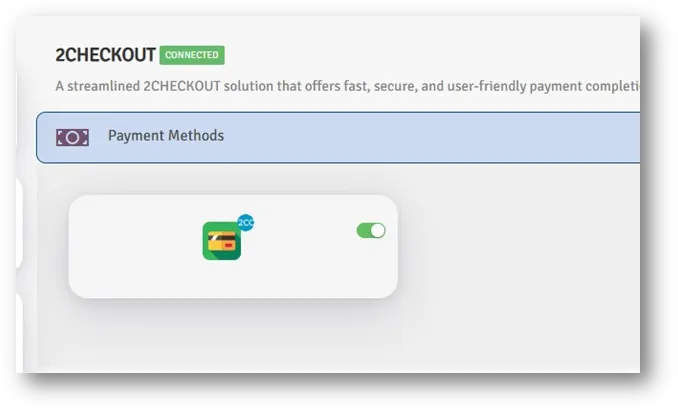
- Click Save to complete the integration. Your account status should now show as "Connected."
Step 5: Security and Key Updates:
Regenerate Keys in 2Checkout:
- Log into your 2Checkout Merchant Control Panel.
- Navigate to Integrations > Webhooks & API.
- In the Secret Word section, click the Generate button to create a new INS Secret Word.
Update MYFUNDBOX:
- Go to your MYFUNDBOX account.
- Navigate to Settings > Payment Gateways.
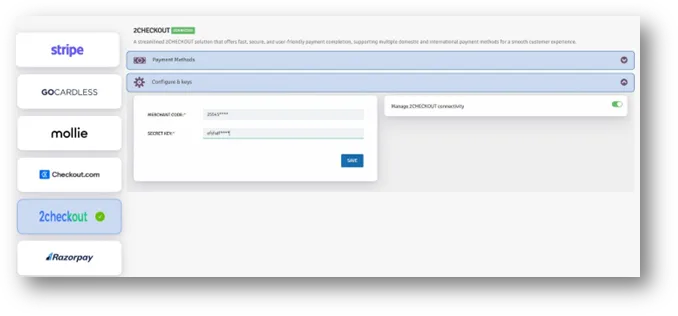
- Select 2Checkout and click Configure and Keys section.
- Paste your newly generated Secret Key into the field and click Save.
Step 6: Managing Payment Methods via Toggle:
- Switching a toggle to the Off position immediately removes that payment option from your hosted checkout page for your customers.