Payrexx
6 min
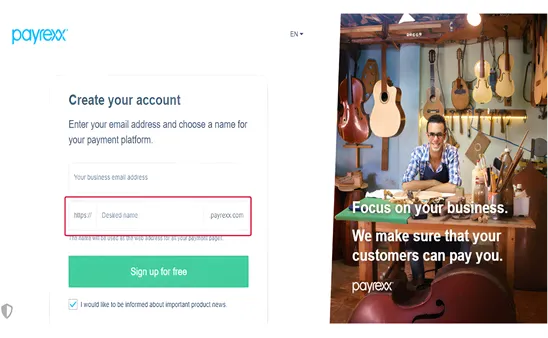
Step 1: Create a Payrexx Account
- Visit https://www.payrexx.com
- Click Get Started or Create Account
- Complete the registration steps including business verification.
- Desired name – Instance.
Step 2: Collect API Credentials
Payrexx requires two key values for Connection.
1.Instance Name
Your instance name is the subdomain of your Payrexx account. Example: If your dashboard URL is:
https://demo.payrexx.com
Then your Instance Name = demo
2. Generate API Secret Key
- Log in to your Payrexx dashboard
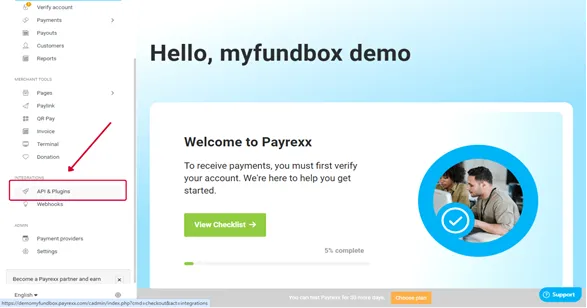
Payrexx Administration panel.
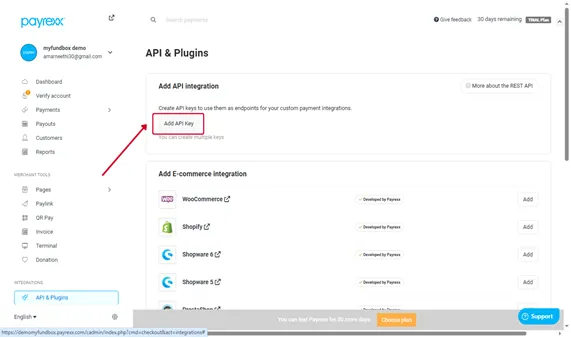
- Navigate to API & PLUGINS → ADD API Integration .
- Click ADD API Keys .
- Fill the Integration Name Field .
- Then, Click the ADD button – API KEY Generated.
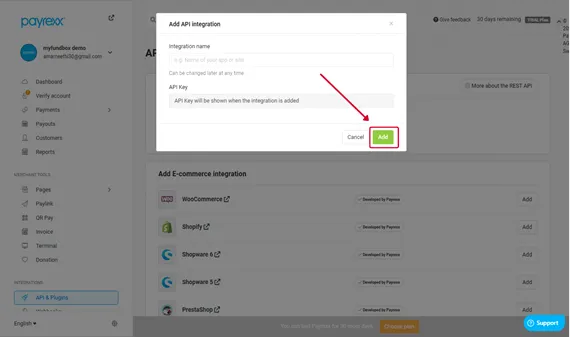
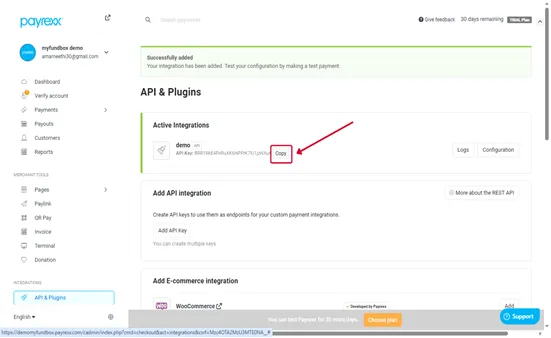
- Copy the API Key and Keep this key safe — it is required for Connection to Payment Gateway.
Step 3: Configure Webhooks
Add Webhook URL.
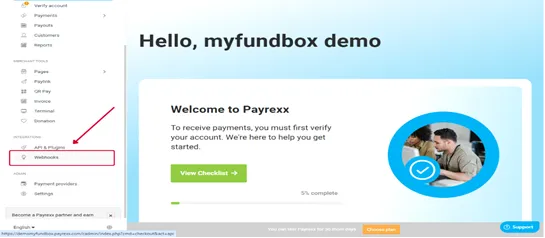
- Navigate to Webhook → Click the ADD Webhook.
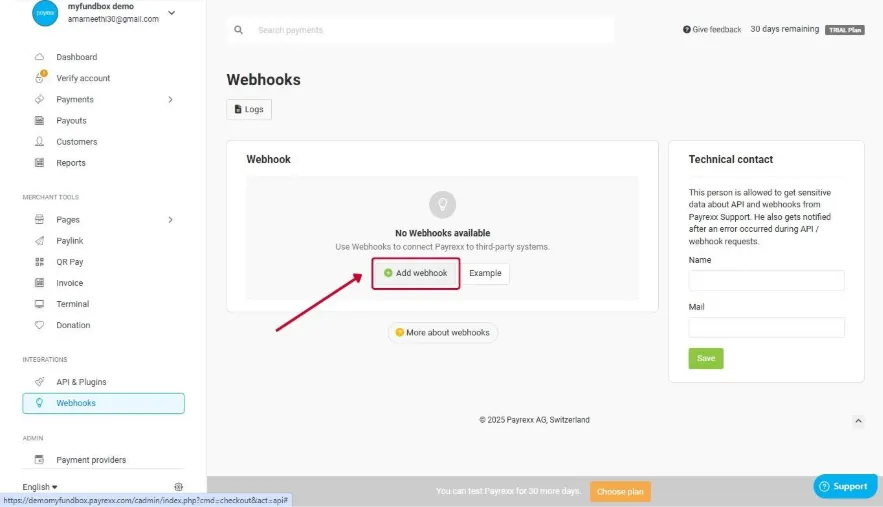
- Click the Add Webhook.
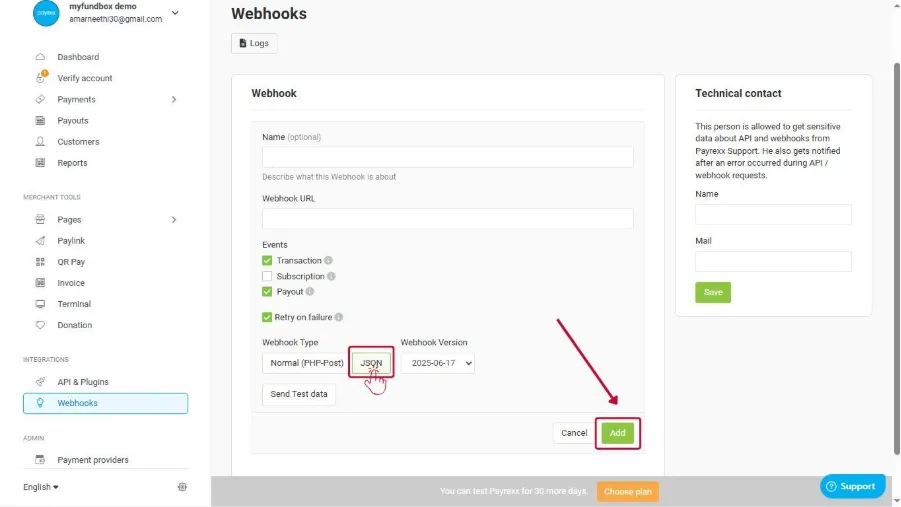
- Webhook Name is Optional.
- Add the Below webhook Url.
- https://subscription.myfundbox.com//ResponseNew_PREV.jsf?webhooksrc=Payrexx&paymentBox=true (Subscription)
- https://app.myfundbox.com/ResponseNew_PREV.jsf?webhooksrc=Payrexx&paymentBox=true (FCRM)
- Add your webhook endpoint (provided by MyFundBox if required for transaction updates).
Step 4 : Configure the Payment Providers
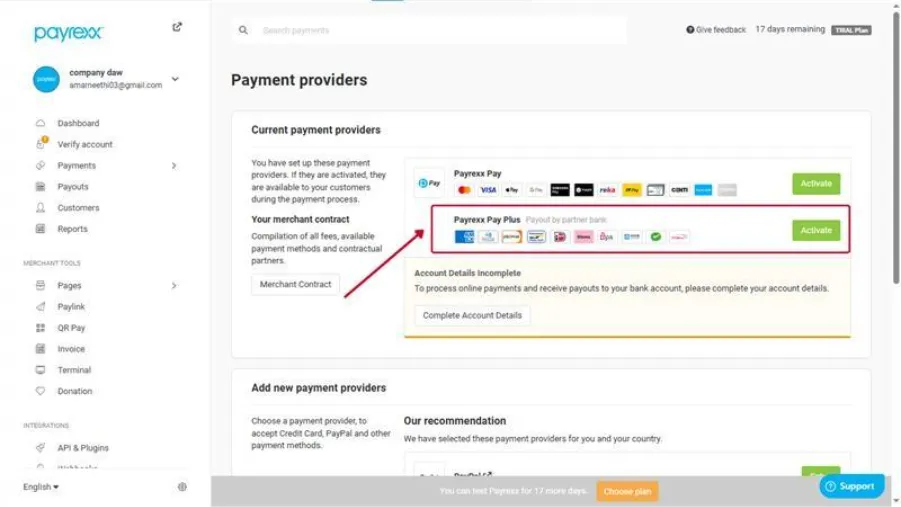
- Our application is integrated with Payrexx Pay Plus, allowing us to accept Card payment methods and process payouts securely through Payrexx’s platform.
Step 5: Connect Payrexx on MYFUNDBOX
- Log into your MYFUNDBOX account
- Navigate to Settings > Payment Gateways
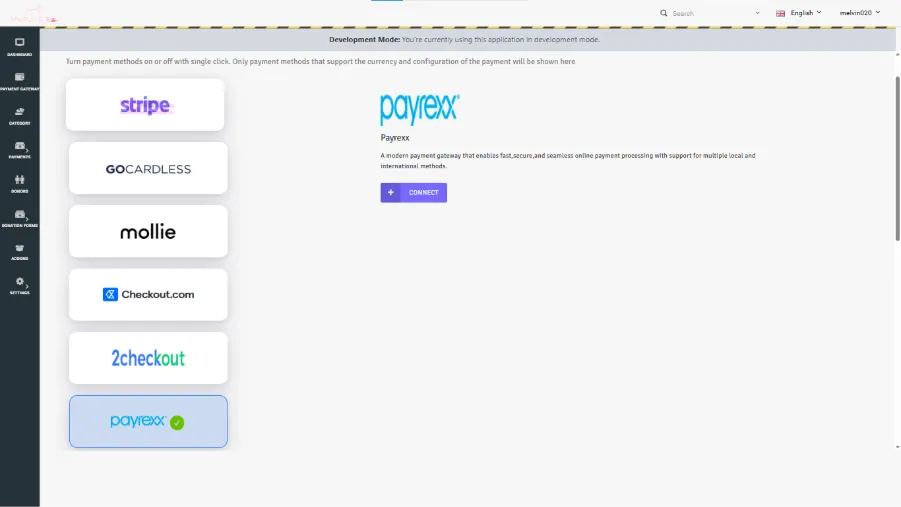
- Click “Connect “ on Payrexx.
- Paste the following:
- Your Instance
- Your API Key
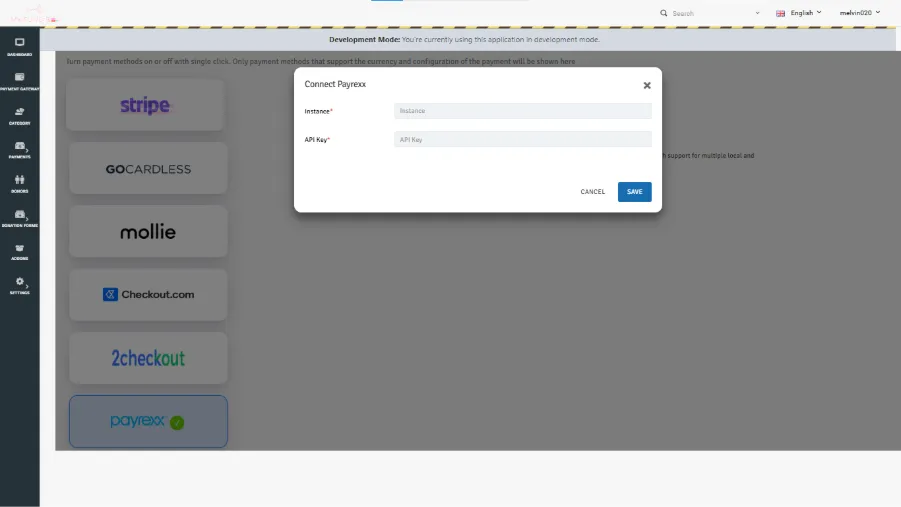
- Click Save.
- Once saved, your account is now securely connected to Payrexx.com.